
Stream Deck
VersionCustomize your keys, dials, and workflows

Requires macOS 15.0 Sequoia or later








Browse free (and paid) icon packs in the Elgato Marketplace — or upload your own — to give each key a unique look that matches your style and workflow.

With its plugin library + hotkey flexibility, Stream Deck lets you streamline editing, streaming, design, or productivity in almost any application you use.
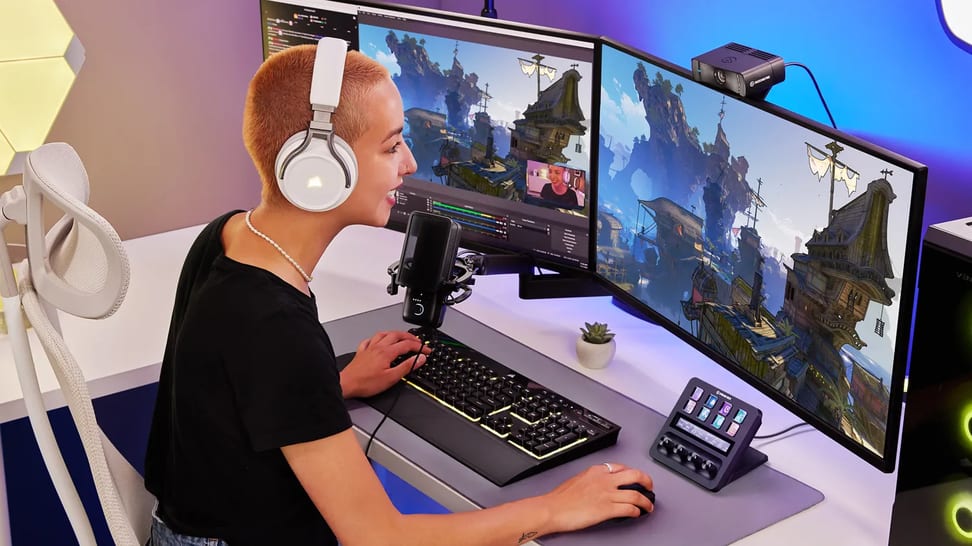
Set up Stream Deck for gaming: add hotkeys, build game profiles, and use Smart Profiles to switch layouts automatically between games.

Stream Deck lets you control apps either by sending keyboard shortcuts (hotkeys) or by using dedicated plugins. Use hotkeys when an app doesn't have a plugin — use plugins when you want deeper, more seamless integration.
Trigger multiple commands from a single Stream Deck key. Learn how to set up Multi Actions, use delays, and build one-tap workflows.

Key Logic lets you assign up to three different actions to a single Stream Deck key — single-press, double-press, or press-and-hold — so you can trigger play/pause, skip track or previous track from the same button.

Smart Profiles automatically switch your button layout based on which app you have open — so whether you're editing video, chatting, or streaming, the right controls always show up.

Learn how folders help keep your Stream Deck layouts clean, scalable, and easy to navigate.
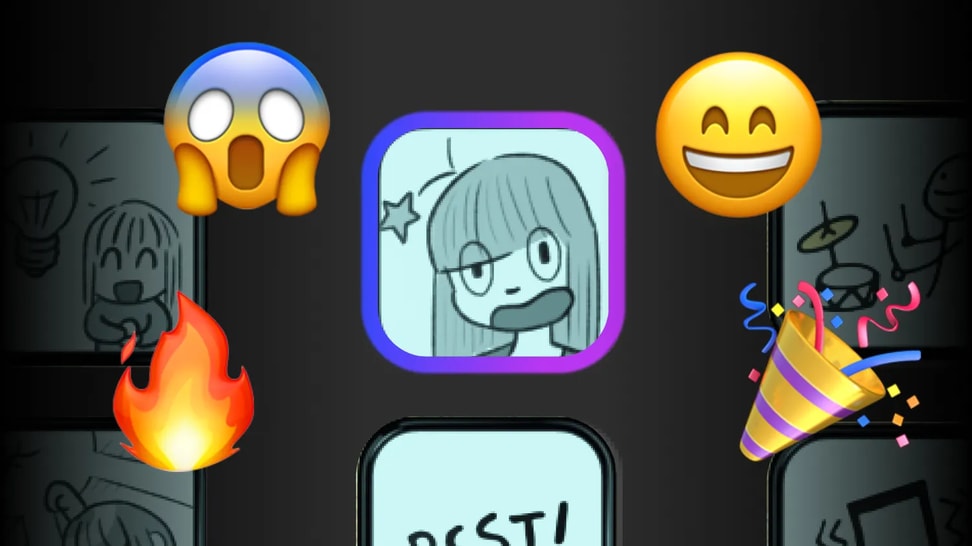
Add sound effects to Stream Deck with the built-in Soundboard action. Choose playback modes, set volume and fades, and route audio to any output.
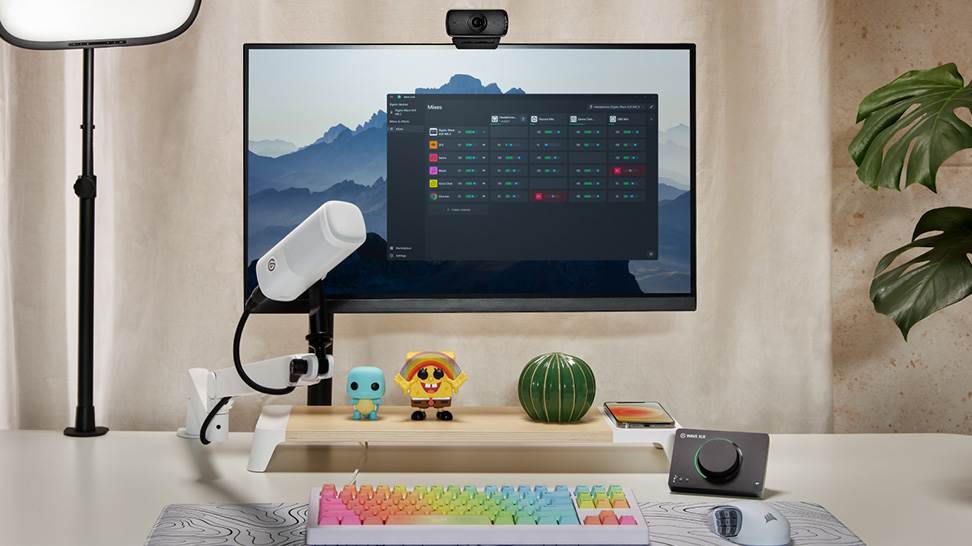
Mix, route, and apply effects to all your audio with Wave Link 3.0. Free for Windows and macOS and works with any mic.

Control your entire audio mix from Stream Deck. Adjust volume, mute channels, toggle effects, and switch outputs with Wave Link plugin.

Wave Link supports any USB mic, XLR interface, or headset your PC recognizes. Mix, route, and add effects. No Elgato hardware required.

Learn which USB microphones, XLR setups, and audio interfaces are compatible with Wave Link—and how to start mixing right away.
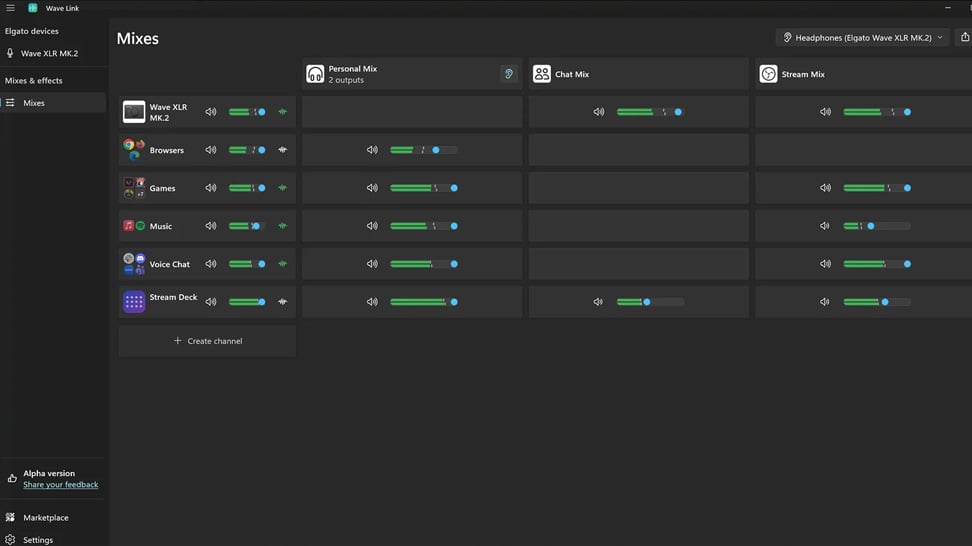
Learn how Wave Link 3.0 can improve your stream audio with independent mixes, voice effects, and app grouping. Free for any mic or setup.

Organize meetings, music, and notifications into separate channels you control. Wave Link 3.0 is free and works with any mic.

Learn how to play music and sound effects through in-game VOIP with Wave Link. Route any audio into proximity chat. Free on Windows and macOS.
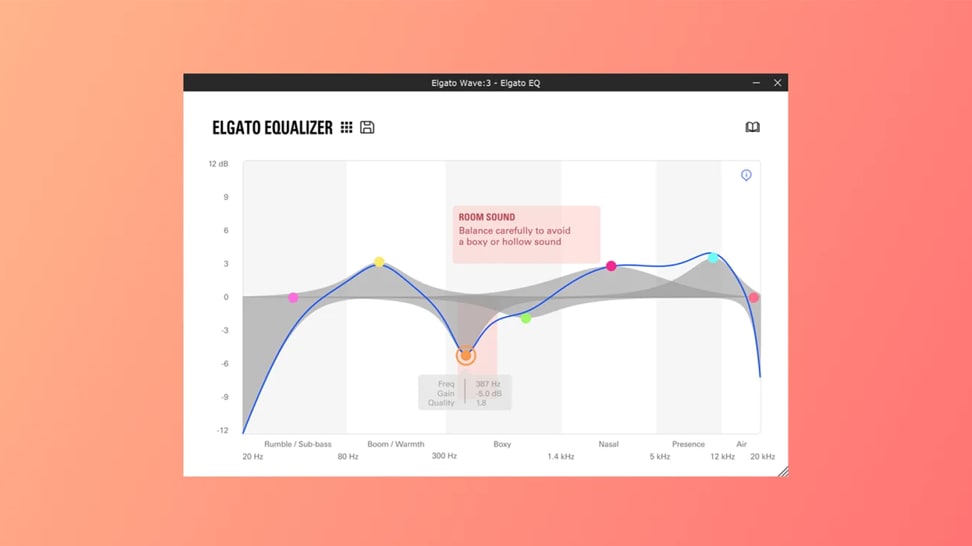
Learn how VST plugins add effects and processing to your audio, helping you shape and enhance your sound.
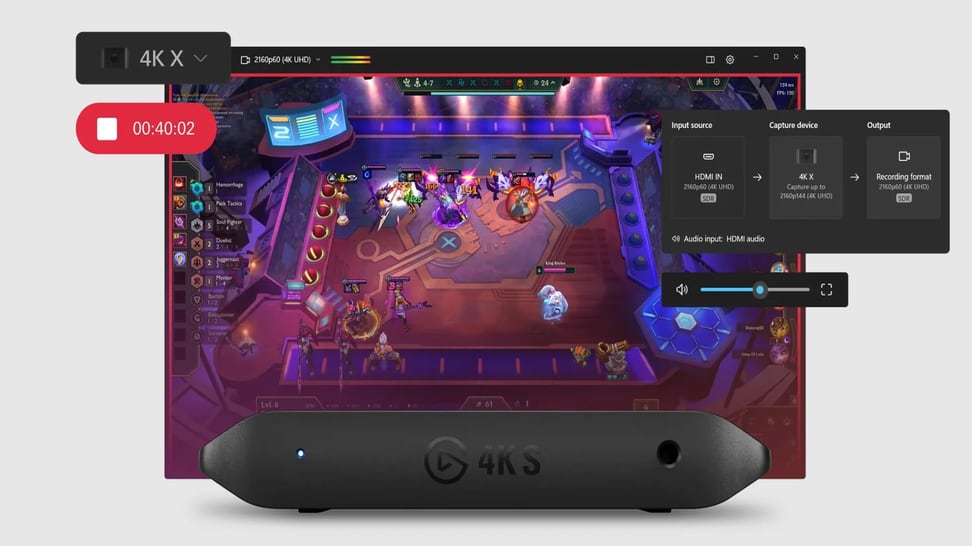
Learn how to set up and use Elgato Studio to preview, record, and capture gameplay on Windows and macOS.

Pick the right capture card and display for GTA 6 on PS5 and Xbox Series X|S before launch day.
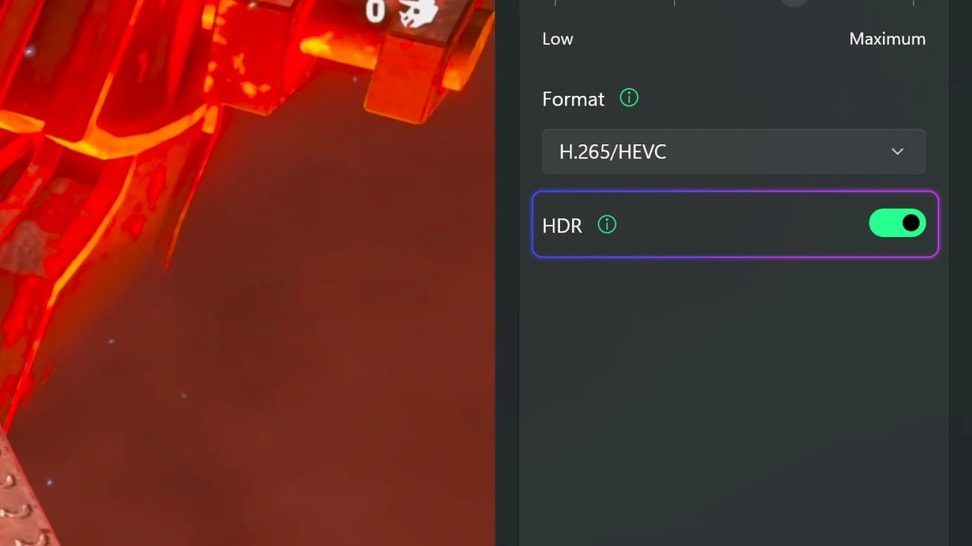
Learn what HDR recording does in Elgato Studio and how it preserves richer colors, brighter highlights, and more detail in your recordings.
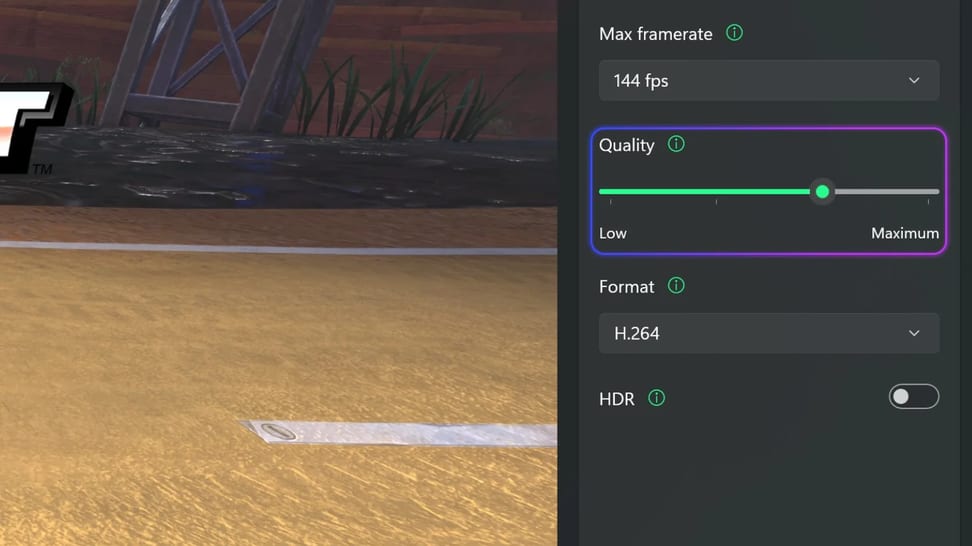
Learn what the recording quality setting does in Elgato Studio and how it affects file size, detail, and storage for your recordings.
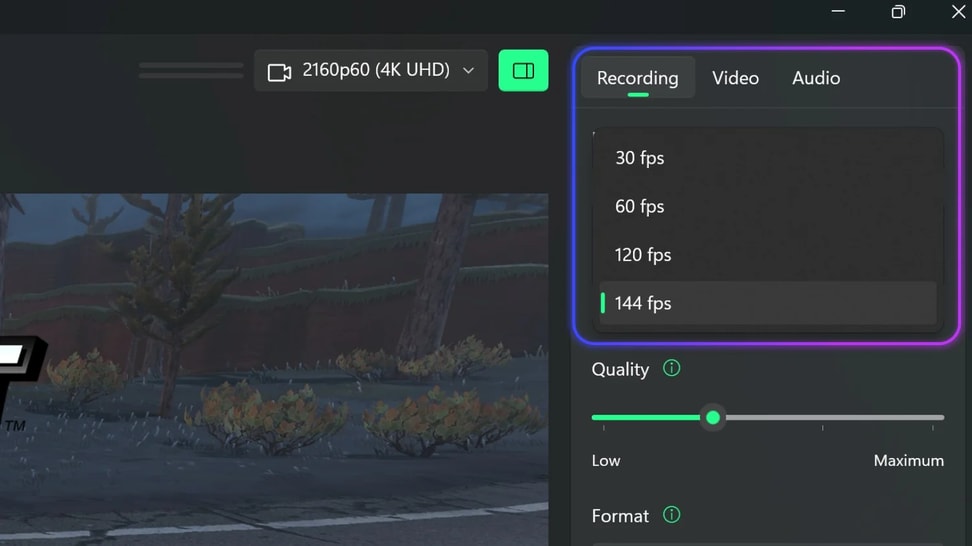
Learn what the max framerate setting does in Elgato Studio and how to choose between 30, 60, 120, and 144 fps for your recordings.
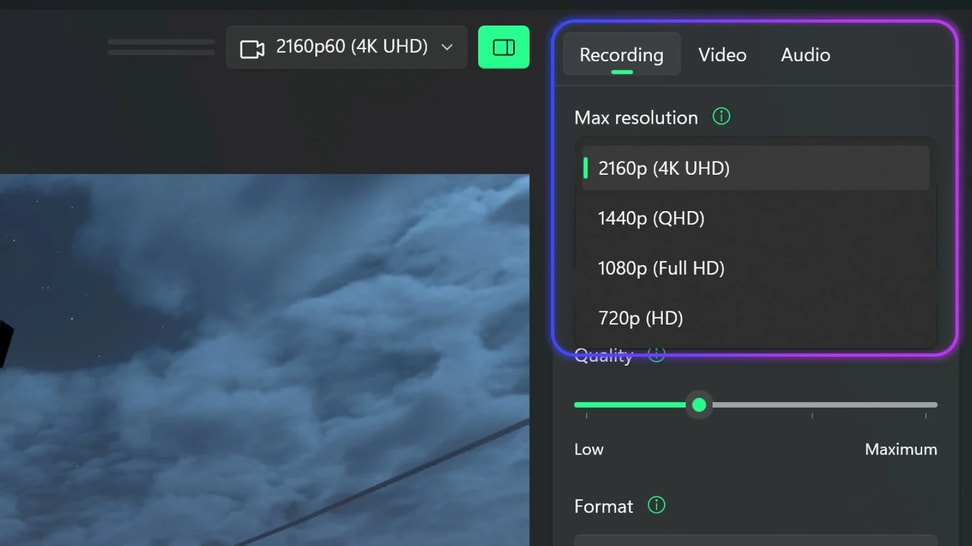
Learn what the max resolution setting does in Elgato Studio and how to choose between 4K, 1440p, 1080p, and 720p for your recordings.
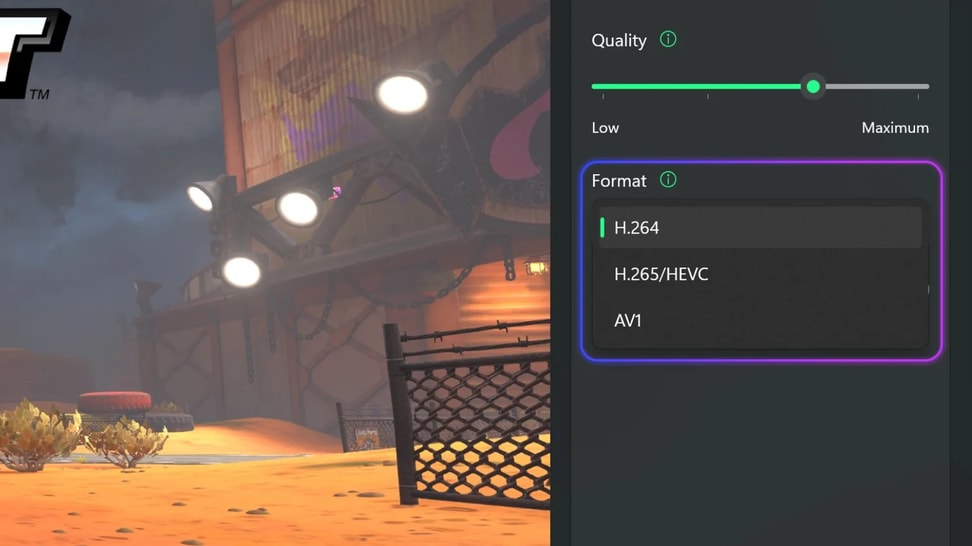
Learn which recording format to use in Elgato Studio. Compare H.264, HEVC, and AV1 for compatibility, file size, and HDR support.
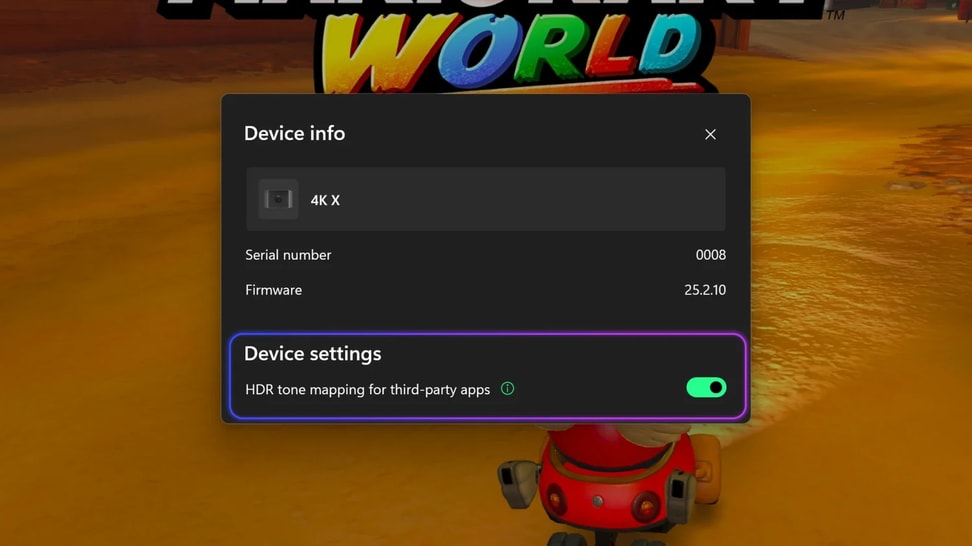
Learn what the tone mapping toggle does in Elgato Studio and how it helps third-party apps display HDR sources.
/Facecam-_General_---Explorer---Article-1.jpg)
Learn how to balance highlights and shadows with Camera Hub's Dynamic Range control for crisp, detailed video in any lighting.
/Facecam-_General_---Explorer---Article-2-.jpg)
Learn how to reduce image grain with Camera Hub's Noise Reduction feature for cleaner, sharper video.
/Facecam-_General_---Explorer---Article-3-.jpg)
See how Camera Hub's Low Light Mode automatically adjusts your Facecam settings to deliver bright, detailed video — even after dark.
/Explorer/new/How_to_Control_Your_Key_Light_with_Stream_Deck.png)
Learn to control Key Light brightness and color temperature from Stream Deck keys, dials, or a free mobile option.
/Explorer/new/What_are_Lumens.png)
Lumens measure how much light a panel can produce. Here's how to use lumen ranges to choose between Elgato Key Light models for your setup.
/Explorer/new/What_is_Color_Temperature.png)
What is color temperature and why does it matter for streaming and video calls? A simple guide to Kelvin, white balance, and lighting setup.
Find answers
Ask the community
Get in touch