GTA VI preorders open on June 25, 2026. The game launches November 19.
Whether you just want to play through the story or you are planning to stream day one, record videos, or clip your best moments, getting your setup ready now saves you from troubleshooting cables and settings when you could be exploring Vice City instead.
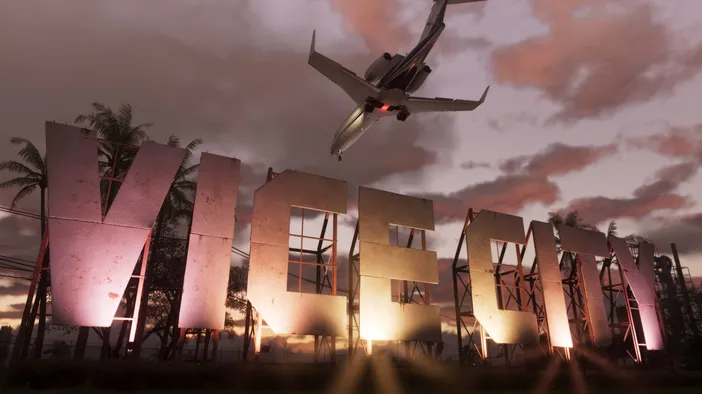
Which consoles support GTA VI
GTA VI is confirmed for PS5, PS5 Pro, Xbox Series X, and Xbox Series S.
A standard PS5 or Xbox Series X supports up to 4K output and is where most players will experience the game. How GTA VI actually looks and runs on each console will depend on the performance modes Rockstar announces closer to launch.
PS5 Pro is the higher-end PlayStation option. Games that support it can look sharper or run smoother compared to the standard PS5. If you are buying a console specifically for GTA VI and want the best experience PlayStation can offer, this is the one to consider.
Xbox Series S plays the same games as Series X, but at lower resolutions (usually 1080p or 1440p) and with less storage. It is the more affordable way into the Xbox side.
One thing to keep in mind: Rockstar has not confirmed GTA VI's performance modes yet. We do not know the exact resolution or frame rate each console will target. If you already own a current-gen console, you are good to go. If you are buying one just for this game, waiting for those details might save you from second-guessing later.
Choose a TV or monitor that matches your goals
How GTA VI looks depends a lot on what you are playing it on.
Playing from a couch? A 4K TV with HDR will give you the cinematic look that a game like this is built for. Playing at a desk? A gaming monitor with a high refresh rate and low response time may feel better, especially if you are used to smoother frame rates.
Before launch, check what your display actually supports:
- 4K resolution for sharper detail
- HDR for brighter highlights, deeper shadows, and richer color
- VRR for smoother gameplay on supported systems
- HDMI 2.1 if you want to take advantage of higher refresh-rate modes
- 120 Hz refresh rate for games that support 120 fps
Not every game uses every feature, and GTA VI's console settings have not been finalized yet. But knowing what your display can do now means you will not be caught off guard when those details drop.
Understand passthrough vs. capture
These two terms come up constantly when shopping for capture cards, and they describe two different things happening at the same time.
Passthrough is what you see on your TV or monitor while you play. The game signal goes through the capture card and out to your display with zero added latency. You play the game normally.
Capture is the copy of that signal that gets saved to your computer. This is what your recording software works with. Depending on your capture card and settings, the captured version may run at a lower resolution or frame rate than what you see on screen.
| Feature | Passthrough | Capture |
| Purpose | To allow you to play your game on a TV or monitor in real-time. | To send a copy of your gameplay to software for recording or streaming. |
| Latency / Delay | Zero lag | Slight delay |
| Resolution & Framerate | Identical to the source, depending on what your hardware supports. | May be compressed and often downscaled for streaming/recording. |
Choose how to record gameplay
Every current-gen console can save clips on its own. For short highlights, that might be enough.
But if you want to stream GTA VI, record longer sessions, add facecam and overlays, or have more control over your footage, a capture card is the way to go. It shows your gameplay directly to your computer, where you can edit, stream, and manage audio however you want.
A capture card makes the most difference when you need to:
- Stream live to Twitch, YouTube, TikTok or Kick
- Record full sessions instead of short clips
- Layer in facecam, overlays, or alerts
- Separate game audio, mic, and party chat into different tracks
Pick the right capture card
The best capture card depends on how you play and what you want to record.
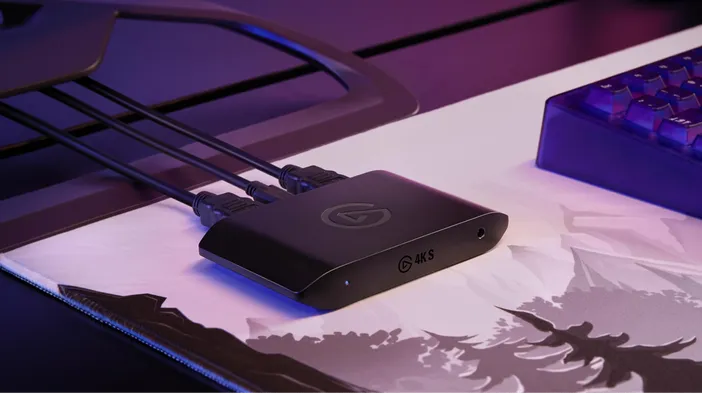
4K S - Streamlined 4K60 capture
For most people, 4K S covers everything you need. It captures and passes through up to 4K60 with HDR, so whatever resolution and frame rate GTA VI ends up running at on current-gen consoles, 4K S can handle it. Plug it in over USB-C, connect your console and display, and you are recording. It works on macOS, Windows, and iPadOS.
For a closer look, see Game Capture 4K S: What You Need to Know.
4K X - High-refresh external capture
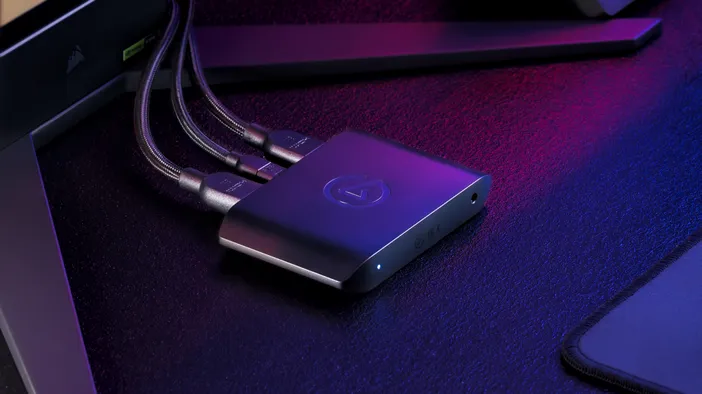
4K X goes further. It supports HDMI 2.1 with passthrough up to 4K144 and VRR, so your monitor always gets the full, uncompressed signal from your console, even while recording. This matters most if you play on a high-refresh gaming monitor and do not want your capture setup limiting how the game feels on screen.
See how the two compare in our 4K S vs 4K X breakdown
4K Pro Dedicated desktop capture
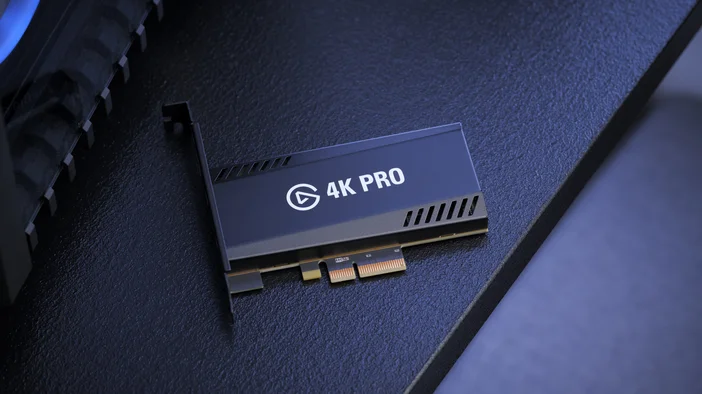
4K Pro is a PCIe card that installs inside a Windows desktop PC. It is meant for more permanent setups: a dedicated streaming rig, a two-PC workflow, or a recording station that stays connected all the time. Passthrough goes up to 8K60 HDR, and a recent firmware update through Elgato Studio 1.1 pushed capture up to 4K120, with 4K60 HDR also supported. Multi-app access lets you send the same capture signal to OBS, Elgato Studio, or any other app simultaneously.
For a comparison of external vs. internal options, see the difference between 4K X and 4K Pro.
For a broader look at the full lineup, see which Elgato capture card is right for you.
Prepare your recording software
Your capture card handles the video signal. You still need software to actually record or stream it.
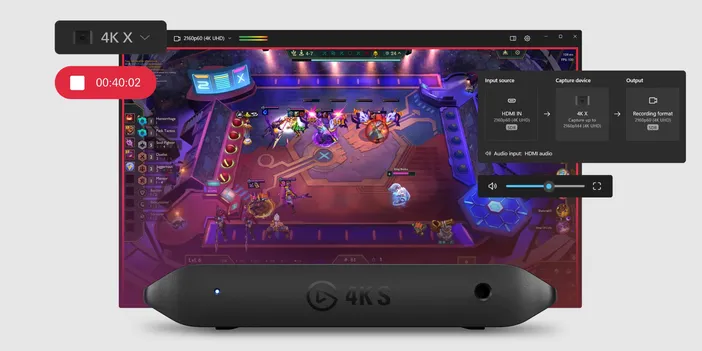
Elgato Studio
Elgato Studio is the simplest path from capture card to recorded file. You can preview your gameplay, check your HDMI signal diagnostics, adjust device settings, and hit record, all in one window. No scene setup, no layout building. Just capture.
OBS Studio
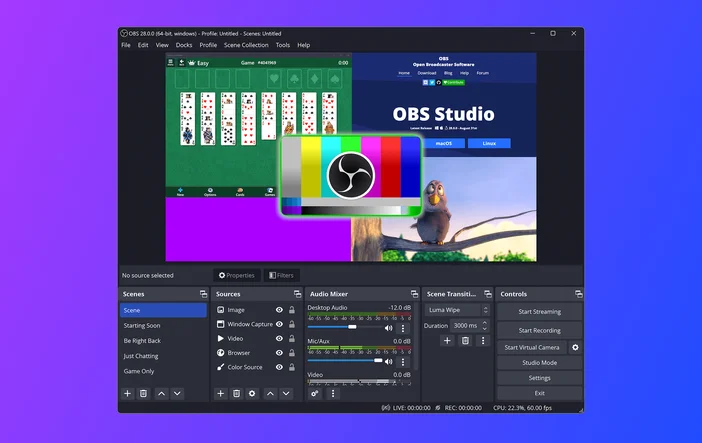
OBS Studio gives you more to work with. Scenes, overlays, alerts, facecam, chat, multiple audio sources. It takes longer to set up from scratch, but you do not have to start from zero. Marketplace Connect is a free OBS plugin that installs complete scene collections directly from Elgato Marketplace, including overlays, alerts, and transitions. Pick a style, follow the setup wizard, and your layout is ready to go.
The OBS Studio plugin for Stream Deck is worth grabbing too. It lets you switch scenes, start or stop recording, and toggle audio sources from your keys without alt-tabbing out of GTA VI.
Test everything before launch day
Do not wait until GTA VI launches to connect your capture card for the first time. Set up your full chain now, test it with another game, and work out the issues while the stakes are low.
Video and hardware
Run through this checklist:
- Your console appears correctly on your TV or monitor
- Your capture card shows up in Elgato Studio or OBS Studio
- Recording resolution, frame rate, and storage are set correctly
- Game audio is coming through
- Your HDMI cables support the features you need (HDMI 2.1 for higher refresh rates and HDR)
Audio
Audio is easy to overlook and painful to fix after you have already recorded an hour of gameplay. Make sure your mic is connected, your recording software sees it, and your voice is not buried under game audio. Record a test clip and listen back.
For more control, Wave Link lets you split game audio, mic, party chat, and music into separate channels with independent volume levels for your stream, recording, and headphones. It works with any microphone and is free to download.
Full test run
Play and record a few minutes of gameplay, including dark and bright scenes, to check the full chain. Planning to stream? Do a test stream too. Confirm your layout, audio mix, and bitrate all look right before the real thing.
Get ready to capture the moment
First reactions, story missions, wild chases through Vice City. GTA VI is going to produce a lot of footage worth keeping.
Sort out your console, display, capture card, and recording setup now, and you will not be scrambling on November 19. If you are still deciding on a capture card, the capture card selector can help you narrow it down. And if you are building a stream layout, Elgato Marketplace has profiles, overlays, and alerts ready to go.
PRODUCTS IN ARTICLE
Stay up to date with Elgato. Get our latest News, Guides, and Product Updates in your Google feeds.
Add Elgato as a preferred source