MANUAL | QUICK START GUIDE
Elgato Stream Deck Mini Discord Edition — Quick Start Guide
Getting started
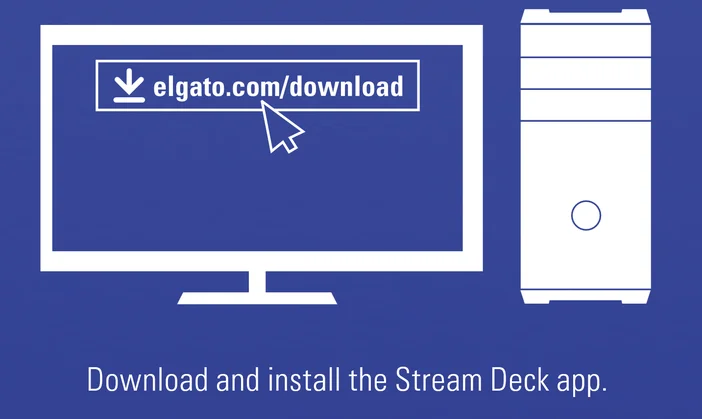
Get the app
Download and install the Stream Deck app
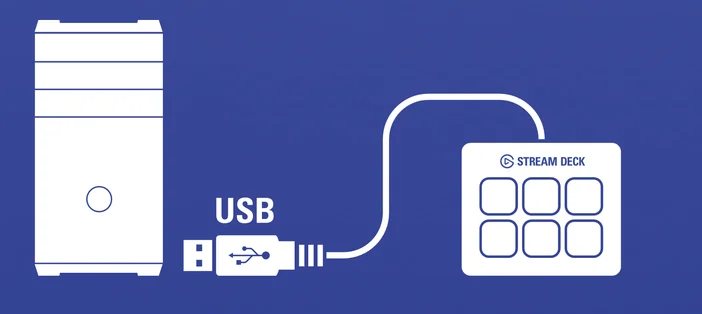
Connect Stream Deck Mini Discord Edition
Connect Stream Deck Mini directly to a USB port on your PC or Mac
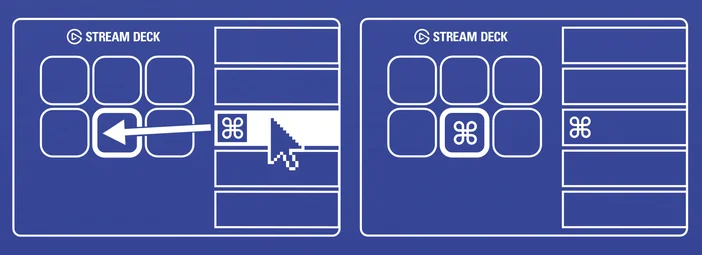
Setting Up Actions
Launch the app to customize Stream Deck Mini Discord Edition. Drag actions from the right panel and drop them onto your desired keys on the left.
Customize Appearance
Configure your actions and personalize keys with custom icons — for best results use 72 × 72 pixel images (jpg or png). You can also browse icon packs on Elgato Marketplace for ready-made designs.
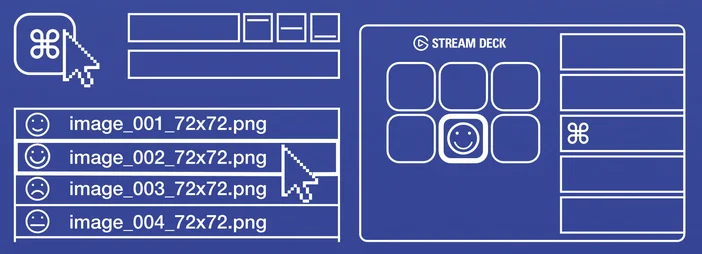
Create Folders
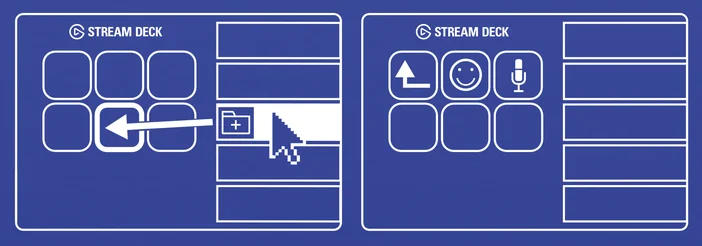
Drag and drop “Create Folder” onto a key, then drag and drop actions into that folder.
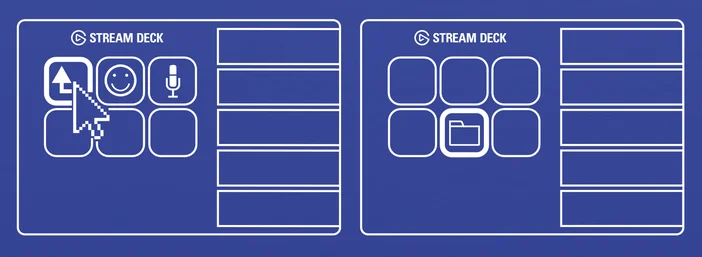
Tap the back key to exit a folder and return to your main configuration.
Manage Keys
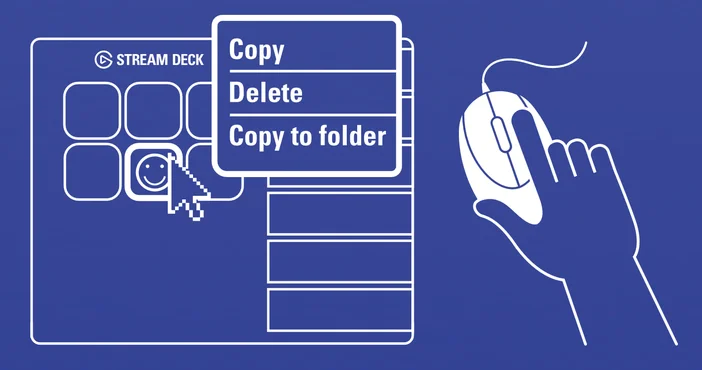
Right-click keys to copy, delete, or move them.
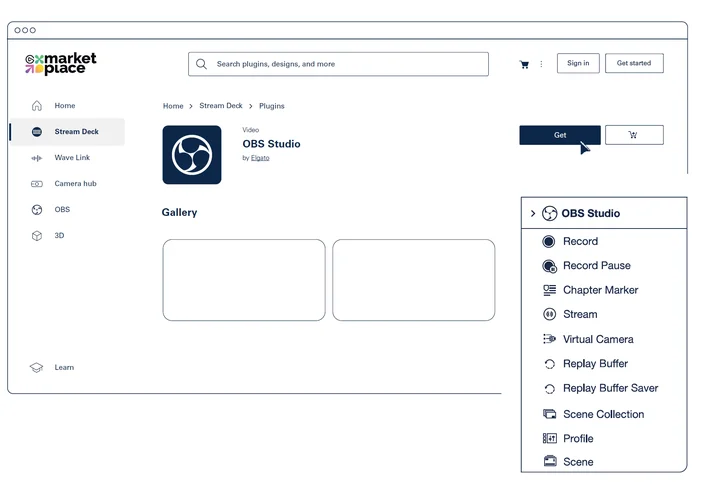
Elgato Marketplace
Discover new ways to control your apps and hardware on Marketplace. Create an account to get started, then sign in via the Stream Deck app.
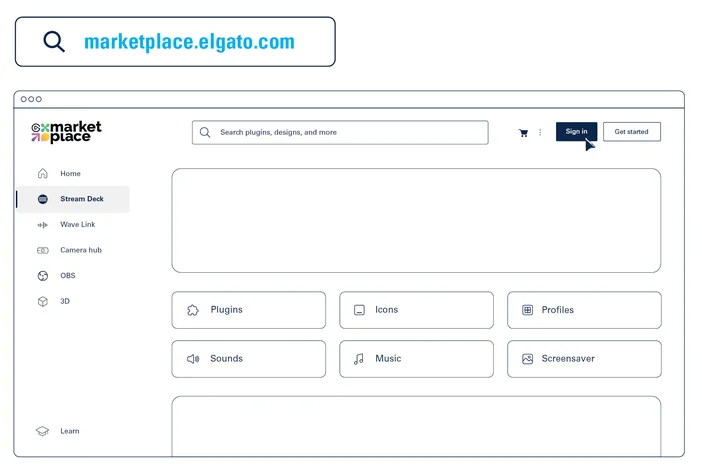
Expand Your Abilities (Plugins, Profiles, Icons and more)
Back on Marketplace, browse community plugins, profiles, icons, and more. Then install directly to your Stream Deck app with just a few clicks.