Plugins
Slack Plugin for Stream Deck: Quick Access to Messages, Channels, and Notification Controls
Last updated:
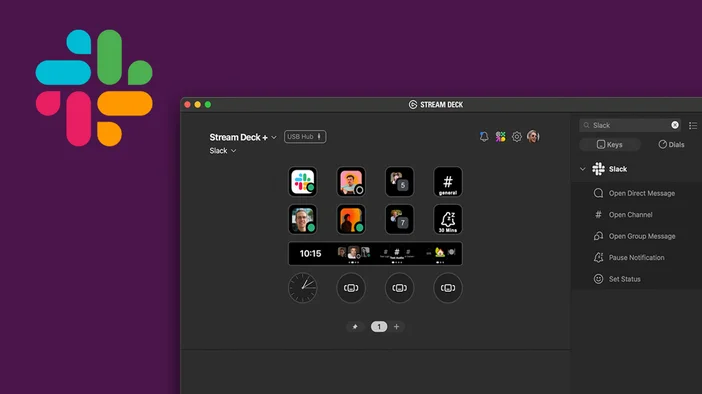
Stay focused and move faster in Slack without constant clicking. Slack plugin for Stream Deck puts your most-used conversations and controls right on your desk, so you can jump between messages, manage notifications, and update your status in seconds.
Whether you’re working through DMs all day or bouncing between channels, this plugin helps reduce friction and keeps your workflow moving.
Why use Slack with Stream Deck
Slack is where most work happens, but navigating it can slow you down. Slack plugin for Stream Deck turns common actions into one-touch shortcuts, so you spend less time searching and more time responding.
You can jump straight into conversations, silence notifications during focus time, and set your availability without breaking your flow.
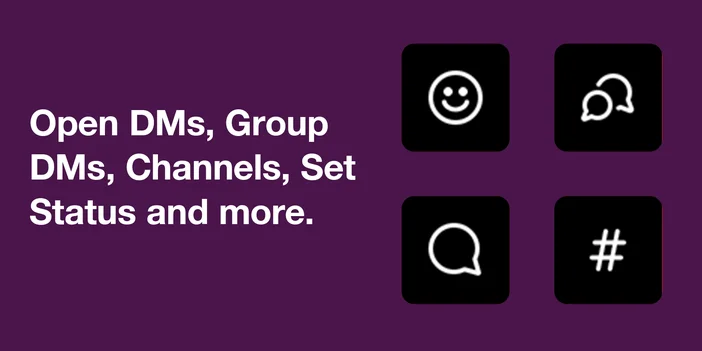
What you can do with Slack plugin
Open Direct Messages
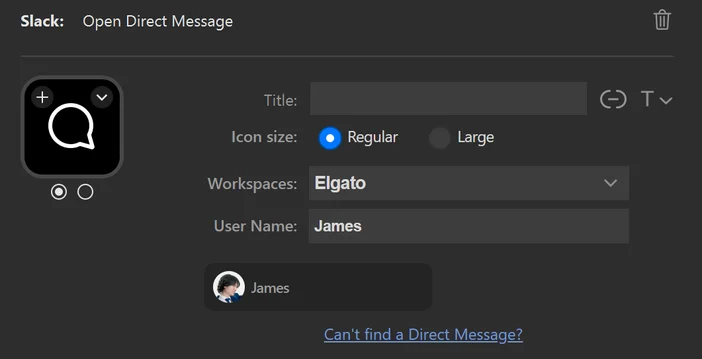
Assign a key to a specific direct message and jump right into the conversation. Slack comes into focus immediately so you can start typing without searching or clicking. The key can also display the user’s avatar and online status, making it easy to see who’s available at a glance.
Open Channel
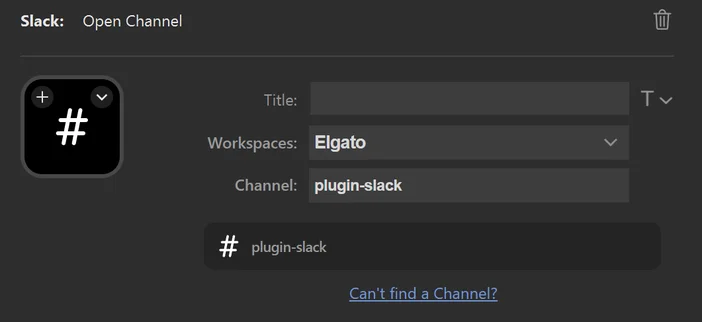
Jump between public or private channels with a single press. Custom icons and labels make it easy to recognize each channel on your Stream Deck.
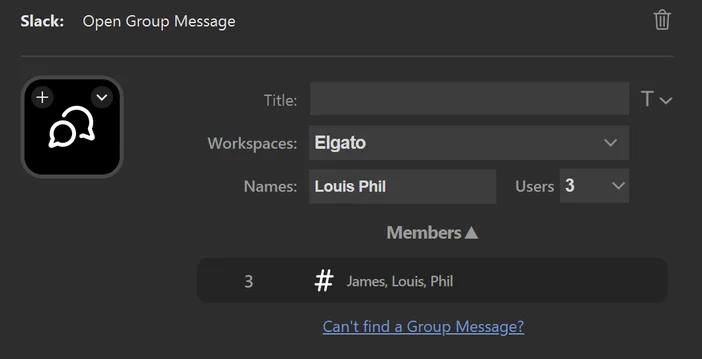
Open Group Message
Quickly access group DMs with teammates, guests, or external connections. No scrolling, no searching.
Pause Notification
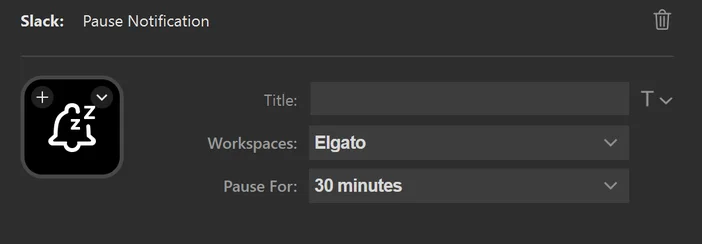
Pause Slack notifications for a set amount of time, such as 30 minutes, 1 hour or until tomorrow to stay focused. This triggers Slack’s built-in Do Not Disturb mode, making it ideal for meetings, deep work sessions, or when you need fewer interruptions.
Set Status
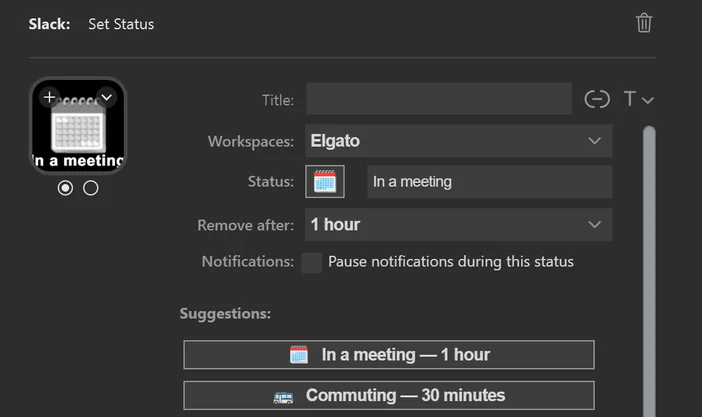
Set a custom Slack status with an emoji, choose how long it stays active, and optionally pause notifications while the status is enabled. Preset suggestions make it quick to mark yourself as “In a meeting” or “Commuting” without opening Slack.
Open Canvas
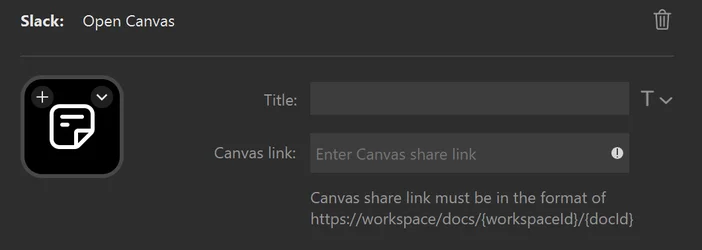
Open a specific Slack Canvas by pasting its share link into the action. This is useful for quick access to shared notes, docs, or project references you use frequently, keeping important information one tap away.
Note: Due to Slack API limitations the plugin does not function for guest users in paid workspaces. Users in paid workspaces can still assign keys to guest users. Direct messages with external connections is only accessible if you have a Group DM with the users
Set up Slack plugin for Stream Deck
Before using Slack actions, you’ll need to connect your Slack workspace. This is a one-time setup and works like any other Slack app authorization.
Connect your first workspace
Before using Slack actions, you’ll need to connect your Slack workspace. This setup only needs to be done once per workspace.
Connect your first workspace
- Open Stream Deck app and drag any Slack action onto a key.
- In the action’s settings, open the Workspaces dropdown.
- Select Workspace manager…
- The Workspace Manager window will open. Click the + button to add a workspace.
- Your web browser will open. Sign in to Slack and choose the workspace you want to connect.
- Review the requested permissions and click Allow.
- Return to Stream Deck app. The workspace will now appear in the Workspaces list and dropdown.
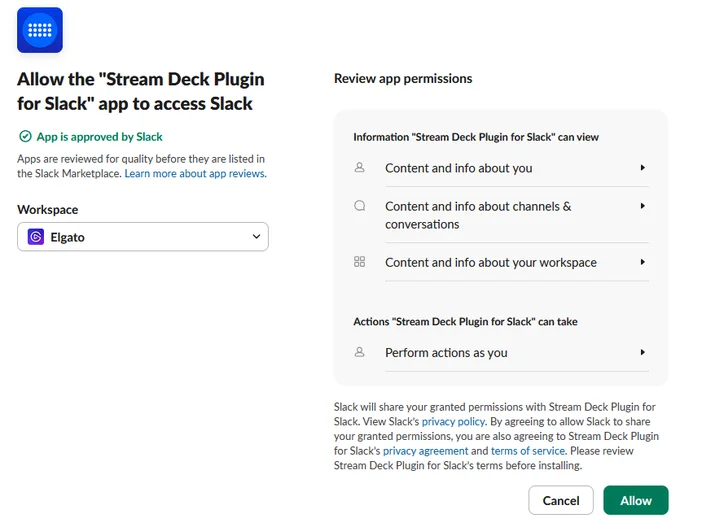
Slack plugin is approved by Slack and listed in Slack App Directory, so this follows Slack’s standard app authorization flow.
Add additional workspaces
If you use Slack across multiple workspaces, you can add more at any time.
- Drag any Slack action onto a key in Stream Deck app.
- Open the Workspaces dropdown in the action settings.
- Select Workspace manager…
- In the Workspace Manager window, click the + button.
- When your browser opens, sign in to Slack and select another workspace.
- Approve the permissions and return to Stream Deck app.
Once added, you can select the workspace per key using the Workspaces dropdown.
Wrap-up
Slack plugin for Stream Deck makes it easier to move through Slack during a busy workday. Instead of hunting for conversations or digging through menus, you can jump straight to messages and channels, manage notifications, update your status, or open Canvas docs with a single press.
Once it’s set up, Slack feels quicker to use and easier to keep up with while you stay focused on what you’re working on.