MANUAL | QUICK START GUIDE
How to connect your Console to Wave XLR Pro
Wave XLR Pro is built to bring your console into a full hardware mix alongside your microphone, music, and any other sources you have running. Game audio, party chat, and your mic can all run through independent channels at the same time, with zero roundtrip through software.
How you connect depends on the console. PlayStation 5 works over USB. Xbox Series S|X and Nintendo Switch require an analog connection. Here is a breakdown of each, including how to send audio back to your console for in-game voice chat.
Start with Wave Link
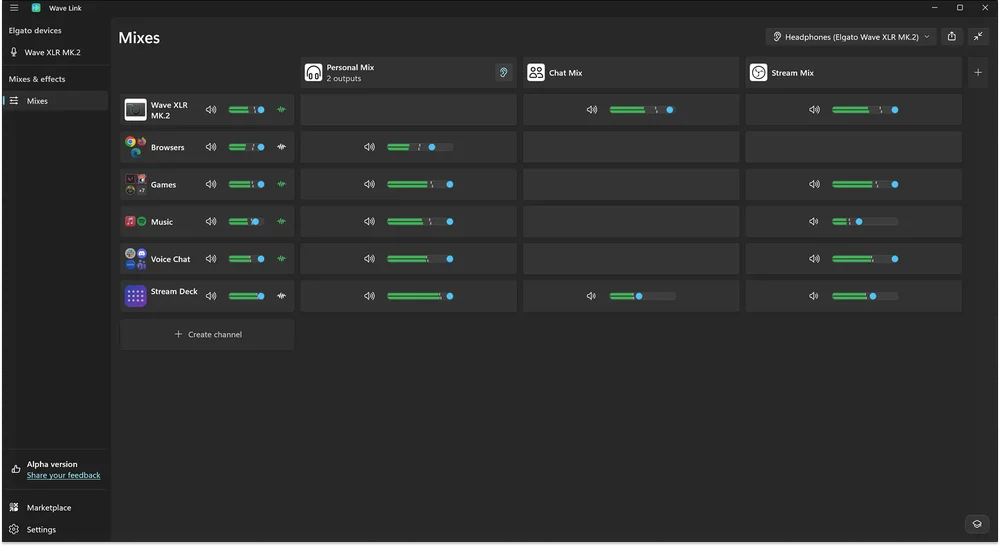
Wave XLR Pro handles the mixing in hardware, but Wave Link is where you configure it. Every input you connect, including your console, shows up as a channel in Wave Link. From there, you can set levels, build mixes, and decide what audio goes where. You will need Wave Link 3.0 or later installed on your computer to get started.
PlayStation 5
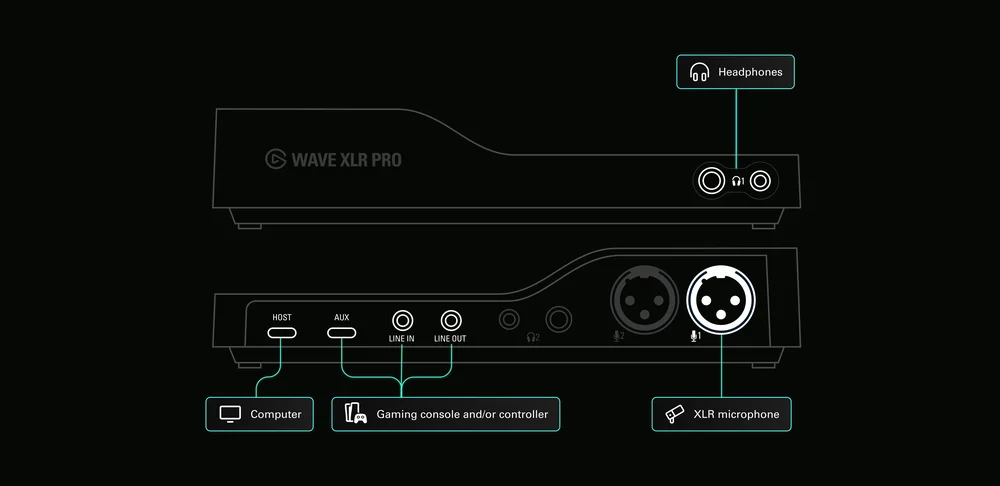
PS5 connects to Wave XLR Pro via the USB Aux port on the back of the device. This works because PS5 outputs audio over USB Audio Class 1.0, which is the same standard Wave XLR Pro's USB Aux port is built around. No drivers, no configuration. Plug in and the console appears as a dedicated input channel in Wave Link.
From there you can balance game audio and party chat against your microphone, route them into separate mixes, and control everything from one place.
What you need:
- USB-C to USB-C cable (or USB-A to USB-C depending on your PS5 port)
Connection: PS5 USB port → USB Aux on Wave XLR Pro
Sending audio back to PS5: USB Aux is bidirectional. Wave XLR Pro can send a mix back to your PS5 through the same cable. In Wave Link, assign the channels you want your teammates to hear (your mic, a soundboard, or both) to the USB Aux output. That mix feeds into PS5 as the microphone source for party chat.
Xbox Series S|X
Xbox Series S and Series X do not support USB audio output for third-party devices. Microsoft restricts USB audio to officially licensed accessories only, so Wave XLR Pro will not be recognized over USB regardless of the cable or port used. This is a platform-level policy, not a hardware limitation.
The workaround is the 3.5mm headphone jack on the Xbox wireless controller. That jack carries both game audio and chat on a single TRRS connection. To split those into separate signals you need a TRRS splitter such as the Elgato Chat Link Pro, which separates the connection into two TRS plugs: one for audio out and one for audio in.
What you need:
- TRRS splitter (such as Elgato Chat Link Pro)
- 3.5mm TRS stereo cable
Connection:
Xbox controller headphone jack → TRRS splitter → Line In on Wave XLR Pro
Game audio and chat from your Xbox then appear as a stereo line source in Wave Link, sitting alongside your microphone and any other inputs in your mix.
Sending audio back to Xbox:
The TRRS splitter also has an input path. The second TRS plug goes back to the controller jack as a microphone signal. Connect this to Line Out on Wave XLR Pro. In Wave Link, assign whatever you want your teammates to hear to Line Out. Your mic, your soundboard, or a dedicated chat mix. That signal routes back through the controller jack and into Xbox as voice chat.
Nintendo Switch and Switch 2
Switch is a bit of a quirky one. Nintendo's consoles do technically support USB audio, but only with specific hardware chips. Wave XLR Pro gets detected over USB Aux, but no audio comes through. The headphone jack is your way in, on both Switch and Switch 2.
The connection works the same way as Xbox. That 3.5mm jack carries audio out and audio in on a single TRRS plug, so you need a TRRS splitter like Elgato Chat Link Pro to break those into two separate signals. One goes to Line In on Wave XLR Pro to bring game audio into your mix. The other connects to Line Out to send audio back to the console.
What you need:
- TRRS splitter (such as Elgato Chat Link Pro)
- 3.5mm TRS stereo cable
Connection:
Switch headphone jack (or Switch 2 Pro Controller jack) → TRRS splitter → Line In on Wave XLR Pro
Game audio comes into Wave Link as a stereo line source. Blend it with your mic, adjust the levels, and you are good to go.
Sending audio back to your console:
Connect the second TRS plug from the splitter to Line Out on Wave XLR Pro, then assign a mix to Line Out in Wave Link. That mix routes back into your Switch as the microphone input for voice chat. How useful this actually is depends on which Switch you have.
Switch 1 only supports in-game voice chat through the headphone jack in a small number of third-party games. Fortnite and Overwatch 2 are the main ones. Most Nintendo titles like Mario Kart, Splatoon 3, and Smash Bros use the Nintendo Switch Online mobile app for voice chat, which runs separately from the 3.5mm jack entirely. If the game you are playing uses the app, the Line Out return path will now come into play.
Switch 2 is where this setup gets genuinely useful. GameChat is Nintendo's new system-level voice chat that works across all games without a phone app. When a headset is plugged into the 3.5mm jack, GameChat treats it as the microphone source. So whatever mix you send through Line Out from Wave XLR Pro goes straight into GameChat as your voice. Your mic, your soundboard, whatever you have set up in Wave Link, all going to your teammates with no extra software needed.
Routing a mix to Line Out in Wave Link
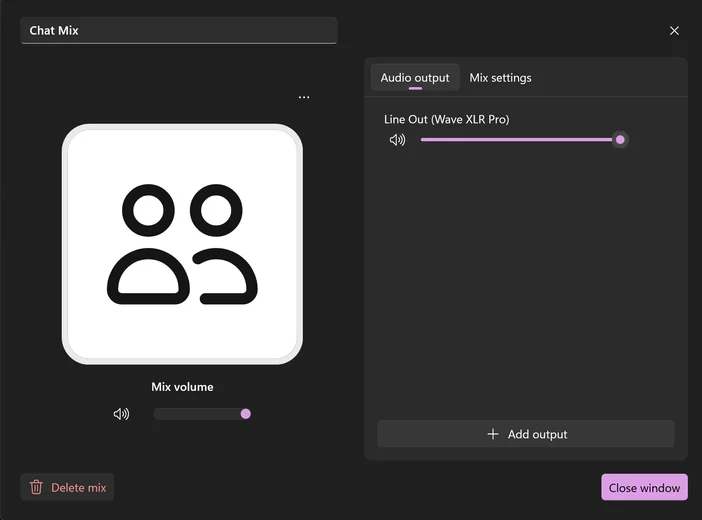
Once your console is connected via Line In and Line Out, you need to assign a mix to the Line Out in Wave Link. That mix is what your console receives: what your teammates hear in voice chat.
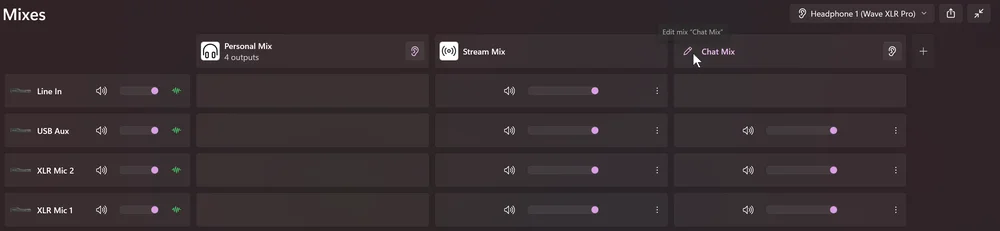
1. Find the mix you want to send to your console. For example, add your mic and soundboard channels to a Chat Mix, then select the mix icon.
2. Click Add output. From the available devices list, select Wave XLR Pro Line Out.
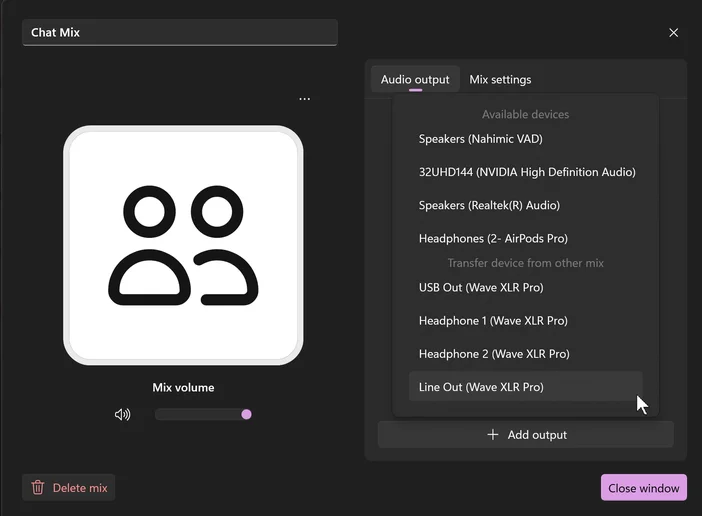
3. Wave XLR Pro Line out will not appear as an output device.
Your console, your mix
Your other mixes are unaffected. Your headphone mix stays independent, so what your teammates hear does not change what you hear.