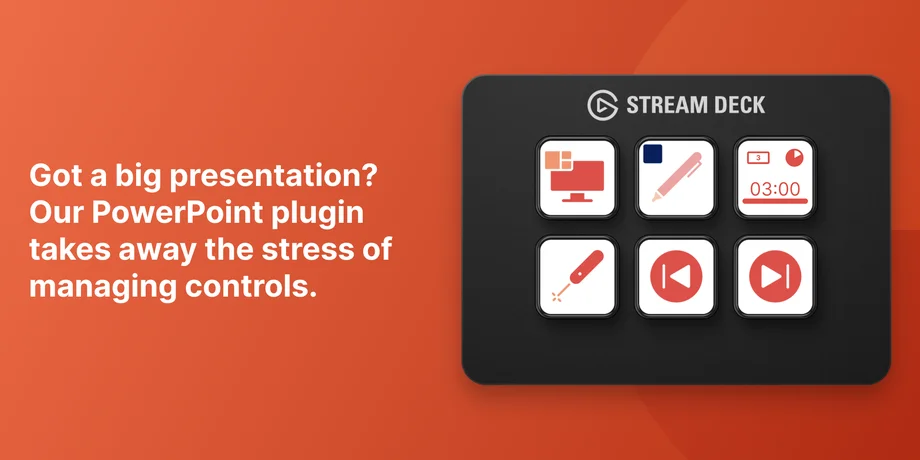
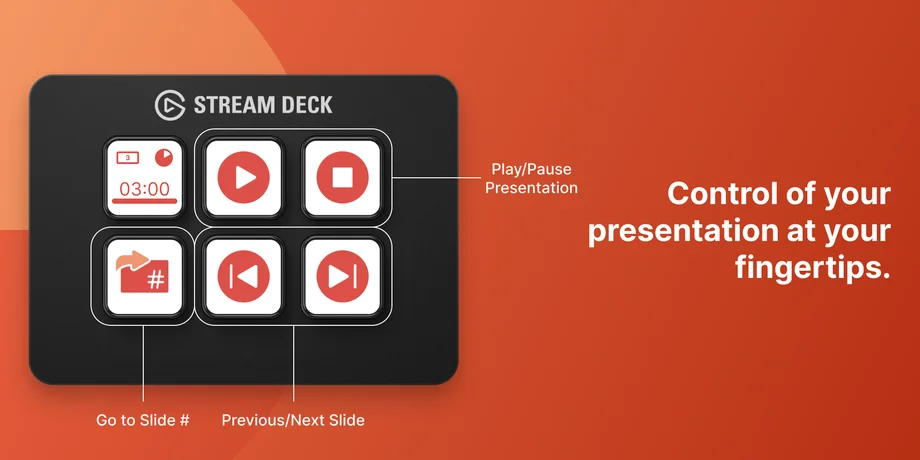
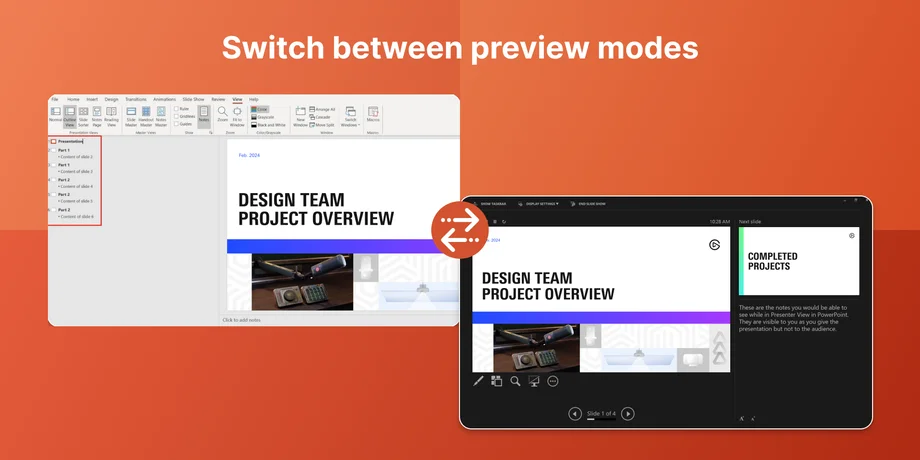
If you give presentations often, you have probably dealt with the awkward moment of fumbling for a keyboard shortcut or clicking through menus while everyone watches. PowerPoint plugin for Stream Deck moves those controls onto physical keys, so slide navigation, presenter tools, and formatting options are always visible and within reach.
It is free, made by us, and runs on macOS and Windows.
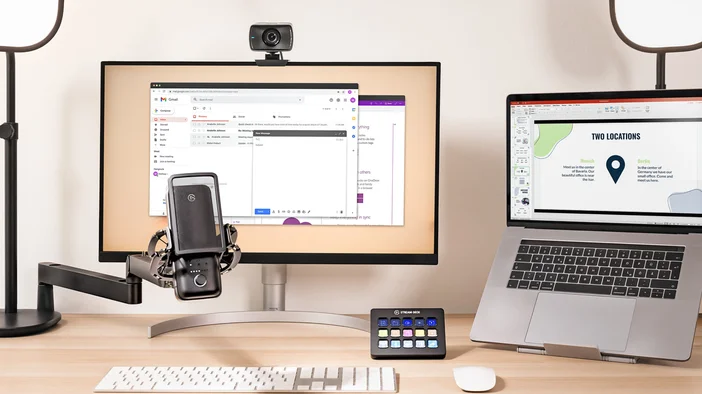
PowerPoint plugin connects Stream Deck to Microsoft PowerPoint and covers two areas: presenting and editing.
Presenting
When you are live in front of an audience or on a video call, the last thing you want is to break focus hunting for the right key. Stream Deck gives you dedicated buttons for slide controls and presenter tools.
Available actions:
On Stream Deck + or GALLEON 100 SD, you can also assign slide navigation to a dial and move through slides by rotating it.
Editing
Building a slide deck means a lot of repetitive menu clicks. PowerPoint plugin shortcuts some of that by putting common formatting and layout actions on Stream Deck keys.
Instead of navigating through ribbon menus every time you want to align an object or add a shape, you just press a key. That adds up if you are building or revising decks regularly.
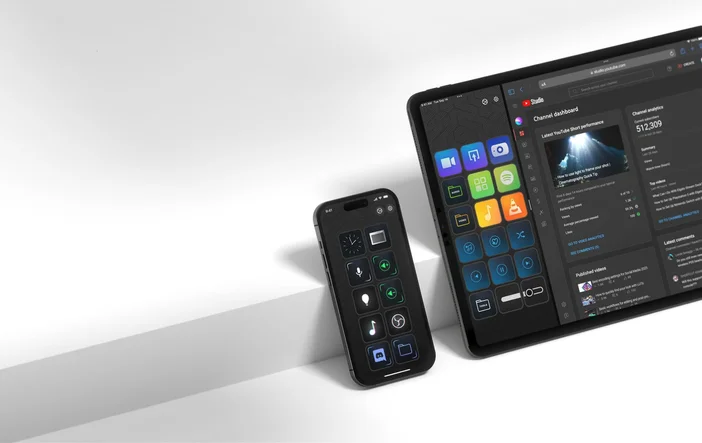
If you present away from your desk, Stream Deck Mobile can work as a wireless presentation remote. Just select your mobile device from the device dropdown in Stream Deck app on your computer, set up your PowerPoint actions there, and the layout syncs to your phone or tablet over Wi-Fi or USB. No separate setup is needed on the mobile device itself.
You can install PowerPoint plugin from Elgato Marketplace or directly within Stream Deck app.
From Stream Deck app:
From Elgato Marketplace:
PowerPoint plugin requires Stream Deck 6.9 or later and works on both macOS and Windows.
Use profiles to separate presenting and editing. Create one profile with slide navigation and presenter tools for live presentations, and another with editing actions for when you are building decks. Smart Profiles can switch between them automatically when PowerPoint is in focus.
Combine with Multi Actions. You can pair PowerPoint actions with other plugins in a Multi Action. For example, a single key could start your slide show, mute notifications, and adjust lighting at the same time.
Add custom icons. Label your keys with clear icons so you can identify actions at a glance. Icon packs are available on Elgato Marketplace, including packs designed specifically for PowerPoint workflows.
PowerPoint plugin is available for free on Elgato Marketplace. Install it, customize your keys, and try it out during your next presentation or editing session.
PRODUCTS IN ARTICLE