Plugins
CORSAIR Ctrl Plugin for Stream Deck: Adjust Keyboard Settings Without Leaving Your Game
Last updated:
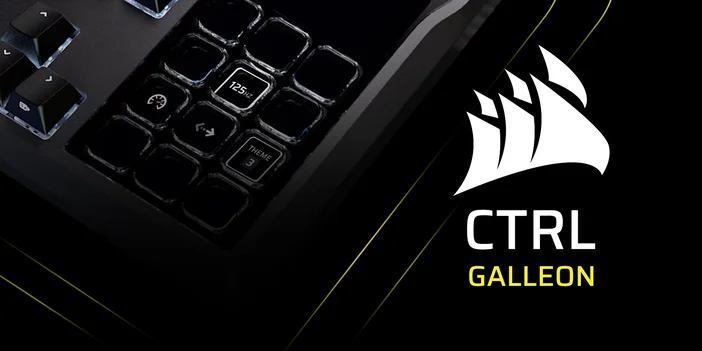
CORSAIR Ctrl puts your keyboard's performance settings on Stream Deck, giving you quick access to features like FlashTap, Game Mode, polling rate, lighting themes, and profiles. Instead of stepping away from what you are doing, you tap a key and the setting changes instantly.
Each Stream Deck key updates its icon in real time to reflect the current state, so you always know what is active at a glance. Whether you are gaming, streaming, or working, your keyboard settings stay within reach.
What CORSAIR Ctrl does
CORSAIR Ctrl is a Stream Deck plugin that gives you hands-on control over your CORSAIR keyboard's hardware settings. Once installed, you drag actions onto Stream Deck keys and adjust performance features, lighting, and profiles on the fly.
It works alongside CORSAIR WEB HUB, where you set up your keyboard's lighting themes, profiles, and performance options. CORSAIR Ctrl then makes those settings accessible from Stream Deck so you can switch between them at any time.
Available actions
FlashTap
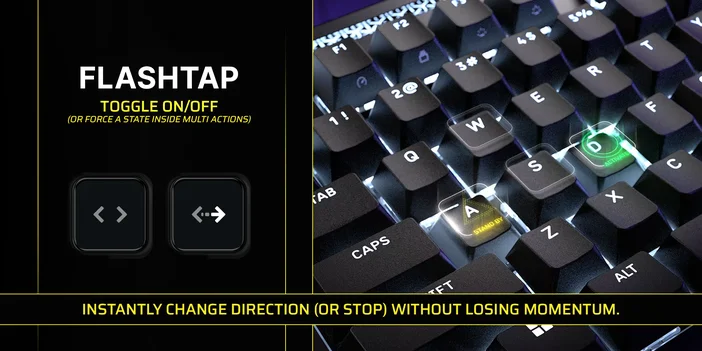
FlashTap is CORSAIR's SOCD technology, which determines how your keyboard handles opposing directional inputs when pressed at the same time. In competitive games, this can affect how responsive and predictable your movement feels. With CORSAIR Ctrl, you can toggle FlashTap on or off with a single key tap. The key icon updates to show whether it is currently active.
Game Mode
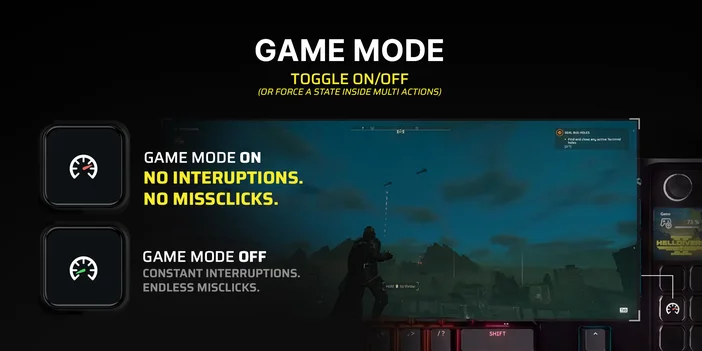
Game Mode shifts your keyboard into a focused state for gaming. It disables system keys like the Windows key, reduces interruptions from background shortcuts, and ensures consistent input behavior during fast or repeated keystrokes. One tap enables it, another disables it. The key reflects the current state so you can confirm it is on before a match starts. This is especially useful during competitive matches or live streams, where accidental key presses can pull you out of a full-screen game at the worst possible moment.
Polling Rate
Switch your keyboard's polling rate between 125 Hz, 1 kHz, or 8 kHz depending on what you need. You can set the action to cycle through each option or jump directly to a specific rate. A higher polling rate means faster input reporting, which matters in competitive games. A lower rate uses less system processing power, which can be worth considering during longer or less demanding sessions. Note that adjusting the polling rate may cause your keyboard to briefly disconnect.
Theme Selection
Switch between your keyboard's lighting themes with a single tap. You can cycle through your available themes or assign a key to jump straight to a specific one, including any custom themes you have set up. If you have different themes for different games or moods, they are always one key away.
Keyboard Brightness
Adjust your keyboard's backlight brightness directly from a Stream Deck key. You can cycle through brightness levels or set a key to jump to a specific level, from 0% (off) all the way to 100%. Useful for dimming lights during a late session or brightening things up when you need to find a key.
Profile Selection
If you use different key mappings or settings for different games, switching between profiles usually means stopping what you are doing to find the right one. CORSAIR Ctrl lets you cycle through your saved keyboard profiles directly from Stream Deck, so you can swap profiles between matches or apps without losing focus.
Real-time status on every key
Every CORSAIR Ctrl action updates its Stream Deck key icon to reflect the current status. If FlashTap is active, you see it. If Game Mode is off, you see that too. There is no guessing about what state your keyboard is in, which is especially useful during live streams or competitive matches where checking settings would pull your attention away.
Combine actions with Multi Actions
One of the more practical ways to use CORSAIR Ctrl is with Multi Actions. A Multi Action lets a single Stream Deck key trigger several steps in sequence.
For example, you could set up one key that enables Game Mode, switches the polling rate to 8 kHz, and loads a competitive lighting theme, all at once. That turns a multi-step process into a single tap.
You can also combine CORSAIR Ctrl actions with other Stream Deck plugins. A single key could switch your keyboard to a competitive profile, mute Discord, and start a recording in OBS Studio at the same time. Since CORSAIR Ctrl works like any other Stream Deck plugin, it fits naturally into whatever layout you are already using.
Install CORSAIR Ctrl
You can install CORSAIR Ctrl from Elgato Marketplace or directly within Stream Deck app.
From Stream Deck app:
- Open Stream Deck app.
- In the actions panel on the right, click the Plugins tab.
- Search for CORSAIR Ctrl.
- Click Get next to CORSAIR Ctrl by Corsair.
- Once installed, drag any CORSAIR Ctrl action onto a key.
- Configure the action in the key settings panel.
From Elgato Marketplace:
- Go to CORSAIR Ctrl on Elgato Marketplace.
- Click Install and follow the prompts to add it to Stream Deck app.
- Open Stream Deck app, then drag any CORSAIR Ctrl action onto a key.
CORSAIR Ctrl requires Stream Deck 6.9 or later and works on macOS and Windows. It currently supports select CORSAIR keyboards, including GALLEON 100 SD.
Get started
Once CORSAIR Ctrl is installed, start with the settings you change most often. If you toggle Game Mode before every match, put that on a key. If you switch between lighting themes for different games, add those too. From there, try combining actions with Multi Actions to streamline your pre-game setup into a single tap.
CORSAIR Ctrl is available for free on Elgato Marketplace.
PRODUCTS IN ARTICLE