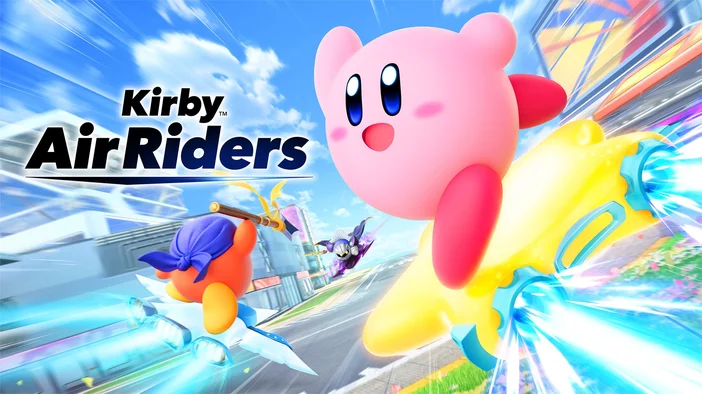
Kirby™ Air Riders is here on Nintendo Switch 2, and we’ve got you covered on how to record or stream it. Whether you want to go live on Twitch, capture races for YouTube, or customize your setup with overlays and icon packs that match Kirby’s colorful style, this guide shows you how.
What you need
Before you start recording or streaming, here’s everything you’ll need for your setup.
- Kirby™ Air Riders
- Nintendo Switch 2 docked for capture
- Capture card (such as Elgato 4K S, 4K X, or 4K Pro)
- Two HDMI cables
- A computer with Elgato Studio, OBS Studio, or an iPad with Elgato Capture app
Recording and streaming
How to set up your capture card
- Connect one HDMI cable from the console to the HDMI In on your capture card.
- Connect another HDMI cable from the HDMI Out on the capture card to your TV or monitor.
- Connect your capture card to your computer using the included USB cable (for 4K X, HD60 X, or Game Capture Neo). If you’re using 4K Pro, install it in a PCIe slot.
- Finally, power on your console.
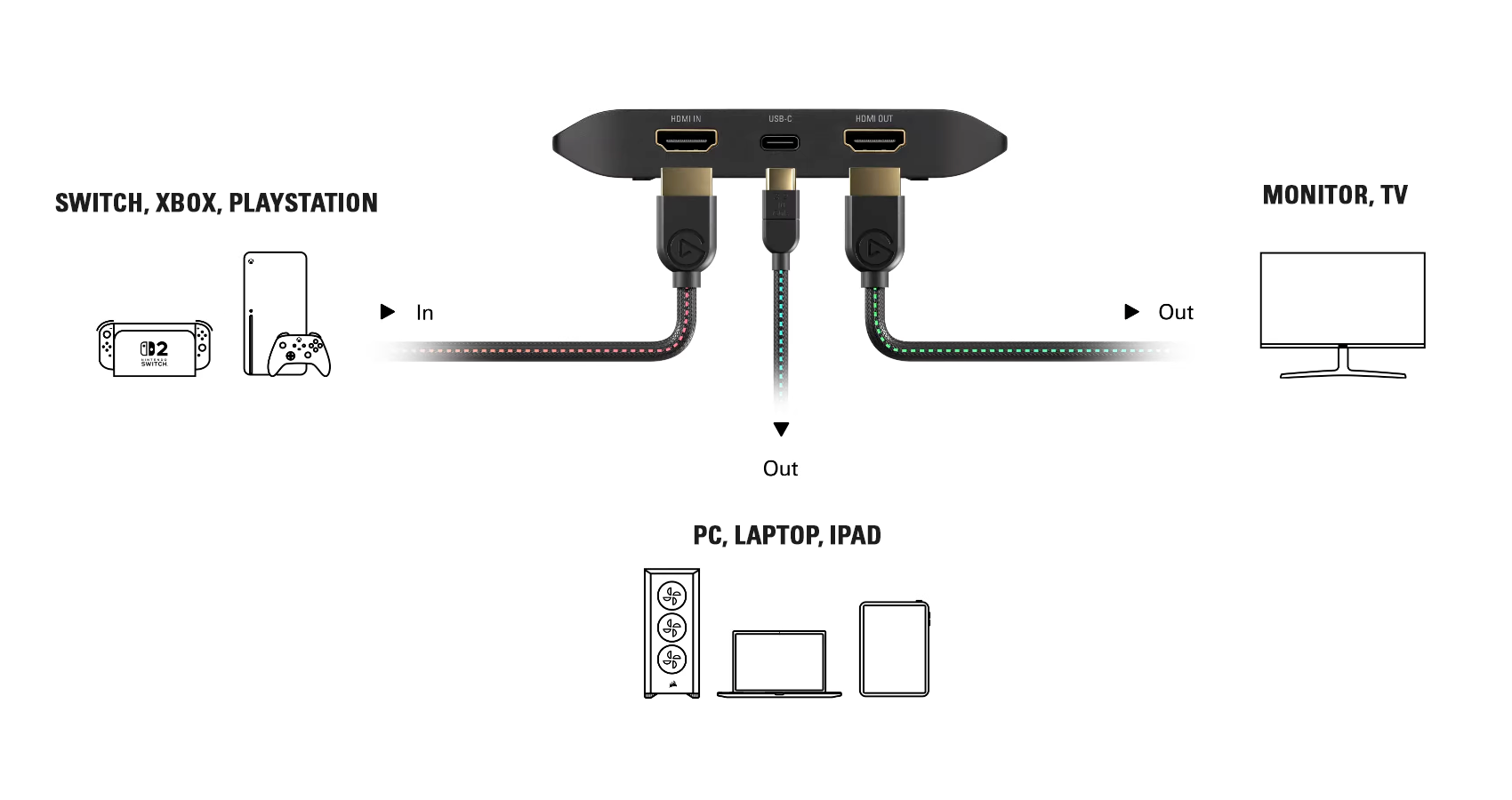
Click the image to view it in full size.
Launch your software
To start recording right away, open Elgato Studio. It detects your capture card and resolution automatically .
If you’re streaming, open OBS Studio, Meld Studio, or similar. Add your capture card as a Video Capture Device before going live.
Set resolution, frame rate, and audio
In Elgato Studio
- Automatically detects resolution and frame rate. Supports passthrough up to 4K60 HDR, with recordings saved in SDR.
In OBS Studio or other streaming software
- Go to Settings > Video and match your output resolution (e.g., 3840x2160).
- Set FPS to 60.
- In your capture card’s Source Properties, set it to Custom and match your resolution and frame rate.
- If HDR looks off, turn HDR off in Switch 2 settings or adjust tone mapping in OBS.
Start recording or streaming
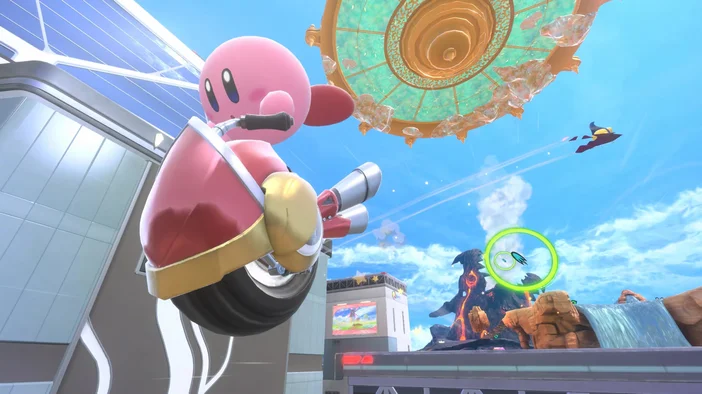
Click Record in Elgato Studio, or Start Streaming in OBS Studio. From here, you can watch your preview, switch scenes, and adjust audio as needed.
If you want to double-check settings for your platform, here are the official guides:
Customize your setup
Elgato Marketplace has pastel-friendly icon packs and overlays that pair well with Kirby’s bright, airy design.
Icon packs for Stream Deck
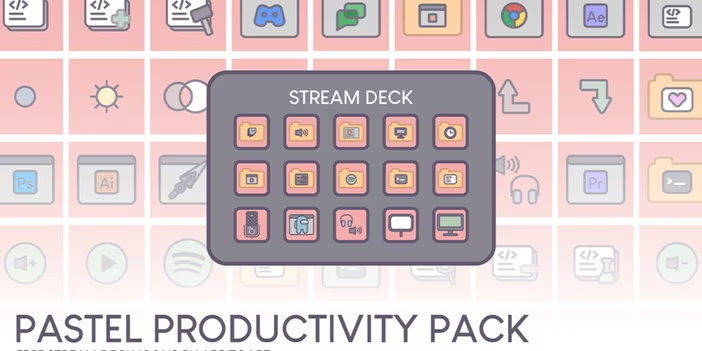
Pastel Productivity
A large collection of soft, pastel-colored Stream Deck icons. Good for building a clean and bright layout that fits the tone of Kirby Air Riders.
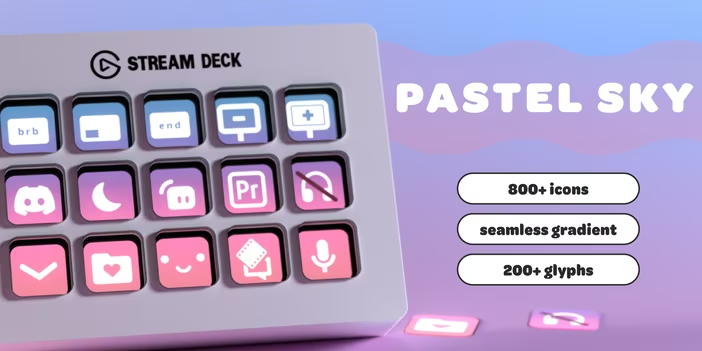
Pastel Sky
A light gradient set with gentle blues, pinks, and purples. Great if you want your setup to feel airy and calm.
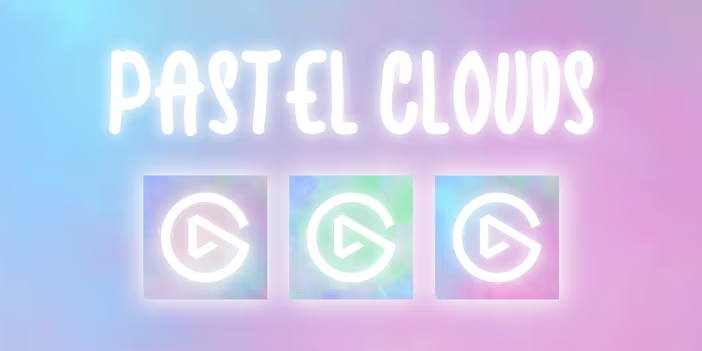
Pastel Clouds
A cloud-themed pastel pack with smooth edges and soft tones. Fits well with sky-inspired or whimsical layouts.
Stream Overlays
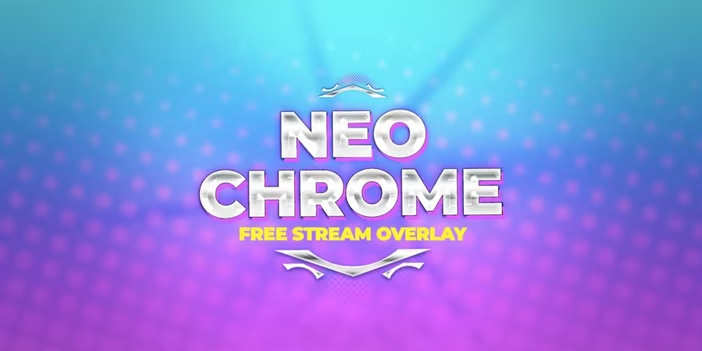
Neo Chrome
A warm overlay set with gentle orange and pink tones. It works well with bright, cheerful games and blends nicely with Kirby’s palette.
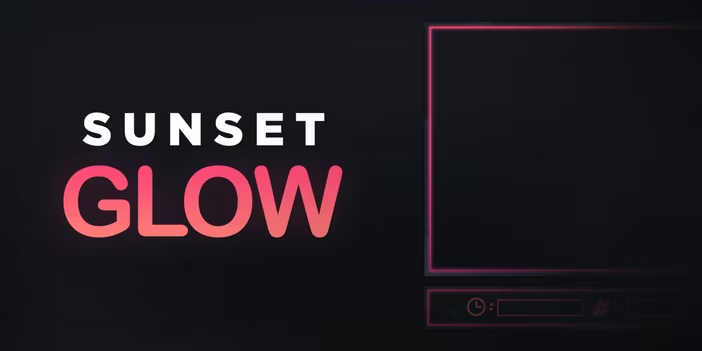
Sunset Glow
Warm, sunset-inspired overlay set that complements Kirby’s colorful courses and sky backgrounds. Useful for full-scene frames and transitions.
More options on Elgato Marketplace
You can also browse more pastel or soft-color overlays and icon packs on Elgato Marketplace. They’re a good way to keep your layout consistent and match the lighter, more playful look of Kirby™ Air Riders.
Looking for a capture card?
If you need a capture card for Nintendo Switch 2, you can explore options like 4K X, 4K S, and 4K Pro on our website. They all work with Kirby Air Riders and support high-quality capture.
You can also use our Capture Card Selector to find the best option for your setup.