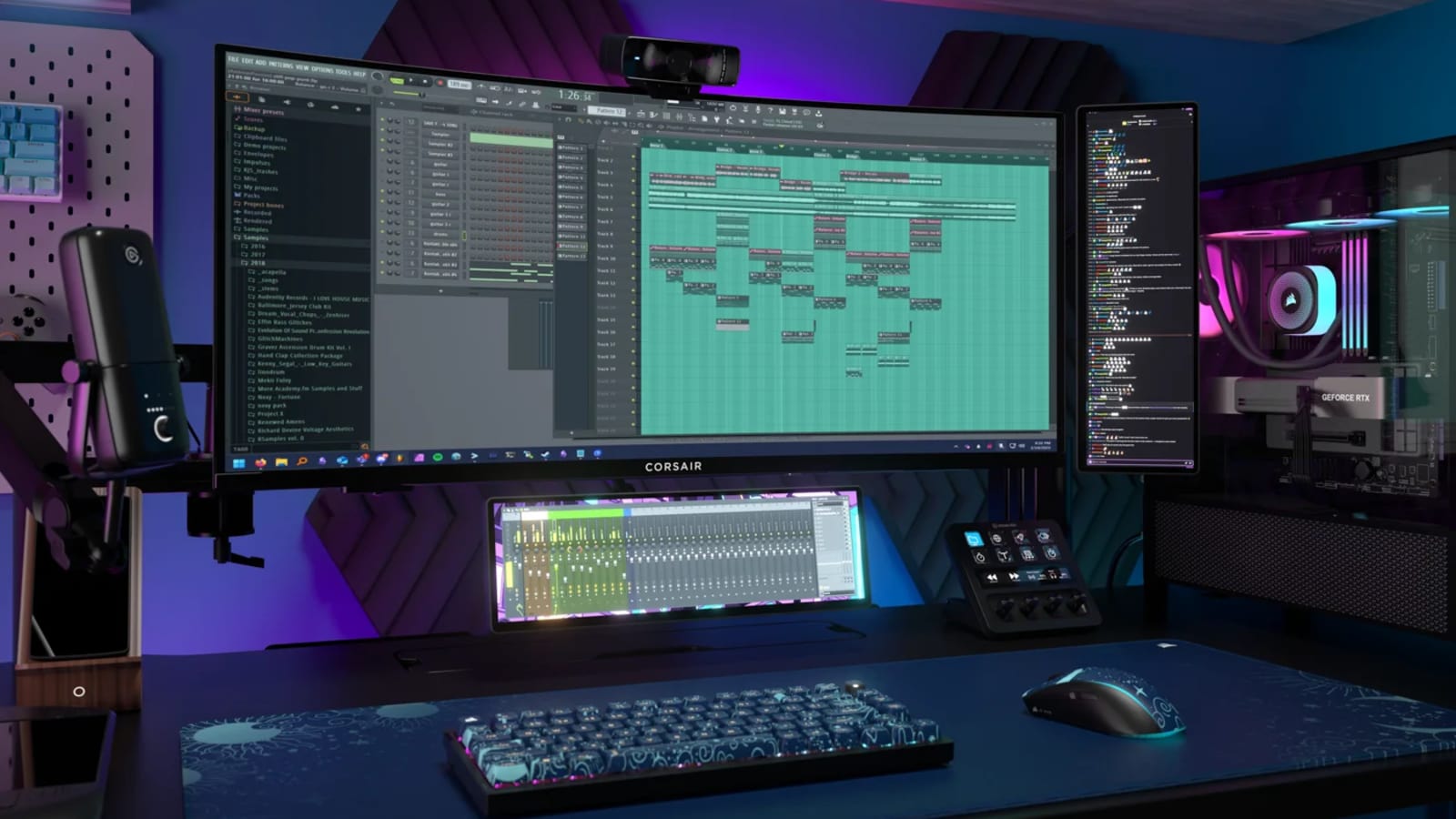
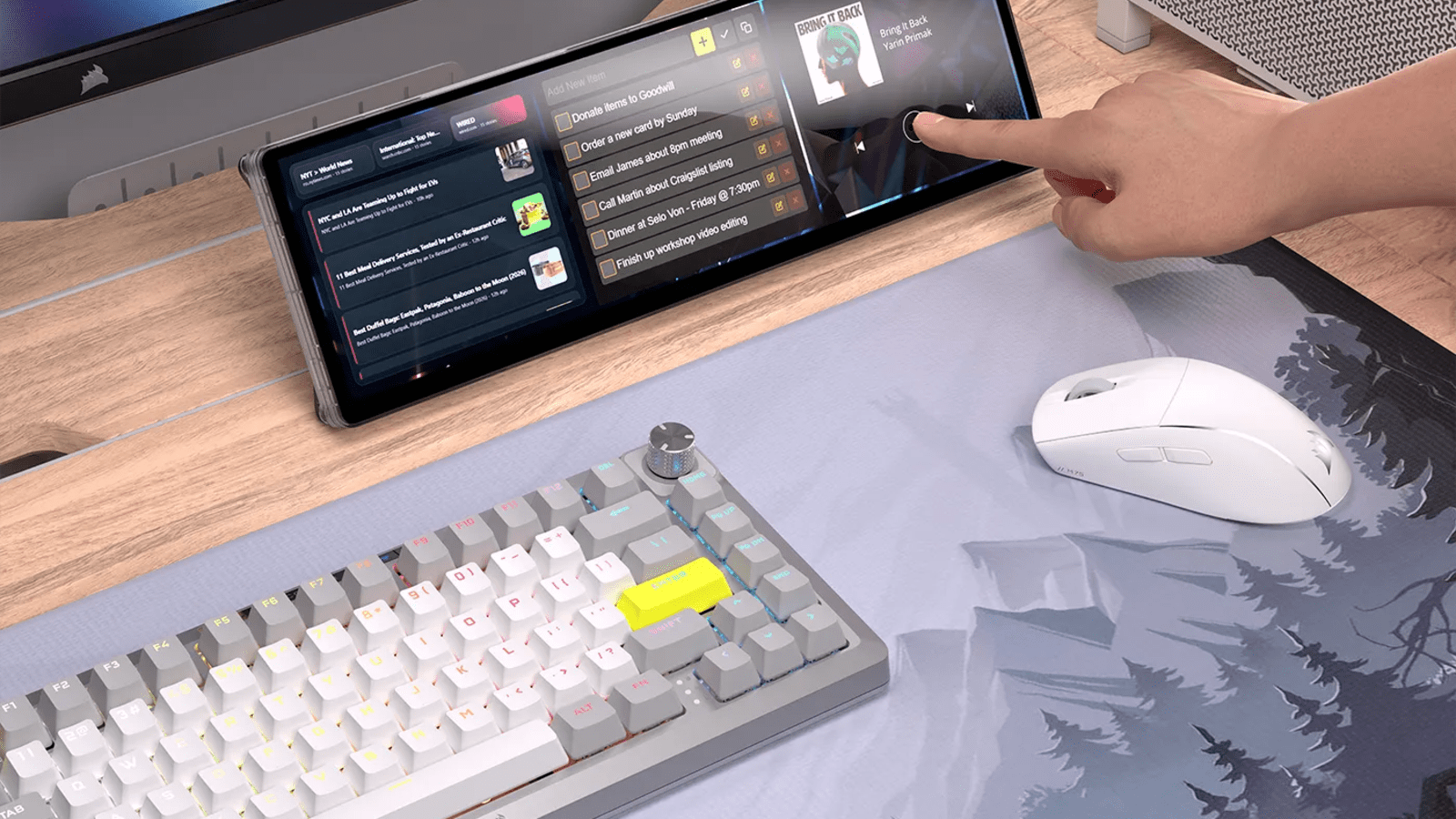
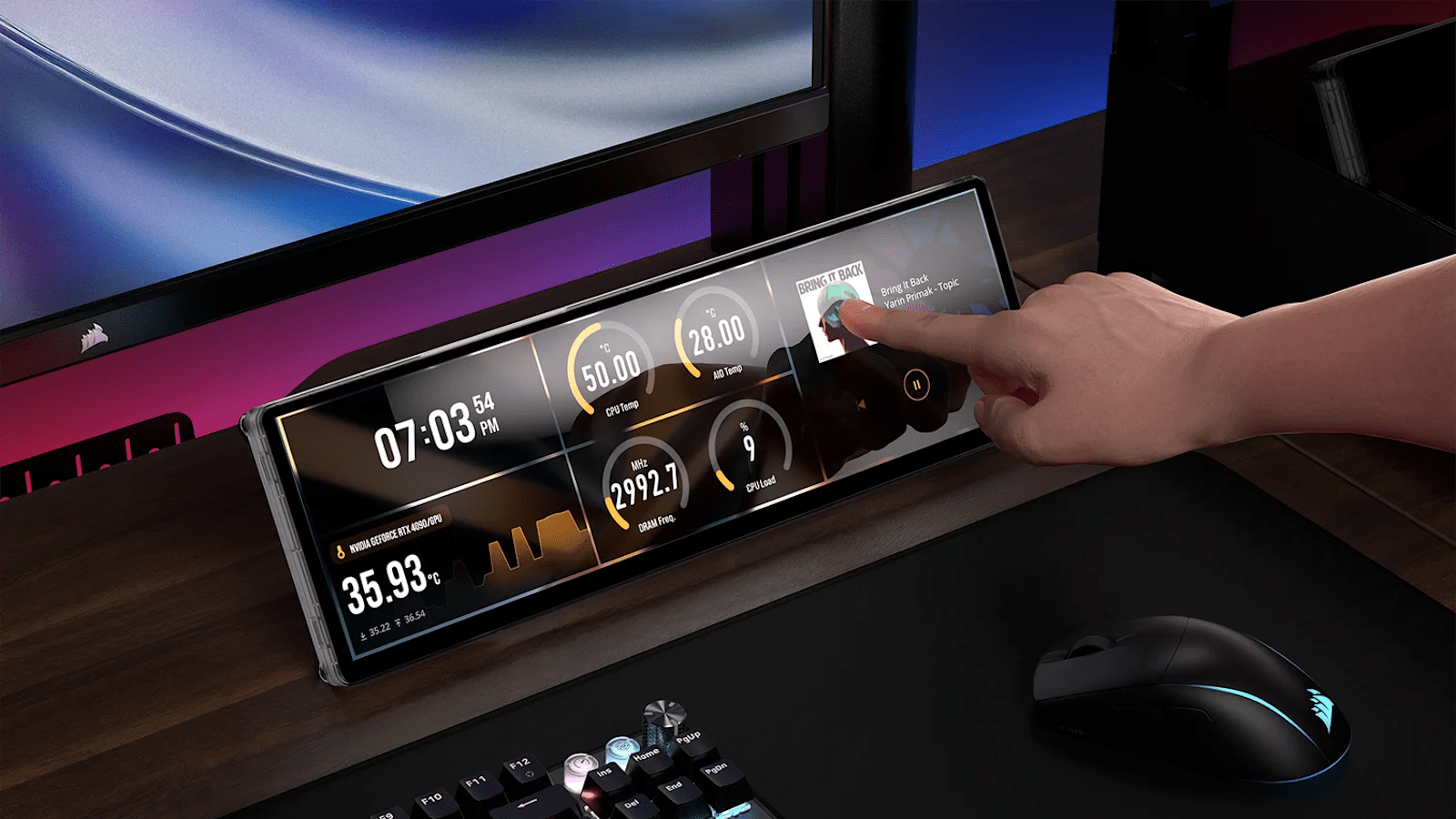
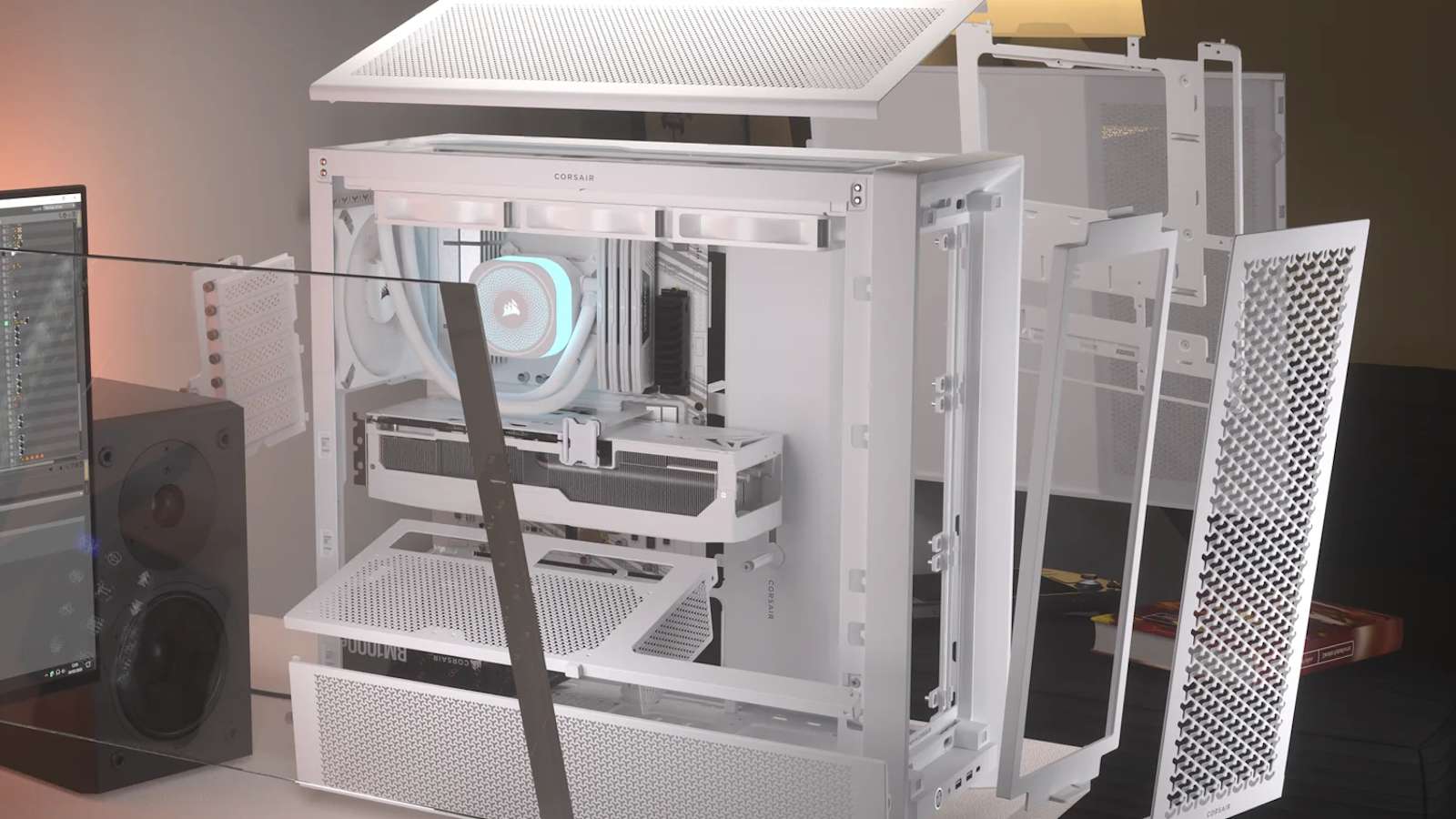
SECOND SCREENS WERE NEVER BUILT LIKE THIS.
CONTROL
SEE MORE. DO MORE.
Layers of control, each powerful on its own. Use one, two, or all three at once.
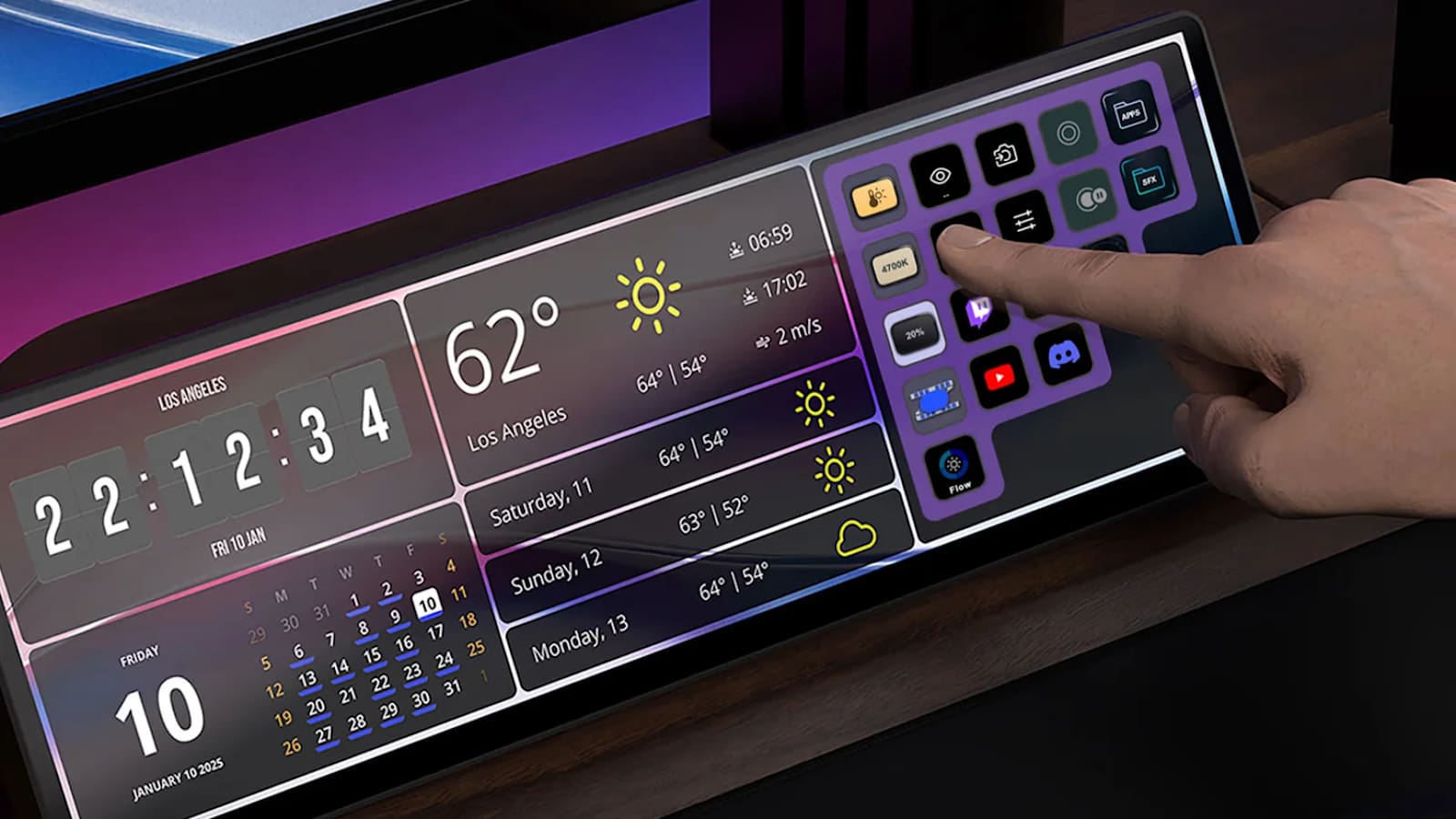
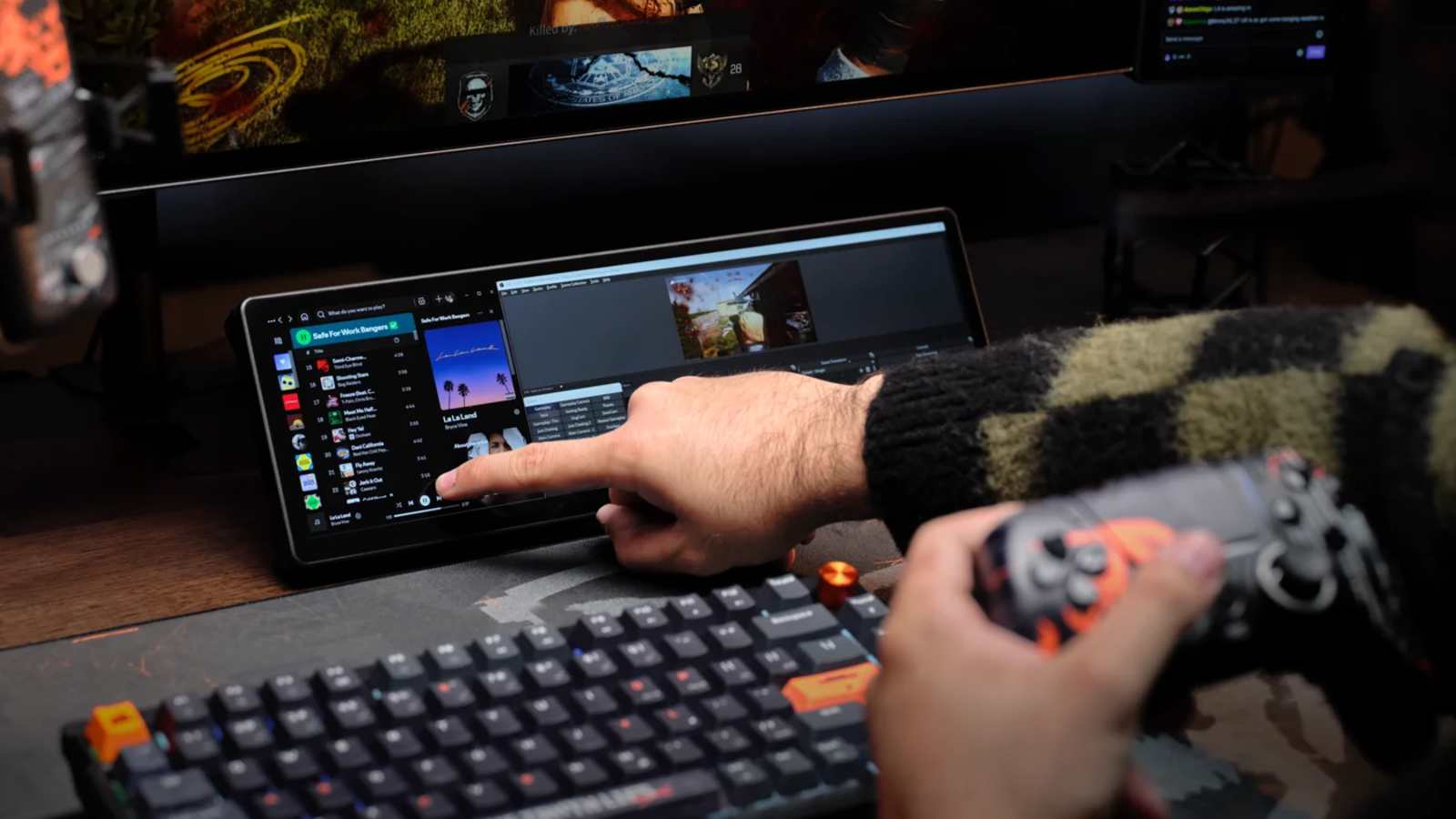
TOUCH DISPLAY
VIRTUAL STREAM DECK
ICUE WIDGETS
Elgato Marketplace
IT ALL LIVES HERE
PLUGINS
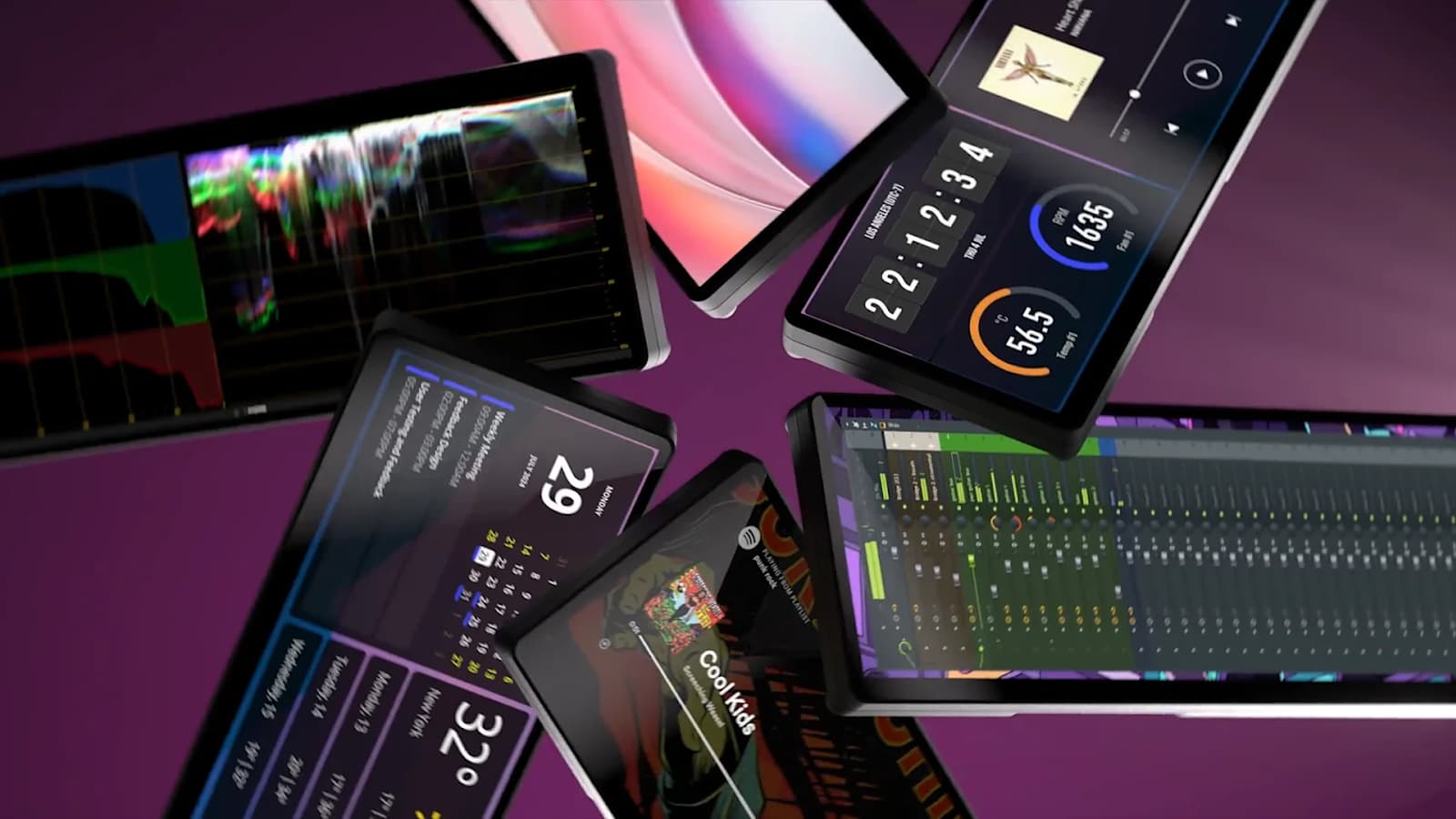
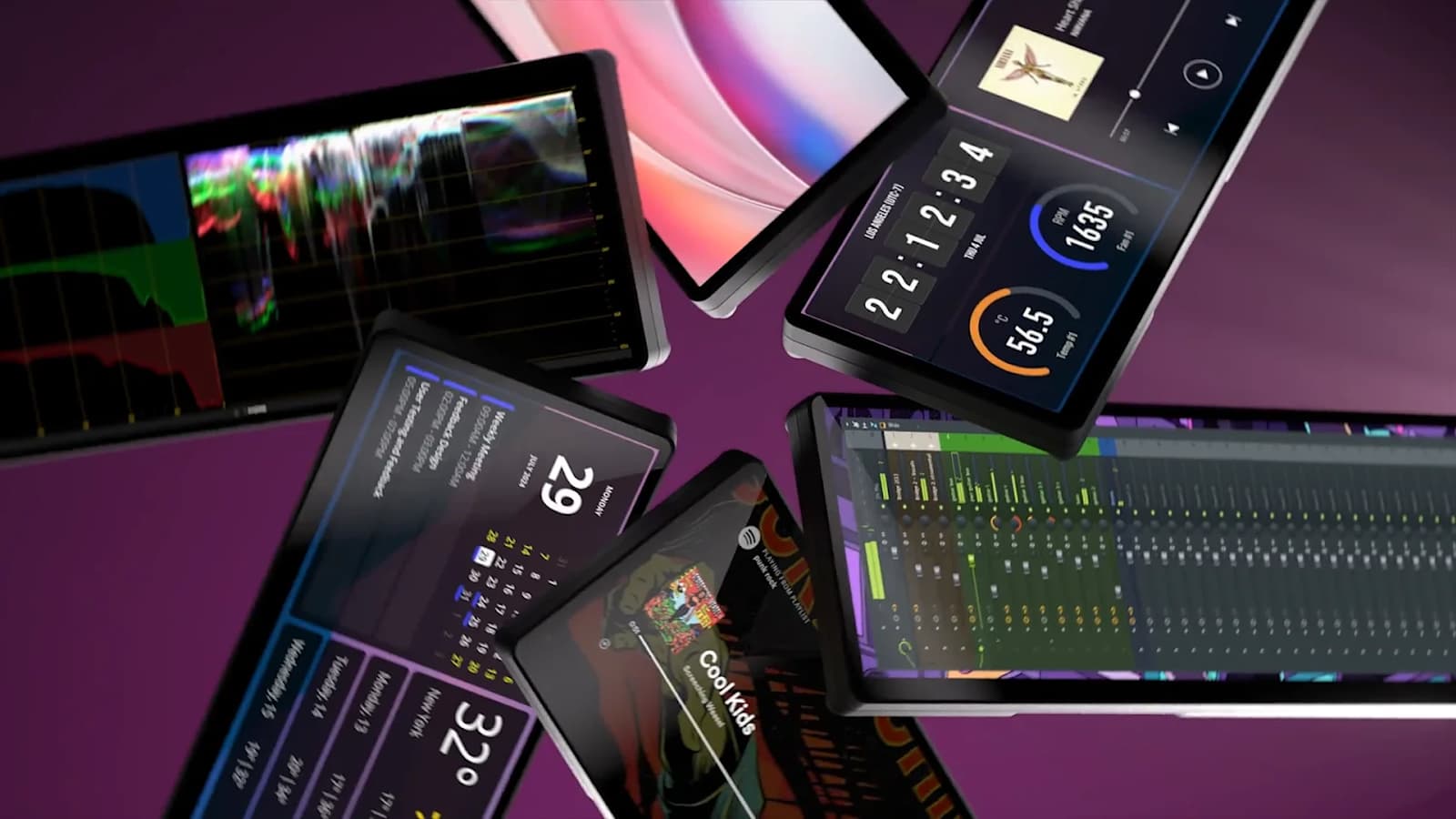
WIDGETS
MAKE SOMETHING NEW
CUSTOMIZATION
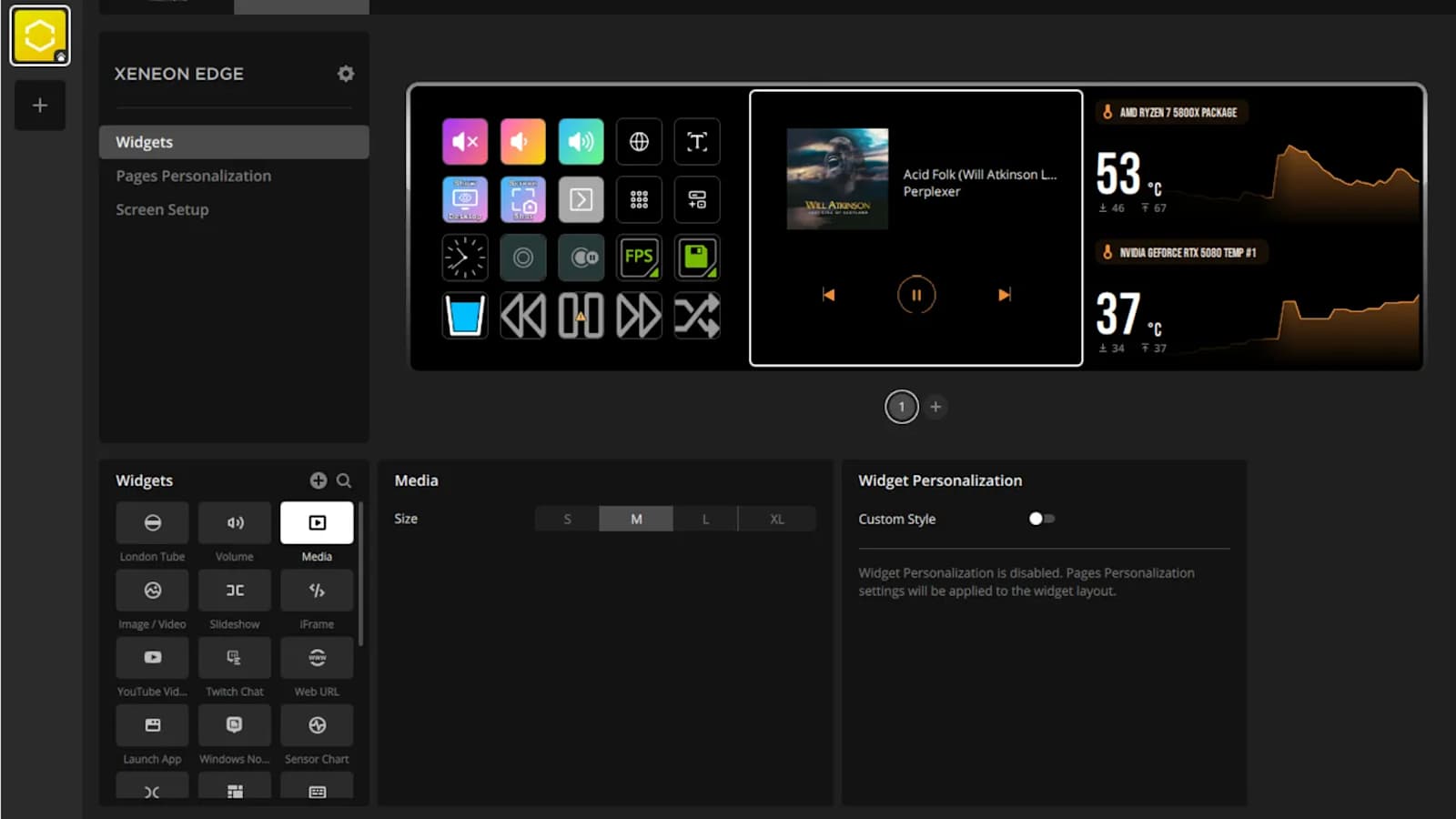
TWO APPS. TOTAL CONTROL.
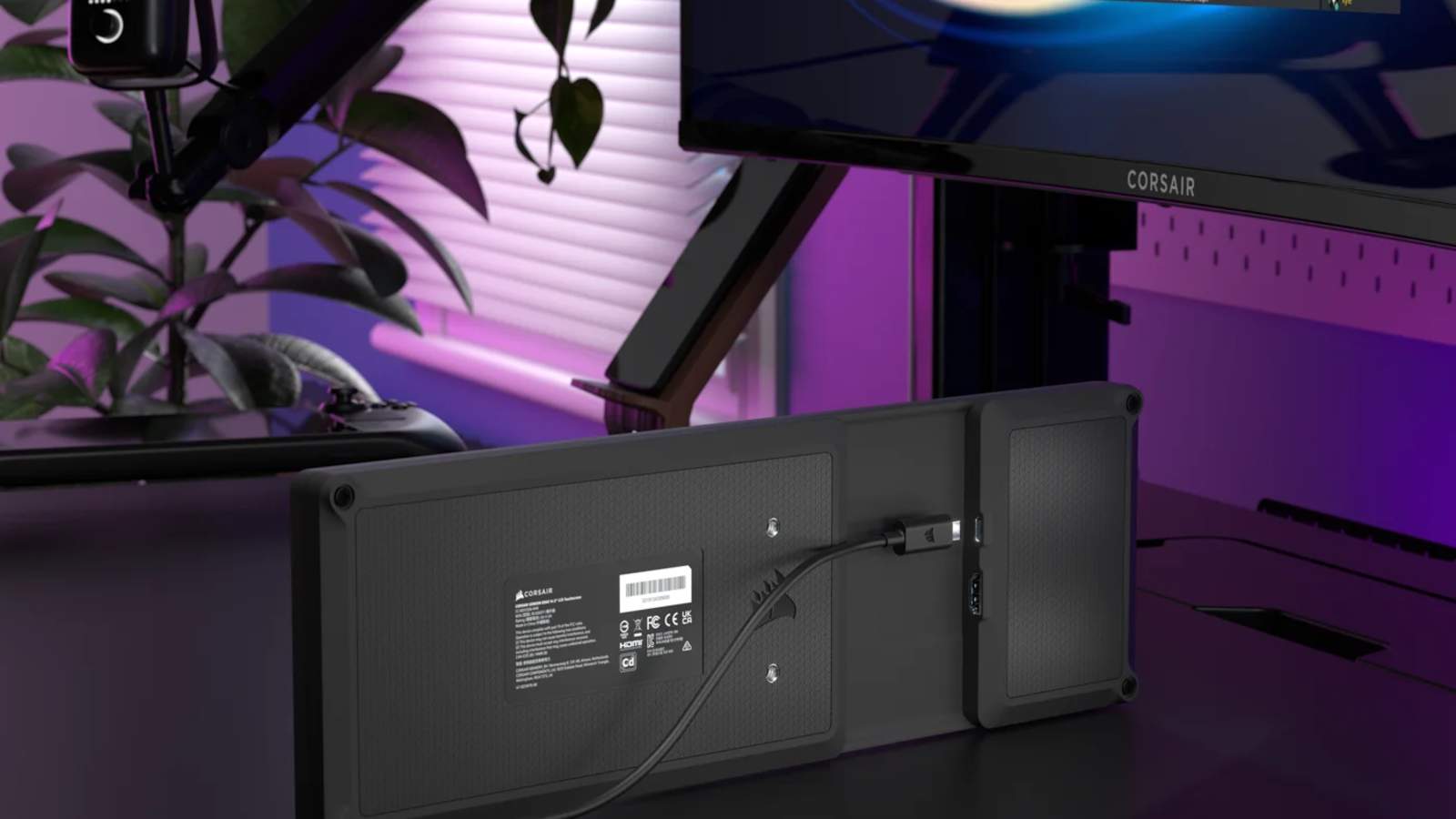
HARDWARE
BUILT TO PERFORM
THE EDGE YOUR SETUP NEEDS
RELATED ARTICLES

Set Up Your XENEON EDGE
Placement, cables, iCUE detection and your first widgets — a quick walkthrough of first-time setup.

Everything You Need to Know
A full tour of the 14.5-inch touchscreen: specs, the four mounting options, and what it adds to your setup.

Add Virtual Stream Deck
Turn XENEON EDGE into a touch control surface with Virtual Stream Deck, sized and styled to fit the screen.

The Official Stream Deck Widget
Update iCUE, firmware and Stream Deck software, then add the official widget to control your setup by touch.

Build Your Own Widget
Create custom iCUE widgets with HTML, CSS and JavaScript using the WidgetBuilder Kit — packaging and import included.

Which Cases Fit XENEON EDGE
See which CORSAIR cases support XENEON EDGE on a 360mm radiator mount, and how to install it inside your build.

Do You Need iCUE?
XENEON EDGE works as a standard monitor on its own. Here's what iCUE unlocks when you add it.

Keep Twitch Chat In View
Move chat onto XENEON EDGE and free up your main monitors. Set up the Twitch Chat widget in a few steps.

What Can You Use It For?
Music controls, Discord, benchmarks, Virtual Stream Deck and more — ideas for making the most of your second screen.

Get More Out Of iCUE
A rundown of every XENEON EDGE widget in iCUE, what each one does, and how to build your own layout.

Use It As A Monitor
XENEON EDGE works as an extra display without iCUE. Here's how it handles touch input and everyday apps.

Creator Spotlight: Naaackers
Meet the creator behind a 3D-printed modular adapter that lets you mount XENEON EDGE almost anywhere.

Switch Widgets To Monitor Mode
Toggle XENEON EDGE between widget view and monitor mode from iCUE, or with your own keyboard shortcut.

Introducing CORSAIR Labs GitHub
Tools, examples and documentation for building your own iCUE widgets are now public on GitHub.

Front-Mount It In FRAME 4000
3D-print and install a front-panel XENEON EDGE mount in FRAME 4000 cases, with airflow and cable-routing tips.
FAQ
FAQ
The most common ones are here.
Can’t find what you’re looking for? Our support team is here to help.
Contact supportDoes Xeneon Edge have a built-in battery or does it require external power?
Can I use Xeneon Edge as a standalone primary monitor, or is it only for secondary display use?
Is iCUE software required to use Xeneon Edge, or can I use it without iCUE?
What mounting options are included with Xeneon Edge?
Which Corsair cases are compatible with the 360 mm mounting option?
What cables are included with Xeneon Edge?
Can I use Xeneon Edge with Stream Deck or Virtual Stream Deck?
What is the warranty coverage for Xeneon Edge?
Can Xeneon Edge display custom wallpapers, and what resolution should they be?
What panel technology does Xeneon Edge use?
What are the physical dimensions of Xeneon Edge?
How many touch points does the touchscreen support?
Can I mount Xeneon Edge in both vertical and horizontal orientations?
Does Xeneon Edge support HDR?
Tech Specs
Specifications
Native Resolution
Display Technology
Case Height
Case Length
Case Width
Material
Display Inputs
Display Surface
Display Colors
Peak Brightness
Screen Size
Refresh Rate
Max Resolution
Weight
Power
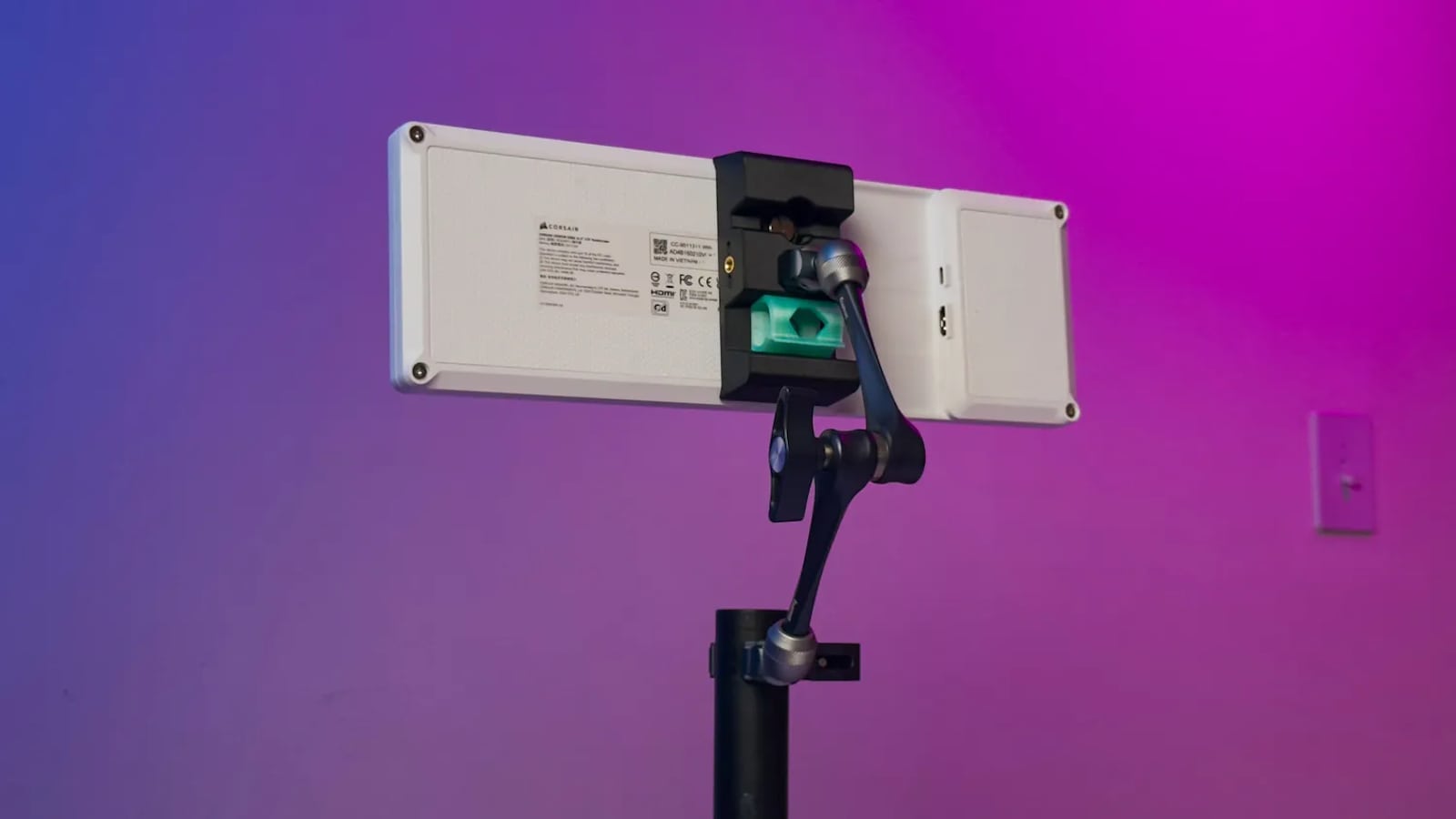
Mounting Methods
Optional Mounting Methods (sold separately)
In The Box
SKU: CC-9011356-WW
/In%20The%20Box/In-The-Box-Crystal.png)
/ATF/High%20Res/Crystal/Xeneon_Edge_Crystal_01.jpg)