Metroid Prime 4: Beyond is shaping up to be one of the most action-packed games on Nintendo Switch 2. It supports up to 1080p120 in Performance Mode and 4K60 with HDR in Quality Mode, making it perfect for capturing intense combat, exploration, and cinematic moments.
When Metroid Prime 4: Beyond releases, here’s how to get set up to stream or record it using a capture card.

Watch How It Works
Want to see what Metroid Prime 4: Beyond looks like when recorded on Nintendo Switch 2? Here’s a sample clip captured with a 4K S to give you a sense of the quality you can expect.
What you need
- Nintendo Switch 2 with Metroid Prime 4: Beyond
- A capture card
- Two HDMI cables (Switch 2 and most capture cards include one; you likely already have what you need)
- A computer with Elgato Studio or software such as OBS Studio, or an iPad using the Elgato Capture app.
Recording and streaming
How to set up your capture card
- Dock the Switch 2 and power it on.
- Plug one HDMI cable from the dock into the HDMI input on the capture card.
- Connect a second HDMI cable from the HDMI output on the capture card to your TV or monitor.
- Connect the capture card to your computer:
- Use the included USB cable for an external model like 4K X, HD60 X, or Game Capture Neo.
- If you’re using 4K Pro, make sure it’s installed in a PCIe slot.
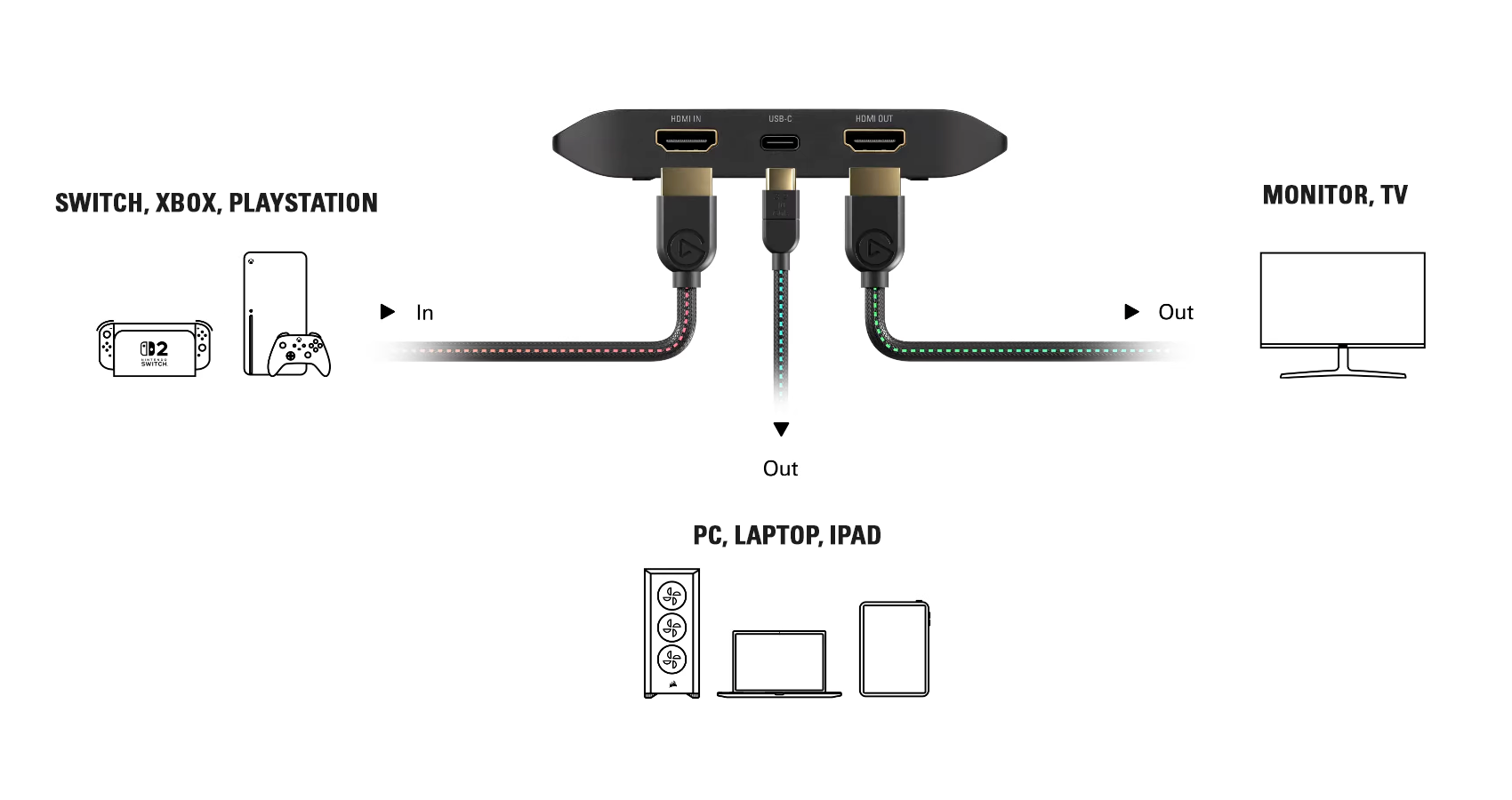
Click the image to view it in full size.
Launch your software
To start recording right away, open Elgato Studio. It works out of the box with your capture card and automatically detects your capture card and Nintendo Switch 2.
Note: Elgato Studio is currently in beta. You can download it from our beta page here.
If you want to stream, use a broadcasting app like OBS Studio, Meld Studio, or others. Before you go live, you’ll need to add your capture card as a Video Capture Device source.
Set resolution, frame rate, and audio
In Elgato Studio
- No manual setup needed. It automatically detects the input resolution and frame rate.
- Elgato Studio supports recording up to 4K60. If your console is set to output 120 fps, use OBS Studio to capture at higher frame rates.
In OBS Studio or other streaming software
- For frame rates above 60 fps (like 1080p120), some additional setup is required.
- Go to Settings > Video, adjust the Base (Canvas) Resolution and Output (Scaled) Resolution, and set the Common FPS Values (e.g., 120).
- In the source properties for the capture card, set the resolution and frame rate to Custom, then input values like 1920x1080 at 120 fps.

Start recording or streaming
Click Record in Elgato Studio, or Start Streaming in OBS Studio. From here, you can watch your preview, switch scenes, and adjust audio as needed.
If you want to double-check settings for your platform, here are the official guides:
Looking for a capture card?
If you need a capture card for Nintendo Switch 2, you can explore options like 4K X, 4K S, and 4K Pro on our website. They all work with Metroid Prime 4: Beyond and support high-quality capture.
You can also use our Capture Card Selector to find the best option for your setup.
产品注册