Key Light Neouser manual
Key Light Neo plays beautifully with webcams, making you glow with confidence the moment you turn it on. It has built-in controls so you can adjust settings on the fly. Want to control it wirelessly or with Stream Deck Neo? We have apps for that.
AT A GLANCE
- Look professional on YouTube, Teams, Zoom, and more
- No installation, just connect to a USB port on your laptop or dock
- Enjoy ultimate eye comfort with Elgato’s iconic edge-lit design
- Switch between video lighting and desktop illumination with a press of a button
- Power via USB (braided cable included)
- Mounts seamlessly onto any monitor or laptop screen
- Takes up zero desktop real estate, fits in a laptop bag
- Use the optional Control Center app and Stream Deck Neo to control your lighting
- Made and packaged sustainably to reduce plastic waste
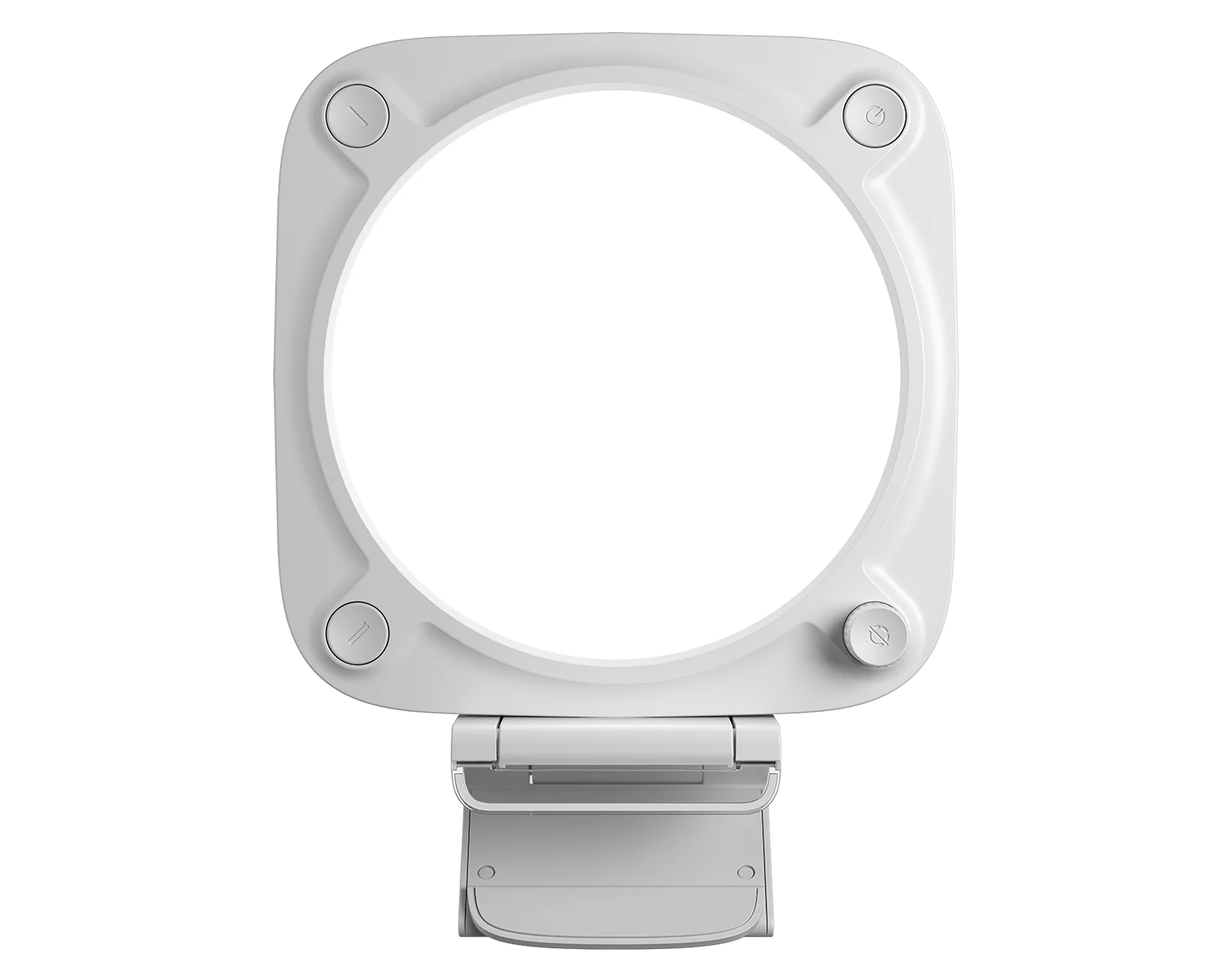
PRODUCT HIGHLIGHTS
- Premium diffusion lens
- Preset button 1 (cold white)
- Preset button 2 (warm white)
- Power button
- Brightness/color temperature dial
- Monitor mount with transparent lip
- Nylon-braided USB-C to USB-A cable
- Cable reel keeps your setup tidy
Getting started
1. INSTALL CABLE REEL
Click the cable reel into the back of Key Light Neo. Make sure the cutout aligns with the USB-C port.
2. ATTACH MOUNT
Insert the mount screw into the thread on Key Light Neo, then turn the D-ring anti-clockwise until secure (do not over-tighten).
3. CONNECT CABLE
Plug the USB-C connector into the port on Key Light Neo, then connect to a USB port on your computer. Wrap excess cable around the reel to keep your setup tidy.
4. MOUNT ON YOUR MONITOR
Place Key Light Neo on your monitor. The self-adhesive base is super sticky but residue-free. If it gets dirty, wipe with a damp cloth. Only use water, not cleaning agents.