Running a dual-PC streaming setup means you're gaming on one machine and streaming on another. The challenge is getting audio from both PCs into the same mix and then sending the right audio back to each one. Wave XLR Pro handles all of that through its two USB-C ports, with no extra adapters or audio interfaces required.
Why this setup works
In a typical dual-PC setup, getting your microphone, game audio, and stream software all talking to each other usually involves workarounds. Wave XLR Pro simplifies this by acting as the central hub for both machines simultaneously, with independent routing for each.
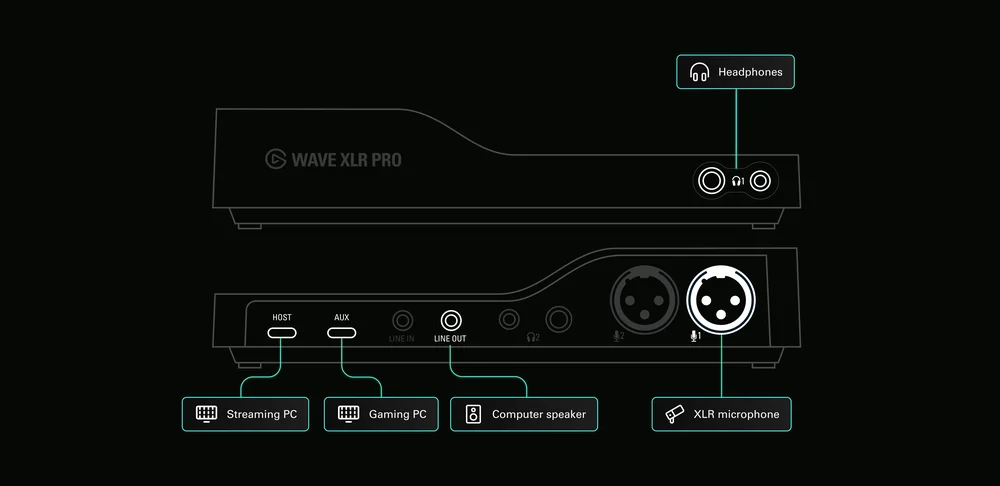
Wave XLR Pro Dual-PC streaming connection diagram
What connects where
The two USB-C ports on Wave XLR Pro serve different roles.
USB-C Host connects to your streaming PC. This is the primary connection. It carries full Wave Link control, power, and high-speed 18-channel audio between Wave XLR Pro and your streaming software. Your microphone signal lives here, and this is the machine where you configure your mixes in Wave Link.
USB-C Aux connects to your gaming PC. This is a plug-and-play connection that requires no drivers on the gaming PC. Game audio flows into Wave XLR Pro through this port, and Wave XLR Pro sends audio back to the gaming PC the same way, so your in-game teammates can hear you clearly.
How to connect everything
- Plug your XLR microphone into XLR Input 1 on the back of Wave XLR Pro.
- Connect a USB-C cable from the Host port to your streaming PC.
- Connect a USB-C cable from the Aux port to your gaming PC.
- Connect your headphones to the headphone output on the front of Wave XLR Pro.
- On your streaming PC, install Wave Link and open it to configure your mixes and routing.
- On your gaming PC, set Wave XLR Pro as the default audio output so game audio routes to it automatically.
What you hear and what gets streamed
Once everything is connected, Wave XLR Pro mixes both audio sources in hardware, so nothing has to make a software roundtrip before it reaches your headphones. That means zero-latency game audio monitoring while you play.
From there, Wave Link on your streaming PC lets you build up to five independent mixes running simultaneously. A typical dual-PC configuration looks like this:
Personal mix: Game audio front and center with your mic blended in. This is what you hear in your headphones while gaming.
Stream mix: Your mic with Ducking enabled, so your voice always cuts through when you speak. Game audio is present but sits underneath.
VOD mix: A separate recording mix, useful if you want an archive copy without certain music tracks.
Each mix is completely independent. Changing your headphone levels doesn't affect what goes to stream, and your stream mix doesn't affect your personal monitoring.
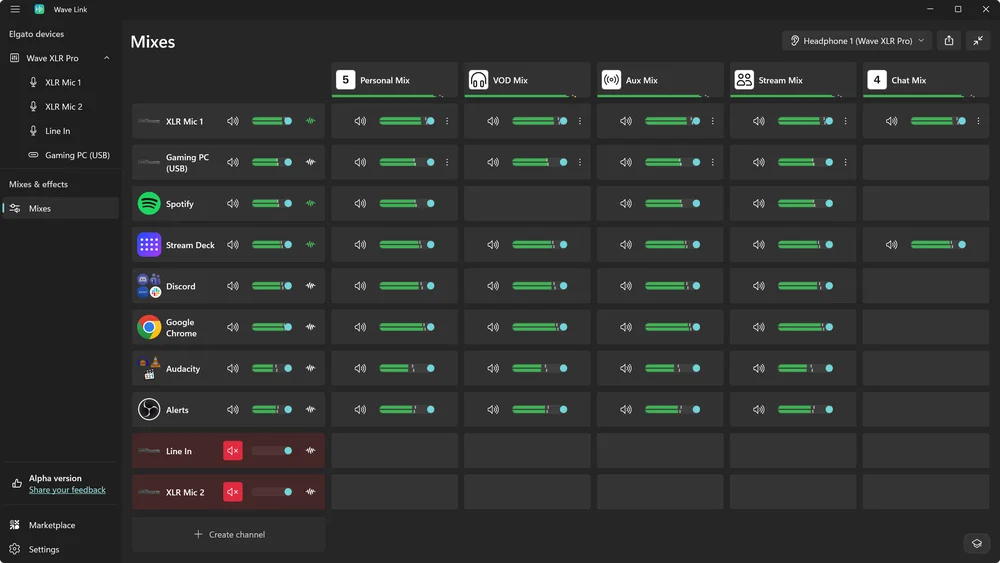
Wave Link in Dual-PC configuration with Wave XLR Pro
Sending your voice back to the gaming PC
Wave XLR Pro also sends your processed microphone signal back through the chat mix to the AUX USB-C port to your gaming PC. This means your teammates in-game hear you through your XLR mic with your DSP effects applied.
Stream Deck Controls
If you want hands-on control of your mix while you're live, Stream Deck lets you adjust levels, mute inputs, and switch mixes without touching your keyboard or opening software. Check out the Wave Link plugin Spotlight to see how they work together.
PRODUCTS IN ARTICLE