MANUAL | SNABBSTARTGUIDE
Elgato Wave Go — Användarhandbok
Den engelska versionen finns tillgänglig här - English
Om du har några andra problem vänligen kontakta kundsupport
I denna guide
Wave Go är en trådlös mikrofon med flera användningsmöjligheter som består av en mikrofonsändare (TX), en USB-C-mottagare (RX) och Smart Handle. Sändaren fästs på kläderna eller sätts fast i Smart Handle för handhållen användning.
Vad finns i förpackningen
Wave Go innehåller:
- 1 st. mikrofon-sändare (TX)
- Smart Handle
- USB-C-mottagare (RX)
- Bärväska
- Magnetplatta
- Magnetklämma
- 2 st. pälsklädda vindrutor
- Resväska
- USB-C-laddningskabel
Lägg till en andra mikrofon med Wave Go TX (säljs separat). Den kopplas ihop med samma mottagare och förvaras i Smart Handle.
Ladda ner appen Wave Go
Appen Wave Go är gratis för iPhone, iPad och Android.
Så här installerar du Wave Go
Wave Go fungerar direkt när du packar upp den.
- Anslut USB-C-mottagaren till din telefon, surfplatta eller dator. Mottagaren slås på automatiskt.
- Håll sändarknappen intryckt i 2 sekunder för att slå på enheten. LED-lampan blinkar blått medan den ansluter och lyser sedan med fast blått sken när du är redo att spela in.
- Välj Wave Go som mikrofon i din kamera-, inspelnings- eller videosamtalsapp.
- Fäst sändaren på kläderna eller sätt in den i Smart Handle för att använda den i handen.
Wave Go är avsedd för USB-C-enheter som din telefon eller dator. Äldre iPhone-modeller med Lightning-port stöds inte, och Wave Go är inte avsedd för direkt användning med professionella kameror som DSLR-kameror eller spegellösa kameror. Wave Go spelar inte in ljud internt. Den skickar ljudet direkt till din telefon eller dator.
Klämfäste- och handhållna lägen
Samma sändare fungerar som en klämmikrofon eller, när den är isatt i Smart Handle, som en handhållen mikrofon.
Clip-on-läge
Sändaren väger 7 g (0,25 oz) och fästs magnetiskt med ett av de två medföljande fästena:
- Magnetklämma: För skjortor och kragar.
- Magnetplatta: För tjockare kläder, till exempel jackor. Placera plattan inuti kläderna och fäst sändaren på utsidan.
Sändarens magnetiska utformning gör det dessutom möjligt att fästa den på metallytor för kreativa placeringsmöjligheter.
Rikta mikrofonöppningen mot munnen för att få ett så klart ljud som möjligt.
Handhållet läge med Smart Handle
Med Smart Handle förvandlas Wave Go till en handhållen mikrofon. Den har en egen knapp, en LED-ring och ett batteri. Så här ansluter du sändaren:
- Vrid och lyft Smart Handle-huvudet.
- Sätt i sändaren så att Elgato-logotypen är vänd mot Smart Handle-knappen.
- Sätt tillbaka huvudet och vrid för att låsa fast det.
När sändaren är ansluten flyttas dess knapp- och LED-funktioner till Smart Handle.
EQ Shift växlar till handhållen profil så fort du ansluter sändaren. Profilen är anpassad för Smart Handle-huvudet, så sätt tillbaka huvudet och lås fast det för att få det önskade ljudet.
EQ-förskjutning
En mikrofon på bröstet fångar upp din röst på ett annat sätt än en mikrofon nära munnen. EQ Shift tillämpar automatiskt olika EQ-profiler för varje läge, så att du alltid får rätt klang.
De två profilerna:
- Clip-on: Återställer den klarhet och närvaro som går förlorad vid bröstavstånd.
- Handhållen: Ger värme och fyllighet vid närbild, vilket ger en fylligare röst.
Reglage
Wave Go har ett enkelt kontrollsystem. Sändaren, Smart Handle och mottagaren har var och en en enda knapp, och genom olika tryck och långa tryckningar styr man allt från att slå på enheten till att para ihop den. När sändaren är dockad tar knappen på Smart Handle över.
Sändare och knapp på Smart Handle
| Knapp | Funktion |
|---|---|
 |
På/Av – Håll intryckt i 2 sekunder Slår på eller stänger av sändaren. LED-lampan blinkar blått medan den söker efter mottagaren och lyser med fast blått sken när anslutningen är upprättad. |
 |
Stäng av ljudet – Tryck på Slår på eller av ljudet. Sändarens och mottagarens lysdioder lyser rött med fast sken när ljudet är avstängt. |
 |
Fjärrstyrning av kameran – Tryck två gånger Startar inspelningen på en ansluten telefon. En kompatibel kameraapp måste vara öppen. |
 |
Paringsläge – Håll intryckt i 6 sekunder Mottagaren måste vara ansluten till elnätet och befinna sig i parningsläge, och sändaren måste vara avstängd. |
Mottagarknapp
| Knapp | Funktion |
|---|---|
|
Brusreducering – Press Slår på och av brusreduceringen. Lysdioderna på sändaren och mottagaren lyser med fast grönt sken när funktionen är aktiverad. För ytterligare inställningsmöjligheter kan du välja mellan tre intensitetsnivåer i Wave Go-appen. |
|
Paringsläge – Håll intryckt i 6 sekunder Mottagaren måste vara ansluten till elnätet och sändaren måste vara avstängd. Mottagarens LED-lampa blinkar snabbt blått när den är klar. Sätt sedan sändaren i parningsläge. |
LED-status
Sändaren och mottagaren använder samma LED-färger. När sändaren är dockad visas dess status på LED-ringen på Smart Handle.
Belysning för sändare och Smart Handle
| Ljus | Status |
|---|---|
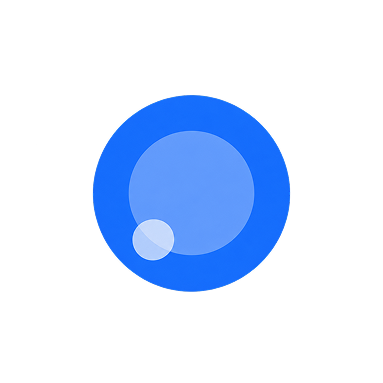 |
Aktiv – Helt blå Sändaren och mottagaren är anslutna och redo att spela in. |
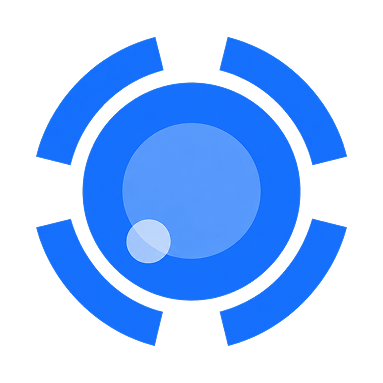 |
Söker – Långsamt blinkande blått Sändaren försöker återansluta till den ihopparade mottagaren. |
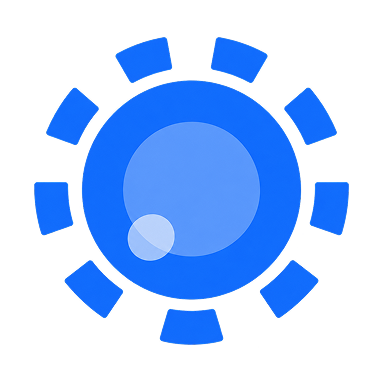 |
Parning – Snabbt blinkande blått Sändaren befinner sig i parningsläge och är redo att anslutas till en ny mottagare. |
 |
Brusreducering – Fast grönt sken Brusreduceringen är aktiverad. Tryck en gång på mottagarknappen för att stänga av den. |
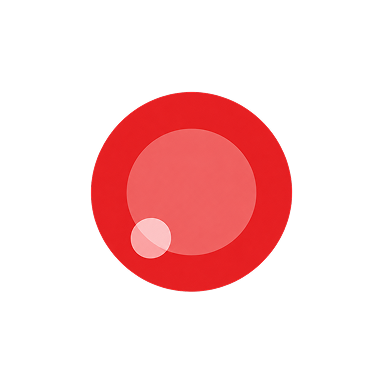 |
Mute – Helt röd Ljudet är avstängt. Tryck en gång på sändarknappen för att slå på ljudet igen. |
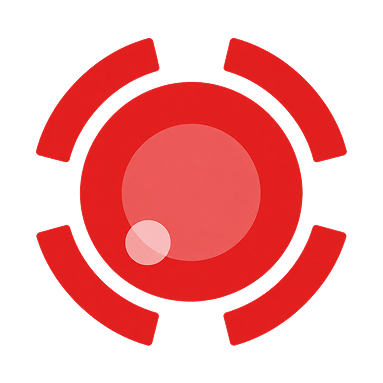 |
Lågt batterinivå – Långsamt blinkande rött ljus Sändarens batterinivå är under 10 %. Placera den i Smart Handle eller bärväskan för att ladda den. |
Lampor på mottagaren
| Ljus | Status |
|---|---|
|
Aktiv – Helt blå Mottagaren och sändaren är anslutna och redo för inspelning. |
|
Söker – Långsamt blinkande blått Mottagaren söker efter en ihopparad sändare. |
|
Parning – Snabbt blinkande blått Mottagaren befinner sig i parningsläge och är redo att anslutas till en ny sändare. |
|
Brusreducering – Fast grönt sken Brusreduceringen är aktiverad. Tryck en gång på mottagarknappen för att stänga av den. |
|
Mute – Helt röd Ljudet är avstängt. Tryck en gång på sändarknappen för att slå på ljudet igen. |
|
Lågt batterinivå – Långsamt blinkande rött ljus Sändarens batterinivå är under 10 %. Placera den i Smart Handle eller bärväskan för att ladda den. |
Appen Wave Go
Wave Go fungerar direkt ur förpackningen och anpassar ljudet automatiskt. Den kostnadsfria Wave Go-appen (iOS och Android) finns till hands om du vill justera förstärkningen och brusreduceringen, kontrollera batterinivån och mycket mer, men den är helt valfri.
Ladda ner appen Wave Go från Apple App Store eller Google Play Store. Appen kräver iOS 17 eller senare, iPadOS 17 eller senare, eller Android 8.0 Oreo eller senare.
Med appen Wave Go kan du:
- Se de exakta batterinivåerna för sändaren och Smart Handle
- Aktivera eller inaktivera automatisk förstärkning
- Ställ in manuell förstärkning
- Välj en nivå för brusreducering (Av, Låg, Medel eller Hög)
- Stäng av eller slå på ljudet
- Se en utgångsnivåmätare i realtid
- Kontrollera serienumret och firmwareversionen
- Installera firmwareuppdateringar
Wave Go överför ljud via en dedikerad 2,4 GHz-anslutning till sin mottagare. Bluetooth används endast för att ansluta till Wave Go-appen för inställningar och uppdateringar, så Bluetooth måste vara aktiverat för att appen ska fungera.
Du kan styra Wave Go via appen även när mottagaren är ansluten till en annan enhet. Du kan till exempel justera förstärkningen från din telefon medan mottagaren är ansluten till din bärbara dator.
Så här uppdaterar du firmware för Wave Go
- Ladda sändaren och Smart Handle till minst 30 %.
- Anslut USB-C-mottagaren till din telefon eller surfplatta och slå på sändaren.
- Aktivera Bluetooth och öppna appen Wave Go.
- När appen visar att en uppdatering finns tillgänglig trycker du på den och följer anvisningarna på skärmen.
- Se till att sändaren är påslagen och att den är ansluten till laddaren om du uppdaterar Smart Handle, tills appen bekräftar att uppdateringen är klar.
Så här löser du upp ett fastnat Smart Handle
Om en firmwareuppdatering avbryts kan Smart Handle fastna. När Smart Handle har fastnat blinkar LED-ringen snabbt med grönt sken, den stängs inte av och syns inte i Wave Go-appen. Sändaren fungerar som länk mellan appen och Smart Handle, så återställningen fungerar endast när sändaren är dockad.
- Ladda sändaren.
- Anslut sändaren till det fastnade Smart Handle.
- Öppna appen Wave Go och kontrollera att sändaren visas.
- Öppna avsnittet ”Hjälp ”.
- Tryck på ”Återställ ett fastnat handtag ” och följ anvisningarna på skärmen.
Ljudinställningar
Wave Go justerar ljudet automatiskt. Om du vill ha mer kontroll kan du finjustera förstärkningen och brusreduceringen i Wave Go-appen.
Automatisk förstärkning
Auto Gain är aktiverat som standard. Funktionen justerar ljudnivåerna kontinuerligt så att det aldrig uppstår översvängning när du spelar högt eller att ljudet försvinner när du spelar tyst.
Auto Gain fungerar bra vid de flesta typer av mobilinspelningar.
Manuell förstärkning
Med manuell förstärkning får du sex fasta förstärkningssteg i Wave Go-appen. Stäng av ”Auto Gain” så visas skjutreglaget för manuell förstärkning. Din nivå förblir då exakt där du har ställt in den under hela inspelningen.
Använd manuell förstärkning när:
- Du spelar in i en kontrollerad miljö med förutsägbara talvolymer.
- Du fångar avsiktlig dynamik, som i musik eller ett uttrycksfullt framförande.
- Du vill undvika att den automatiska bearbetningen orsakar hörbara nivåförändringar.
- Du befinner dig i en bullrigare miljö, till exempel med luftkonditionering, trafik eller på en livlig plats, där funktionen ”Auto Gain” kan göra allt högre, inte bara din röst. Börja i den lägre delen av skalan och justera därifrån.
Brusreducering
Brusreduceringen dämpar oönskade bakgrundsljud i bullriga miljöer. Tryck på knappen på hörluren för att slå på funktionen när du behöver den och stäng av den igen när det blir tystare. LED-lamporna lyser grönt när funktionen är påslagen.
För bättre kontroll kan du välja mellan tre intensitetsnivåer i Wave Go-appen.
Rekommenderade inställningar:
- Av: För tysta rum, eller när du vill att mer omgivningsljud ska höras.
- Låg: Dämpar bakgrundsljud samtidigt som rummet låter naturligt, och fungerar bra i vardagliga situationer.
- Medium: Ger bättre dämpning i bullriga miljöer.
- Hög: Mycket effektivt, men kan få din röst att låta mer bearbetad, så spara den till miljöer där det är väldigt högljutt.
Vid skrivbordet bör du istället använda Voice Focus i Wave Link (se Wave Link). Brusreduceringen påverkar inte batteritiden för sändaren eller Smart Handle, eftersom bearbetningen sker i mottagaren.
Alltid på
Ytterligare två bearbetningssteg körs hela tiden:
- Lågpassfilter: Tar bort lågfrekventa brus från vind, hanteringsljud och vibrationer.
- Dynamikområdeskontroll: Fångar upp plötsliga volymtoppar och jämnar ut dem innan de klipper.
Vindskydd
Wave Go levereras med två pälsklädda vindskydd som dämpar vindbruset:
- Sändarens vindskydd klickas fast på sändarens ovansida.
- Den större Smart Handle-vindrutan träs över Smart Handle-huvudet.
Använd ett vindskydd när du befinner dig utomhus eller på platser där luftströmmar kan nå mikrofonen. När det gäller vindljud gör vindskydden en betydligt större skillnad än brusreducering, som inte på egen hand kan eliminera vindbrus på ett tillförlitligt sätt.
Batteri och laddning
Sändaren och Smart Handle har vardera ett inbyggt uppladdningsbart batteri.
- Sändare: Cirka 8 timmar per laddning. En snabbladdning på 10 minuter ger cirka 1 timmes användningstid.
- Smart Handle: Laddar sändaren så fort den är dockad, vilket ger upp till 48 timmars sammanlagd drifttid.
Så här kontrollerar du batterinivån
Sändare: Sändarens batteristatus visas automatiskt på sändarens LED-lampa eller på LED-ringen längst ned på Smart Handle när sändaren är ansluten till laddaren.
| Ljus | Status |
|---|---|
|
Sändarens batterinivå: 30 % till 100 % Helt grönt |
 |
Sändarens batterinivå: 10–29 % Helt orange |
|
Sändarens batteri är nästan slut Långsamt blinkande rött ljus: sändarens batteri är under 10 %. Sätt den i Smart Handle eller bärväskan för att ladda den. |
Smart Handle: LED-ringen längst ned på Smart Handle visar batterinivån när du trycker på Smart Handle-knappen medan Wave Go är avstängd, eller när du slår på eller stänger av ljudet under inspelning.
| Ljus | Status |
|---|---|
|
Smart Handle-batteri 30 % till 100 % Helt grönt |
|
Smart Handle-batteri 10 % till 29 % Helt orange |
|
Smart Handle-batteri 0 % till 9 % Helt rött |
Kontrollera de exakta batterinivåerna för sändaren och Smart Handle i Wave Go-appen.
Så här laddar du sändaren
Du kan ladda sändaren på två olika sätt.
I Smart Handle: Sändaren laddas automatiskt så fort den är ansluten till Smart Handle. Smart Handle kan ladda sändaren fullt upp ungefär 5 gånger.
I bärväskan: Placera sändaren i dess fack i bärväskan och anslut sedan väskan till strömkällan med den medföljande USB-C-kabeln. Sändarens LED-lampa visar laddningsstatus:
| Ljus | Status |
|---|---|
|
Sändarens batteri: 85 % till 100 % Helt grönt |
 |
Sändarens batterinivå: 30 % till 84 % Långsamt blinkande grönt |
 |
Sändarens batterinivå: 10–29 % Långsamt blinkande orange |
|
Sändarens batterinivå: 0 % till 9 % Långsamt blinkande rött |
Så här laddar du Smart Handle
Placera Smart Handle i facket i bärväskan och anslut sedan väskan till strömkällan med den medföljande USB-C-kabeln. LED-ringen längst ner på Smart Handle visar laddningsstatus:
| Ljus | Status |
|---|---|
|
Smart Handle-batteri 85 % till 100 % Helt grönt |
|
Smart Handle-batteri 30 % till 84 % Långsamt blinkande grönt |
|
Smart Handle-batteri 10 % till 29 % Långsamt blinkande orange |
|
Smart Handle-batteri 0 % till 9 % Långsamt blinkande rött |
I bärväskan laddas sändaren och Smart Handle samtidigt.
Genomladdning
Mottagaren har en laddningsport, så att du kan ansluta en USB-C-strömkälla för att ladda din telefon under inspelningen. Anslut strömkällan till mottagarens laddningsport och anslut sedan mottagaren till din telefon som vanligt.
Den levererar upp till 5 W, vilket räcker för att ladda din telefon eller bromsa batteriförbrukningen, beroende på hur hårt den arbetar. Mottagaren drar i sig mindre än 40 mA från den anslutna enheten. Mottagarens genomladdningsport stöder inte Power Delivery (PD).
Om din telefon fortfarande tappar batterikapacitet kan du använda ett trådlöst batteripack eller en USB-C-delare med stöd för Power Delivery (PD) (ingår ej).
Riktlinjer för debitering
- Den medföljande USB-C-kabeln är endast avsedd för laddning (5 V / 2 A, max 10 W).
- Ladda och använd Wave Go vid temperaturer mellan 0 °C och 40 °C (32 °F till 104 °F).
Kombination
Wave Go fungerar direkt när du packar upp den. Du behöver bara para ihop enheten manuellt när du lägger till en andra sändare, byter ut en borttappad sändare eller om sändaren och mottagaren inte ansluter automatiskt.
Så här kopplar du ihop en sändare
- Placera sändaren inom 12 tum (30 cm) från mottagaren.
- Se till att mottagaren är ansluten till elnätet och att sändaren är avstängd.
- Håll ned mottagarknappen i 6 sekunder tills dess LED-lampa blinkar snabbt med blått sken.
- Håll sändarens knapp intryckt i 6 sekunder tills dess lysdiod också blinkar snabbt med blått sken.
- Parningen är klar när båda lysdioderna slutar blinka och lyser med ett fast blått sken.
Inspelning med två personer
Wave Go levereras med en sändare, vilket passar utmärkt för inspelning på egen hand. För uppsättningar med två personer kan du lägga till en andra Wave Go TX (säljs separat). Den kopplas ihop med samma mottagare enligt stegen ovan, så det behövs inga extra anslutningar.
Den andra sändaren förvaras i Smart Handle, så båda laddas samtidigt i bärväskan. Båda visas i Wave Go-appen som TX1 och TX2, och ljudet från båda mixas ihop till en enda monosignal.
Felsökning av anslutningar
Ett långsamt blinkande blått ljus betyder att sändaren eller mottagaren söker efter sin partner. Kontrollera att mottagaren är ordentligt isatt i enheten och att sändaren är påslagen och befinner sig inom räckvidden. Om de fortfarande inte ansluter till varandra, upprepa parningsstegen med sändaren inom 12 tum (30 cm) från mottagaren.
Wave Link
Wave Go kan även användas som skrivbordsmikrofon till din dator. Anslut USB-C-mottagaren till din PC eller Mac och använd den för samtal, poddsändningar och mycket mer.
Wave Link är Elgatos kostnadsfria mixningsprogram för Windows och macOS. Med det kan du mixa din röst, musik, spelljud och systemljud, lägga till ljudeffekter samt använda VST- och AU-plugins.
Så här konfigurerar du Wave Go i Wave Link:
- Ladda ner Wave Link från elgato.com/downloads och installera programmet.
- Anslut mottagaren till en USB-C-port på din dator och slå på sändaren.
- Starta Wave Link och följ installationsanvisningarna på skärmen.
Programvaran Wave Link kräver Windows 11 eller senare, eller macOS 15 eller senare.
Röstfokus
Voice Focus är en ljudeffekt i Wave Link som använder AI-baserad ljudförbättringsteknik från ai-coustics. Den skiljer din röst från rumseko och bakgrundsljud, så att du låter naturligt och tydligt inomhus.
Så här använder du Voice Focus tillsammans med Wave Go:
- Samtal och möten: Ljudet blir klart och tydligt i Zoom, Microsoft Teams och Google Meet, även i ett bullrigt rum.
- Podcasting och inspelning: Få ett rent sångljud utan att akustiskt behandla rummet.
- AI-verktyg med röstkommandon: Koppla ihop Wave Go med en dikteringsapp för att ge röstkommandon till ChatGPT, Claude och andra AI-verktyg. Tack vare den trådlösa sändaren kan du prata var som helst i rummet, inte bara vid skrivbordet.
Stream Deck-integration
Med det kostnadsfria Wave Link-tillägget från Elgato Marketplace kan Stream Deck justera volymen, stänga av ljudet på kanaler och aktivera eller inaktivera effekter i Wave Link.
Skötsel och underhåll
Följ dessa skötsel- och underhållsråd för att Wave Go ska fortsätta låta så bra som möjligt och för att du ska kunna utnyttja batterierna optimalt under lång tid.
Vatten- och dammtålighet
Wave Go har ingen IP-klassning för damm- eller vattentålighet. Håll den borta från regn, vätskor och extrem värme.
Batteribyte
Wave Go levereras med 2 års garanti. Batterierna i sändaren och Smart Handle är inbyggda, så om du stöter på problem med batterierna eller enhetens prestanda bör du kontakta Elgatos support istället för att försöka öppna enheten.
Batteriets livslängd
Wave Go-batterierna är konstruerade för att klara mer än 300 fullständiga laddnings- och urladdningscykler och samtidigt behålla över 80 % av sin ursprungliga kapacitet.
Så här rengör du Wave Go
- Förvaring: Torka försiktigt av med en mjuk trasa och ett neutralt rengöringsmedel. Undvik starka kemikalier, organiska lösningsmedel, höga temperaturer och repor från hårda föremål.
- Ladningskontakter: Sätt i och ta ut sändaren och Smart Handle rakt in och ut utan att vicka på dem. Torka av kontakterna regelbundet med en alkoholservett. Om de blir mörka, rengör dem försiktigt med ett suddgummi. Skrapa aldrig på kontakterna med vassa verktyg.
Tekniska specifikationer
| Specifikationer | Värde |
|---|---|
| Kapsel | 6 mm elektretkondensatormikrofon |
| Riktningskarakteristik | Rundstrålande |
| Frekvensrespons | 60 Hz till 20 kHz |
| Total harmonisk distorsion | <1 % vid 1 Pa, 1 kHz |
| Signal-brusförhållande | 70 dB(A) handhållen, 68 dB(A) klämbar (typvärde, A-viktat vid 1 kHz) |
| Max SPL | 115 dB SPL (1 % THD vid 1 kHz) |
| Samplingsfrekvens | 48 kHz |
| Bittdjup | 24-bitars |
| Trådlös frekvens | 2,4 GHz ISM-bandet (2402–2480 MHz) |
| Codec | LC3 |
| Fördröjning | ≤ 24 ms |
| GFSK-hastighet | 2 Mbps |
| Sändningseffekt (EIRP) | 13 dBm |
| Trådlös räckvidd | ~30 m (100 ft) |
| Batterikapacitet | 80 mAh (TX), 900 mAh (Smart Handle; kan ladda TX fullt cirka 5 gånger) |
| Batteritid | ~8 timmar (TX), ~40 timmar (Smart Handle) |
| Laddningstid | ~1,5 h (TX), ~2,5 h (Smart Handle) |
| Snabbladdning (TX) | ~10 minuter för 1 timmes användning |
| Genomladdning | 5 V / 1 A (5 W) |
| Kabel | USB-C till USB-C, endast laddning, max 5 V / 2 A (10 W) |
| Drifts-/laddningstemperatur | 0° till 40°C | 32° till 104°F |
| Vikt | Sändare: 7 g | 0,25 oz (10 g | 0,35 oz med platta, 11 g | 0,4 oz med klämma). Mottagare: 7 g | 0,25 oz. Smart Handle: 62 g | 2,25 oz. Bärväska: 195 g | 6,9 oz |
| Mått | Sändare: 20 × 29 × 12 mm | 0,8 × 1,1 × 0,5 tum. Mottagare: 40 × 28 × 9 mm | 1,6 × 1,1 × 0,4 tum. Smart Handle: Ø26 × 180 mm | Ø1,0 × 7,1 tum. Bärväska: 205 × 40 × 60 mm | 8,1 × 1,6 × 2,4 tum |
| Systemkrav | USB-C-port. Bluetooth (för Wave Go-appen). Wave Go-appen: iOS 17 eller senare, iPadOS 17 eller senare, Android 8.0 Oreo eller senare. Wave Link-programvaran: Windows 11 eller senare, macOS 15 eller senare. |
|
Batterier
Sök efter information om Handle-batteriet |
Batterihandtag Modell: 13600 Typ: Uppladdningsbart litiumjonpolymerbatteri Spänning: 3,7 VDC Kapacitet: 900 mAh, 3,33 Wh Mått: Ø13,3 mm × H62,5 mm max Certifieringar: CE, KC, PSE, (SB C&S 株式会社) Ursprung: Tillverkad i Kina |
|
Sök efter batteriinformation för TX |
TX-batteri Modell: ST-LP601215 Typ: Uppladdningsbart litiumjonpolymerbatteri Spänning: 3,7 VDC Kapacitet: 80 mAh, 0,30 Wh Mått: D 6,2 mm × B 12,2 mm × H max 17,5 mm Certifieringar: CE, KC Ursprung: Tillverkad i Kina |
Juridisk information
VARNING
- Det finns explosionsrisk om batteriet byts ut mot en felaktig typ.
- Om man byter ut ett batteri mot ett av fel typ kan detta leda till att en säkerhetsanordning slutar fungera.
- Att kasta ett batteri i eld eller en het ugn, eller att mekaniskt krossa eller skära sönder ett batteri, kan leda till en explosion.
- Om ett batteri lämnas i en omgivning med extremt hög temperatur kan det leda till en explosion eller läckage av brandfarlig vätska eller gas.
- Ett batteri som utsätts för extremt lågt lufttryck, vilket kan leda till en explosion eller läckage av brandfarlig vätska eller gas.
Uttalande om störningar från Federal Communication Commission (FCC)
Denna enhet uppfyller kraven i del 15 av FCC:s föreskrifter. Användningen är underkastad följande två villkor: (1) Denna enhet får inte orsaka skadliga störningar, och (2) denna enhet måste tåla eventuella störningar, inklusive sådana som kan orsaka oönskad funktion.
Denna utrustning har testats och befunnits uppfylla gränsvärdena för digitala enheter av klass B, i enlighet med del 15 i FCC:s föreskrifter. Dessa gränsvärden är avsedda att ge ett rimligt skydd mot skadlig störning vid installation i bostadsmiljö. Denna utrustning alstrar, använder och kan avge radiofrekvensenergi och kan, om den inte installeras och används enligt anvisningarna, orsaka skadlig störning på radiokommunikation. Det finns dock ingen garanti för att störningar inte kommer att uppstå vid en viss installation. Om denna utrustning orsakar störningar som påverkar radio- eller TV-mottagningen – vilket kan fastställas genom att stänga av och sätta på utrustningen – uppmanas användaren att försöka åtgärda störningarna genom någon av följande åtgärder: Ändra riktningen på eller flytta mottagarantennen. Öka avståndet mellan utrustningen och mottagaren. Anslut utrustningen till ett eluttag på en annan strömkrets än den som mottagaren är ansluten till. Kontakta återförsäljaren eller en erfaren radio-/TV-tekniker för hjälp.
Varning från FCC: Eventuella ändringar eller modifieringar som inte uttryckligen godkänts av den part som ansvarar för efterlevnaden kan medföra att användarens rätt att använda denna utrustning upphör att gälla.
Om du har frågor om huruvida Elgatos produkter uppfyller FCC:s föreskrifter, vänligen kontakta: Compliance Officer, CORSAIR MEMORY, Inc., 115 North McCarthy Blvd, Milpitas, CA 95035, USA
FCC-ID (mottagarenhet): 2AAFM-22MAP9901
FCC-ID (sändarenhet): 2AAFM-23MAP9901
IC-meddelande
Denna enhet innehåller licensfria sändare/mottagare som uppfyller kraven för licensfria RSS-standarder från Innovation, Science and Economic Development Canada. Användningen är underkastad följande två villkor: (1) Denna enhet får inte orsaka störningar. (2) Denna enhet måste tåla all störning, inklusive störning som kan orsaka oönskad drift av enheten. Produkten uppfyller de kanadensiska gränsvärdena för exponering för bärbar RF-strålning som fastställts för en okontrollerad miljö och är säker för avsedd användning enligt beskrivningen i denna bruksanvisning. Den licensfria sändaren/mottagaren i denna enhet uppfyller de CNR-krav från Innovation, Science and Economic Development Canada som gäller för licensfria radioenheter. Drift är tillåten under följande två villkor: (1) Enheten får inte orsaka störningar; (2) Enheten måste tåla alla radiostörningar den utsätts för, även om störningarna kan påverka dess funktion. Produkten uppfyller de gränsvärden för exponering för bärbara RF-enheter i USA och Kanada som fastställts för en okontrollerad miljö.
Denna produkt uppfyller Kanadas gränsvärde för RF-exponering för bärbara enheter när den används med ett minsta avstånd på minst 5 mm. Dessa krav fastställer ett SAR-gränsvärde på 1,6 W/kg, beräknat som medelvärde per gram vävnad. Det högsta SAR-värdet som rapporterats enligt denna standard under produktcertifieringen är lägre än 1,6 W/kg.
IC-ID (mottagarenhet): 10954 A-22MAP9901
IC-ID (sändarenhet): 10954 A-23MAP9901
Enligt bestämmelserna i NCC:s tekniska föreskrifter för radioutrustning med låg effekt (
) får ingen, utom godkända företag, verksamheter eller användare, utan tillstånd ändra frekvensen, öka effekten eller ändra de ursprungliga konstruktionsegenskaperna och funktionerna hos radioutrustning med låg effekt som har erhållit ett godkännandebevis. Användningen av radioutrustning med låg effekt får inte påverka flygsäkerheten eller störa laglig kommunikation;Om störningar upptäcks ska utrustningen omedelbart tas ur bruk och får endast återtas i bruk efter att störningarna har åtgärdats. Med laglig kommunikation avses här radiokommunikation som bedrivs i enlighet med bestämmelserna i telekommunikationslagen. Utrustning för radiofrekvenser med låg effekt måste tåla störningar från laglig kommunikation eller från elektrisk utrustning som avger radiovågor för industriella, vetenskapliga och medicinska ändamål.
 |
RX-enhet: R-R-CSI-22MAP9901 TX-enhet: R-R-CSI-23MAP9901 |
Sökandens namn (företagsnamn): Corsair Memory, Inc.
Produktnamn (produktbeteckning): Wave Go
Modellnr. (모델명):
20MAP9901 Laddningsfodral
22MAP9901 RX-enhet
23MAP9901 TX-enhet
24MAP9901 Laddningshandtag
Sökande: CORSAIR MEMORY, Inc.
Tillverkningsår och -månad: Se serienummer (S/N).
Tillverkare och ursprungsland: CORSAIR MEMORY, Inc. / Se detaljhandelsförpackningen.
Produktnamn: Se produktetiketten.
Modellnummer: Se produktetiketten.
Sökandens namn: CORSAIR MEMORY, Inc.
Tillverkningsår och -månad: Se serienummer (S/N)
Tillverkare och ursprung: CORSAIR MEMORY, Inc. / Se detaljhandelsförpackningen
Produktnamn: Se produktetiketten
Modellnummer: Se produktetiketten
A/S: Comsville Co., Ltd., 1522-1460
CORSAIR MEMORY, Inc. 115 North McCarthy Blvd, Milpitas, CA 95035, USA
CORSAIR GmbH, Landshuter Allee 10, 80637 München, Tyskland
CORSAIR COMPONENTS Ltd. 1020 Eskdale Road, Winnersh Triangle, Wokingham, RG41 5TS, Storbritannien