Alla sessioner kräver inte en PC. I fristående läge kan Wave XLR Pro köra din mix, bearbeta din mikrofon och mata ut ljud helt på egen hand.
Håll din mix igång utan PC
De flesta ljudmixers tystnar så fort datorn stängs av eller kopplas bort. Wave XLR Pro är annorlunda. Med Standalone Mode fortsätter mixern att fungera självständigt – dina DSP-effekter förblir aktiva, din routing förblir intakt och ditt ljud fortsätter att flöda precis som du har konfigurerat det.
Ibland vill man bara hoppa in i ett spel eller koppla av utan att starta upp datorn. Och om man har en dubbel PC-konfiguration finns det många situationer där streaming-datorn helt enkelt inte behöver vara påslagen. Fristående läge innebär att Wave XLR Pro fortsätter att fungera oavsett – mikrofonen bearbetas, mixen körs och ljudet strömmar genom hörlurarna utan att man behöver röra någon av datorerna.
Hur det fungerar
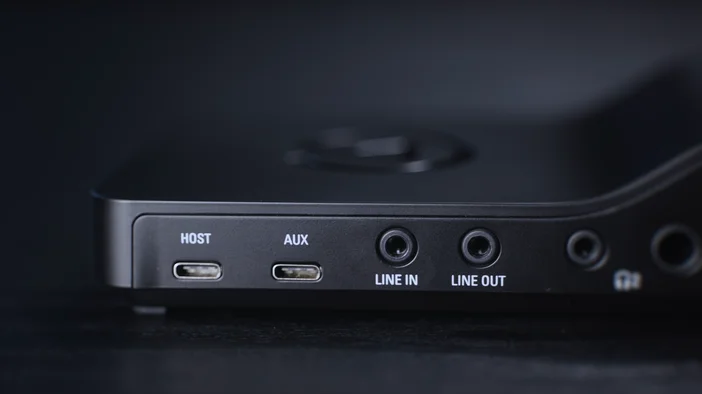
Wave XLR Pro har två USB-C-portar. USB Host är din primära anslutning till en dator – det är här Wave Link ansluts och där du konfigurerar dina mixar, routing och DSP-effekter. USB Aux är för sekundära källor som konsoler, telefoner eller en andra dator, med enkel plug-and-play-anslutning och utan behov av drivrutiner.
Båda portarna kan driva Wave XLR Pro i fristående läge. Anslut en strömkälla eller powerbank till USB Host, eller strömförsörj via USB Aux från en konsol eller laddare – resultatet blir detsamma. Wave XLR Pro startar upp, din profil för fristående läge laddas automatiskt och enheten körs självständigt. Din mikrofon bearbetas, dina effekter är aktiva och din mix spelas upp som vanligt.
Vad som förblir aktivt i fristående läge
När Wave XLR Pro körs fristående behåller den din sparade konfiguration från senaste gången den var ansluten till Wave Link. Detta inkluderar DSP-effekter som kompression, EQ och Voice Tune. Din mixningsrouting och utgångstilldelningar bevaras också.
VST-plugins, som körs på din dator istället för på själva enheten, är inte tillgängliga i fristående läge. De kräver en aktiv anslutning till din värdmaskin.
En anteckning om Wave Link
Wave Link krävs för att konfigurera Wave XLR Pros mixningsmotor – Wave FX Processor hanterar Clipguard 2.0, DSP-effekter och VST-insatser, och Wave Link är det du använder för att styra allt detta. Men när allt är konfigurerat behöver Wave Link inte köras. Routningen och bearbetningen sker på själva enheten, så allt överförs automatiskt till fristående läge.
Ett undantag: VST-insatsen är inte aktiv i fristående läge. Den är beroende av din dator för att fungera, så utan Wave Link öppet faller VST:erna bort från kedjan. Clipguard 2.0 och dina DSP-effekter förblir aktiva.