MANUAL | SNABBSTARTGUIDE
Elgato Prompter XL — Quick Start Guide
Full-Sized Teleprompter with Removable Display, Video Conferencing Monitor, For DSLR Mirrorless & Studio Cameras, Single-Cable Setup – USB-C 3.2 for PC & Mac
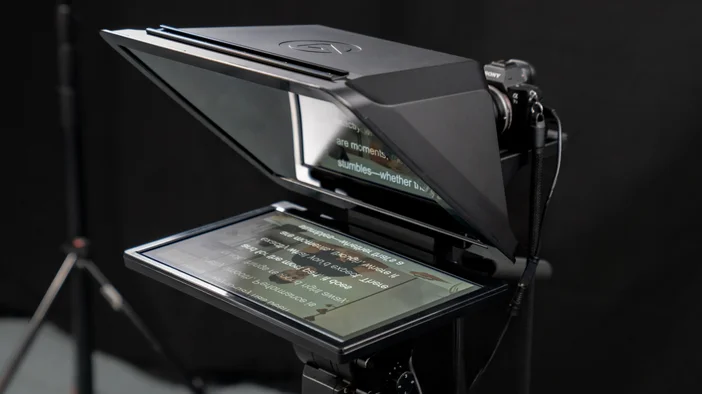
Assembling Prompter XL
1) First, secure Prompter XL onto a tripod or mount that can support the combined weight of your teleprompter and camera. Prompter XL features three mounting thread (two ¼" and one ⅜")—choose a position that provides the best balance for your setup. Once mounted, fully tighten the ball head on your tripod or mount to lock everything in place.
Taking time to properly secure the mount now will prevent stability issues throughout the setup process.
2) To install the beamsplitter glass, align the slots at the top of the glass with the corresponding tabs at the top of Prompter’s XL frame. Then swing the bottom of the glass forward to align with the bottom tabs and press firmly into place.
The beamsplitter glass can be easily removed for traveling or cleaning with the included cloth.
3) To install the display, orient it with the USB-C port facing the rear of Prompter XL, then place it on the magnetic platform. The magnets will automatically align and secure your display in the correct position.
Be careful of the strong magnetic pull—keep your fingers clear to avoid pinching them between the display and Prompter XL.
4) To remove Prompter XL’s display, grip either the left or right edge and pull straight up. Avoid pulling from the center of the display, as this requires significantly more force to overcome the magnetic hold.
Mounting Your Camera
Your Prompter XL comes with two backplates that can be swapped out to fit different camera types and sizes.
Ring Backplate
For larger DSLRs, mirrorless cameras, and camcorders with threaded lenses.
Do not use with motorized lenses.
Universal Backplate
For all other cameras—including camcorders, webcams, and cameras that don't fit the Ring Backplate requirements.
For a complete list of cameras verified to work with Prompter XL, visit https://e.lga.to/Prompter-XL-Compatibility
Mounting with the Ring Backplate
1) Insert the Ring Backplate into the rear of Prompter XL, using the bottom tab to guide it into position. Secure it with two Mounting Screws.
2) Attach the Camera Bracket to Prompter XL using a Mounting Screw, but don’t fully tighten it yet.
Note: For most setups, mount the Camera Bracket with its short side against Prompter XL. For smaller cameras or tighter spaces, you can mount it with the long side against Prompter XL instead.
3) Screw the appropriate step-up ring (included) onto your camera’s lens thread. Compatible thread sizes are 49, 52, 55, 58, 62, 67, 72, 77, and 82mm.
Tip: Your lens cap usually shows the thread size.
4) Align the step-up ring on your camera with the grooves on the Ring Backplate, then slide the camera down until it seats in the center of the backplate.
Keep supporting your camera—don't let go until you've completed Step 5.
5) While supporting your camera with one hand, use your other hand to bring the Camera Bracket up to the camera. Then screw the last Mounting Screw into your camera's ¼" mounting thread.
Once your camera is secured to both the backplate and Camera Bracket, tighten the vertical Mounting Screw to lock everything in place.
Note: Your camera must have a centered ¼" thread to mount properly on the Camera Bracket.
Mounting with the Universal Backplate
1) Insert the Universal Backplate into the rear of Prompter XL, using the bottom tab to guide it into position.
2) Drape the shroud over Prompter XL to keep it out of your way, then secure the backplate using two Mounting Screws.
3) Attach the Camera Bracket to Prompter XL using a Mounting Screw, but don’t fully tighten it yet.
Note: For most setups, mount the Camera Bracket with its short side against Prompter XL. For smaller cameras or tighter spaces, you can mount it with the long side against Prompter XL instead.
4) Attach your camera to the Camera Bracket with a Mounting Screw, but leave it loose for now.
Note: Your camera must have a centered ¼" thread to mount properly on the Camera Bracket.
5) Lift the Camera Bracket to center your camera's lens in Prompter XL's opening. Once centered, fully tighten the Mounting Screw on the vertical rail to lock the bracket in position.
6) Slide your camera forward until it's as close to the glass as possible without touching it, then fully tighten the Mounting Screw on the bracket’s horizontal rail.
Note: Some camera lenses extend when zooming. Make sure your lens won't hit Prompter XL’s glass to avoid damage during use.
Connecting Prompter XL
Prompter XL connects to Mac and Windows computers, as well as Android devices, using a single USB C-to-C cable for both data and power.
1) Connect the right-angle USB-C plug to Prompter XL with the cable pointing downward.
2) Connect the other end to a USB-C 3.2 port on your computer or Android device.
Prompter XL needs a USB 3.2 port that supplies 15 watts of power. If the screen flickers, try a different USB port.
Software
Go to https://elgato.com/s/downloads to get our free teleprompter app for Windows or Mac.In the app, easily control your Prompter XL with powerful features like:
- Automatic mirroring
- Script manager
- Voice Sync technology
- Drag-and-drop mode
- Twitch chat integration
- Stream Deck control
For Android devices, download the DisplayLink Presenter app on the Google Play Store.
Accessories
There are many ways to modify Prompter XL, including some add-ons available for purchase.
Note: Accessories increase Prompter XL’s overall weight and may shift balance forward. Ensure your mount's ball head can handle any additional load.
Cold Shoe Rail
Prompter XL features a cold shoe rail for mounting accessories like lights, microphones, and field monitors.
Quick-Release Plate
A quick-release plate (not included) lets you remove and reattach your camera without readjusting the Camera Bracket each time.
Light Shields for Prompter XL
Attach Light Shields (sold separately) to improve visibility in bright or challenging lighting conditions.
Note: Light Shields may reduce your camera's field of view when mounted on Prompter XL.
Desk Stand for Prompter XL
Use Desk Stand for Prompter XL (sold separately) to mount your teleprompter on any flat surface.
Monitor Stand for Prompter XL
Remove your teleprompter’s display and mount it on Monitor Stand for Prompter XL (sold separately) to use as a secondary monitor.
Federal Communication Commission Interference Statement
This device complies with Part 15 of the FCC Rules. Operation is subject to the following two conditions: (1) This device may not cause harmful interference, and (2) this device must accept any interference received, including interference that may cause undesired operation.
This equipment has been tested and found to comply with the limits for a Class B digital device, pursuant to Part 15 of the FCC Rules. These limits are designed to provide reasonable protection against harmful interference in a residential installation. This equipment generates, uses and can radiate radio frequency energy and, if not installed and used in accordance with the instructions, may cause harmful interference to radio communications. However, there is no guarantee that interference will not occur in a particular installation. If this equipment does cause harmful interference to radio or television reception, which can be determined by turning the equipment off and on, the user is encouraged to try to correct the interference by one of the following measures:
- Reorient or relocate the receiving antenna.
- Increase the separation between the equipment and receiver.
- Connect the equipment into an outlet on a circuit different from that to which the receiver is connected.
- Consult the dealer or an experienced radio/TV technician for help.
FCC Caution: Any changes or modifications not expressly approved by the party responsible for compliance could void the user's authority to operate this equipment. For questions about Elgato product compliance with FCC regulations, please contact: Compliance Officer, Corsair Memory Inc., 115 North McCarthy Blvd, Milpitas, CA 95035, USA