MANUAL | QUICK START GUIDE
Elgato Wave XLR — Quick Start Guide
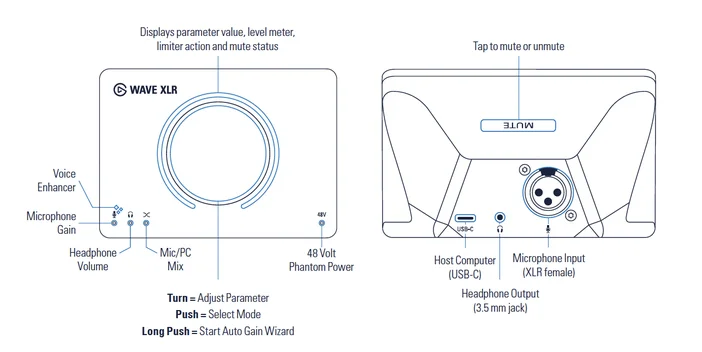
Product Specs
Software
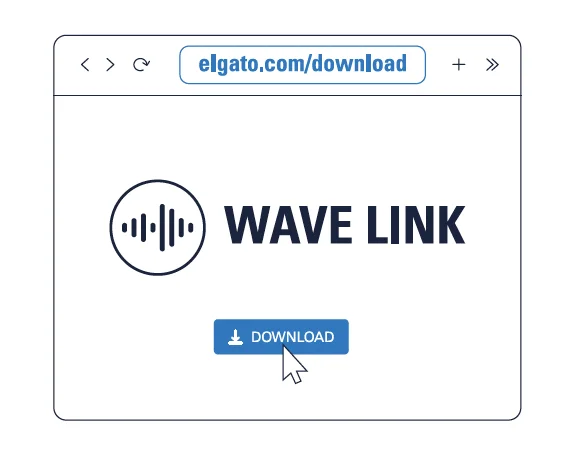
Download Elgato Wave Link to get started.

Have a Stream Deck? Get the Wave Link plugin from Elgato Marketplace for instant, hands-on control.
Connect to a PC
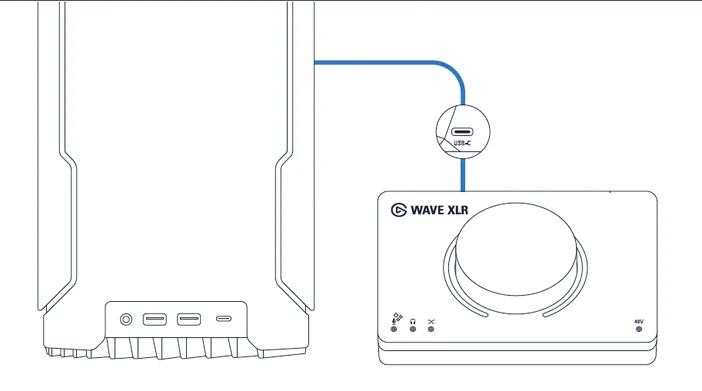
Connect Wave XLR to your computer using the supplied USB-C cable.
Note: For optimal performance, connect directly and avoid using USB hubs.
Phantom Power
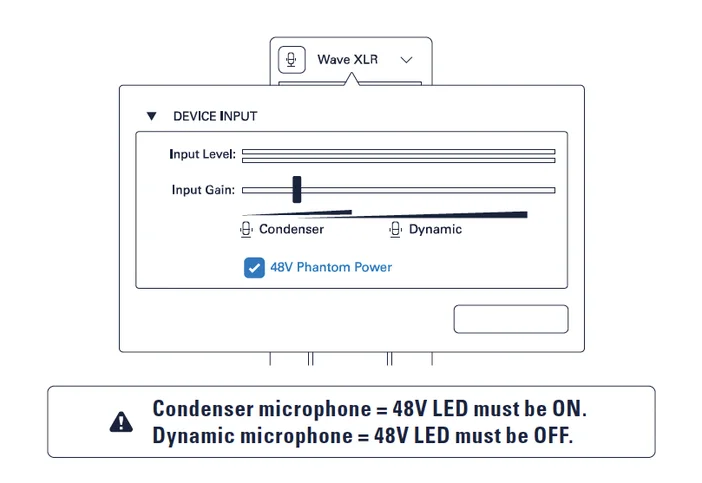
Phantom power is enabled by default and can be toggled via the Wave Link app.
Microphone
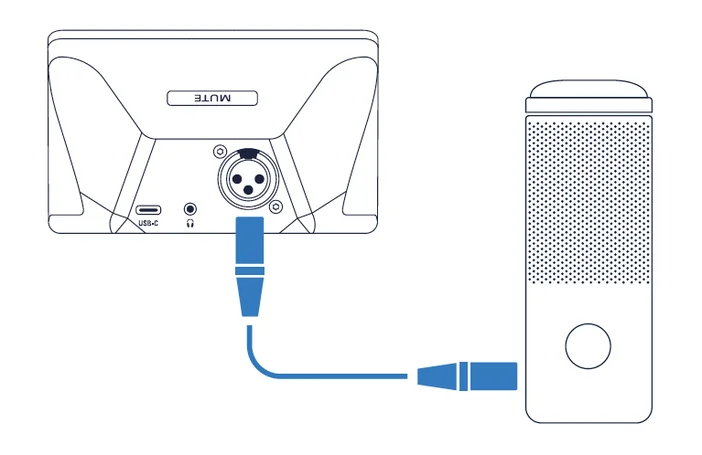
Connect your mic using a standard XLR cable (male-to-female connectors).
Headphones
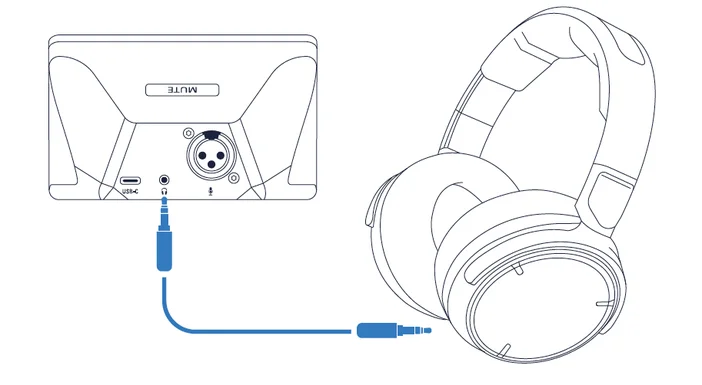
Connect your headphones to the 3.5 mm jack.
Note: Keep the monitoring volume moderate to protect your hearing!
Mode Select
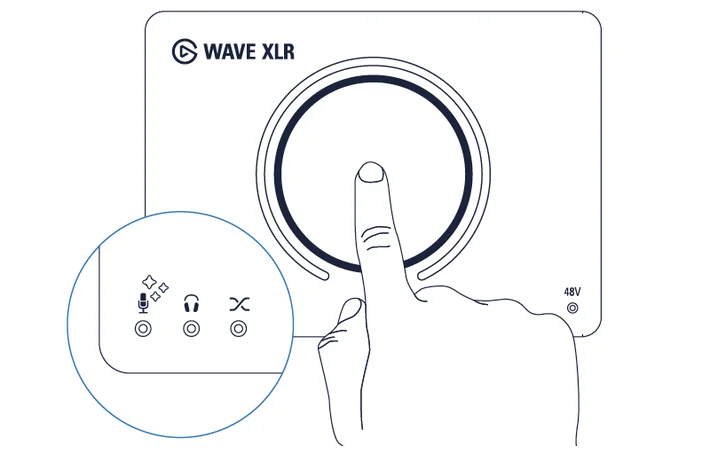
Press the control dial to toggle between Mic Gain, Voice Enhancer, Headphone Volume, and Mic/PC Mix.
Auto Gain Wizard
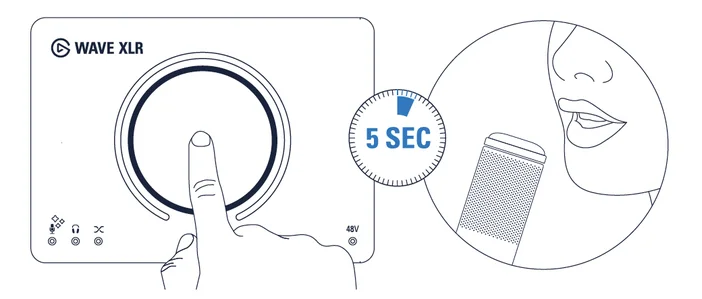
Press the control button for 5 seconds and speak into the microphone until the LED ribbon is fully lit.
Green = optimum gain has been set successfully.
Red = repeat process.
Mute
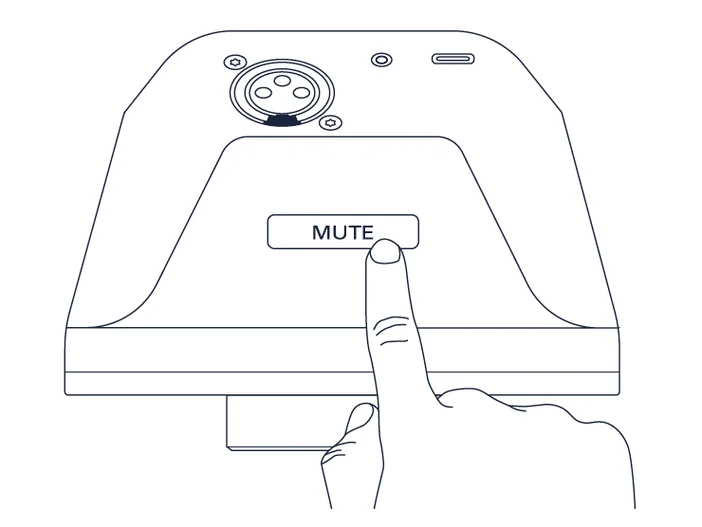
Tap the capacitive sensor on the back to mute or unmute.
Customize
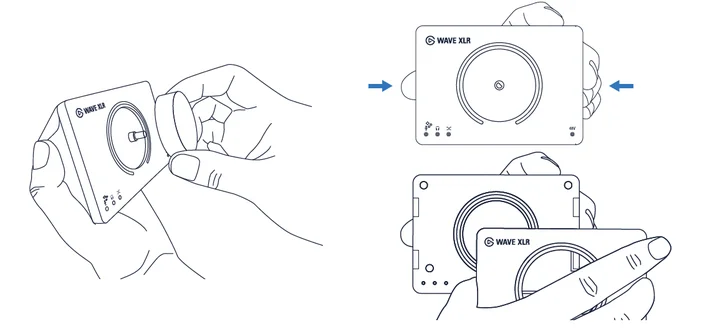
Swap the faceplate to personalize your setup. Fresh designs are available at elgato.com.