As your Stream Deck setup grows, it is easy to run out of space fast. New apps, games, and plugins all compete for keys, and a single layout can start to feel crowded.
Folders solve that problem. A folder opens a fresh layout on your Stream Deck, letting you group related actions together without giving up quick access. Instead of spreading actions across multiple profiles or pages, folders keep everything organized right where you need it.
How folders work on Stream Deck
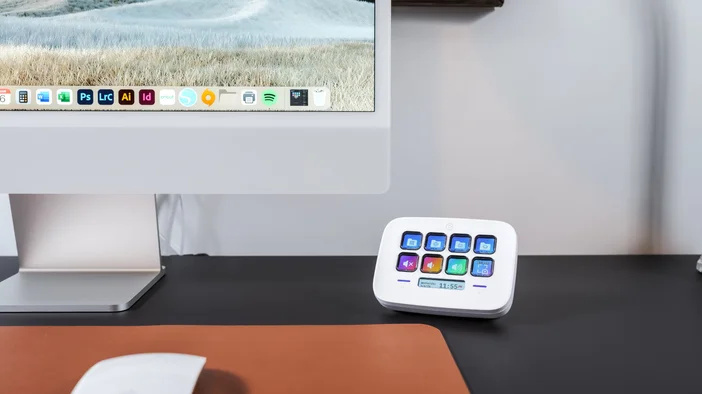
A folder is an action that opens into another set of keys. When you press it, your Stream Deck temporarily switches to that folder layout. Press the back arrow to return to your main layout, or let Stream Deck exit automatically after a set time.
Folders are useful for:
- Grouping similar actions like audio controls, stream tools, or game commands
- Keeping your main layout clean and focused
- Making complex setups easier to understand at a glance
How to add a folder
Creating a folder only takes a few seconds.
- Open the Stream Deck app
- In the Actions panel, drag Folder onto any key
- Click the folder key to open it
- Add actions inside the folder just like you would on your main layout
That folder now acts as a gateway to a dedicated set of controls.
Creating subfolders for deeper organization
Folders can live inside other folders. This is useful if you want to break things down even further.
For example:
- A Streaming folder with subfolders for audio, scenes, and chat
- A Game folder with subfolders for mounts, menus, and emotes
- A Work folder with subfolders for apps, shortcuts, and system controls
To create a subfolder, drag a Folder action inside an existing folder and open it. Navigation works the same way, so you can move back one level at a time or hold the Exit key to return to the main layout.
Auto exit folders after up to 60 seconds
If you prefer not to manually back out of folders, Stream Deck can do it for you.
Each folder has an Auto Exit option that returns you to the previous layout after a set time. You can choose any duration up to 60 seconds.
This is especially helpful for:
- Exit to your main layout automatically
- Temporary actions like changing audio levels
- Quick in-game menus
Auto Exit keeps your Stream Deck from staying buried inside folders longer than needed.
Customize folder icons
Folders are easier to use when you can recognize them instantly. You can customize the folder icon just like any other key.
- Select the folder key in the Stream Deck app
- Click the icon preview
- Choose a custom image or design your own
For ready-made icons, the Elgato Marketplace has free icon packs designed for Stream Deck. These include clean labels, symbols, and themed sets that work well for folders.
Using consistent icons for folders makes your layout faster to read and easier to remember.
For more information on how to customize your Stream Deck, check out our guide here.
Keep your layout clean as it grows
Folders are one of the simplest ways to scale your Stream Deck setup without losing speed or clarity. By grouping actions logically and using auto exit and custom icons, you can keep your main layout focused while still having room to grow.
Try adding folders to your setup and see how much easier it is to manage complex workflows.