O VST Insert é uma forma de aplicar efeitos de áudio ao seu microfone que funcionam da mesma forma em todos os aplicativos, sem cabos de áudio virtuais ou configuração por aplicativo.
Se já tentou usar um modificador de voz, adicionar um equalizador para limpar o som ou executar qualquer tipo de efeito de áudio no microfone, provavelmente se deparou com os problemas habituais. Os efeitos só funcionavam numa aplicação. Ouvia-se com um atraso estranho. Ou passou uma hora a configurar cabos de áudio virtuais apenas para que o processamento básico funcionasse.
O VST Insert resolve isso encaminhando o seu áudio através do Wave Link para processamento e, em seguida, inserindo-o de volta no caminho do sinal do seu hardware antes que ele chegue aos seus aplicativos. Configure os seus efeitos uma vez e todos os aplicativos no seu computador receberão o mesmo áudio processado do seu microfone.
Cabos de áudio virtuais: a solução alternativa habitual
Digamos que você queira adicionar um equalizador à sua voz para transmissões e chamadas. O seu microfone não processa efeitos por conta própria, e aplicativos individuais não compartilham o processamento de áudio entre si. Então, você recorre a cabos de áudio virtuais.
Os cabos de áudio virtuais são a solução alternativa mais comum. Instala-se um software de encaminhamento, encaminha-se o microfone real para uma aplicação de processamento que aplica os efeitos e, em seguida, gera-se um dispositivo virtual que outras aplicações podem usar como entrada de microfone. Funciona, mas adiciona complexidade que tende a falhar nos piores momentos.
O seu dispositivo virtual pode desaparecer após uma atualização do sistema. Às vezes, os aplicativos perdem o controle sobre qual entrada usar. Você acaba gerenciando duas ou três camadas de roteamento de áudio apenas para obter um equalizador consistente na sua voz. E como tudo passa pela pilha de áudio do seu computador, a latência do monitoramento pode dificultar falar naturalmente enquanto se ouve.
A confusão aumenta quando você está a lidar com vários aplicativos. Você precisa lembrar qual entrada virtual vai para onde e, se acidentalmente selecionar o microfone real em um aplicativo enquanto outro usa o dispositivo virtual, o som será diferente em cada lugar.
O que acontece ao seu áudio com o VST Insert
O VST Insert adota uma abordagem diferente. Em vez de encaminhar o áudio através de dispositivos virtuais, ele usa a conexão dedicada entre o Wave FX Processor e o Wave Link para lidar com o processamento do plugin dentro do caminho do sinal do hardware.
Aqui está o fluxo do sinal:
- O seu microfone capta a sua voz e envia-a para o Wave FX Processor.
- O Wave FX Processor encaminha o áudio para o Wave Link através de uma interface dedicada de alta velocidade.
- O Wave Link aplica os seus plugins VST (reverberação, equalizador, modificadores de voz, tudo o que tiver carregado).
- O áudio processado é inserido de volta no fluxo de sinal do hardware.
- Todos os aplicativos no seu computador recebem automaticamente o mesmo áudio processado.
O seu microfone continua a aparecer como um único dispositivo. Sem encaminhamento virtual. Sem selecionar entradas diferentes em aplicativos diferentes. Você configura os seus efeitos no Wave Link e o seu microfone soa da maneira que você configurou, em qualquer lugar.
VST Insert em ação
Está a jogar ou a transmitir um jogo e quer usar um efeito de alteração de tom para a voz de uma personagem. Adicione o plugin à sua cadeia de efeitos no Wave Link.
Os espectadores da sua transmissão ouvem o efeito através do seu software de transmissão. Os seus colegas de equipa no Discord ouvem o mesmo efeito. Se estiver a gravar comentários separadamente, esse áudio também terá o efeito. E você ouve a si mesmo com o efeito aplicado nos seus auscultadores com baixa latência.
Todos os aplicativos usam o microfone normalmente. Desative os efeitos quando terminar e tudo voltará à sua voz sem processamento.
Ouvir-se sem atrasos
Com configurações de cabos virtuais, o monitoramento geralmente apresenta um atraso perceptível, pois o áudio passa por várias camadas de software antes de ser reproduzido.
Os dispositivos Wave com VST Insert mantêm o monitoramento responsivo porque o caminho de processamento é otimizado entre o Wave FX Processor e o Wave Link. Você ouve a sua voz com os efeitos aplicados, mas ela soa natural, em vez de desconectada. Isso é importante sempre que você precisa falar com confiança enquanto se ouve, seja ao interpretar uma voz, gravar um podcast ou fazer uma apresentação em uma reunião.
O Wave Link também permite que você escolha como monitorar. Você pode ouvir o sinal bruto, a sua voz apenas com efeitos DSP de hardware ou com efeitos DSP e VST aplicados. Mixagens diferentes podem usar pontos de monitoramento diferentes, de modo que a sua mixagem pessoal nos auscultadores pode priorizar a baixa latência, enquanto a mixagem da transmissão inclui toda a cadeia de efeitos.
Ideias para começar
Adicione reverberação de estúdio para gravação de podcast sem configurar cabos de áudio virtuais. Use um modificador de voz para jogos que funciona em chat de voz, comunicações no jogo e sua transmissão simultaneamente. Aplique EQ e compressão para melhorar a qualidade das chamadas no Zoom, Teams e Google Meet sem configuração de roteamento. Sobreponha vários efeitos e ouça o resultado em tempo real. Alterne entre predefinições de efeitos no Wave Link sem reconfigurar nenhum aplicativo.
Onde encontrar efeitos de áudio
O Elgato Marketplace oferece uma biblioteca selecionada de efeitos de áudio que podem ser instalados diretamente no Wave Link com apenas alguns cliques, desde ferramentas profissionais, como remoção de ruído e equalizador, até efeitos criativos, como modificadores de voz com IA. Também pode usar os seus próprios plug-ins VST3 no Windows ou plug-ins AU no macOS.
Dispositivos Wave compatíveis
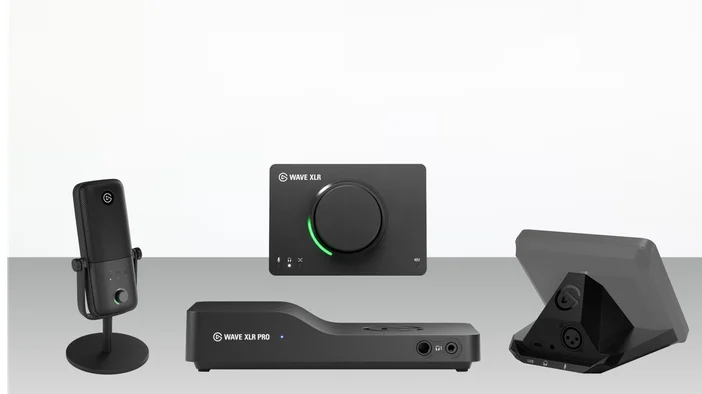
O VST Insert está disponível em dispositivos Wave com Wave FX Processor e é gerido através do Wave Link:
- Onda: 3 MK.2
- Wave XLR MK.2
- Wave XLR Pro
- Dock XLR para Stream Deck + MK.2
Configure uma vez, tenha um som excelente em qualquer lugar
O resultado é um áudio processado que funciona de forma consistente em todas as aplicações, sem dispositivos virtuais ou esquecer de selecionar a entrada correta do microfone. Configure o seu som no Wave Link uma vez e concentre-se no que está realmente a fazer.
Explore os efeitos de áudio no Elgato Marketplace para encontrar o seu som.