In Wave Link 2.0, MicrophoneFX was a dedicated output that carried your microphone signal, including any effects, into apps like Discord, Zoom, and OBS. Wave Link 3.0 doesn't create this automatically, but you can recreate it in a couple of clicks by setting up a mix.
You need to do this in two situations: if you're using an older Wave device or a third-party microphone and want VST effects to reach your apps, or if you want to combine your mic with another audio source (like a soundboard from Stream Deck) into a single input. This guide walks through both.
When you need a MicrophoneFX mix
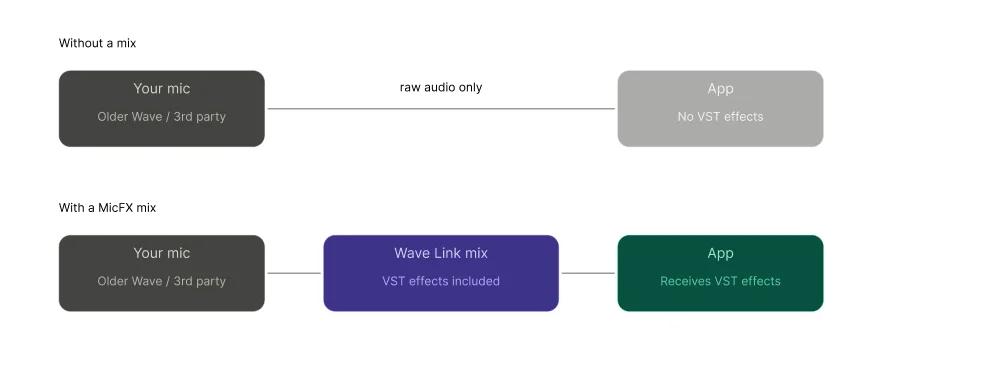
VST effects on older Wave devices and third-party mics
Wave devices with Wave FX Processor inject VST effects directly into the hardware signal path, so apps receive your processed mic signal automatically. Older Wave devices and third-party microphones don't have Wave FX Processor, so VST effects added in Wave Link aren't passed to apps unless you route through a mix.
Combining your mic with other sources
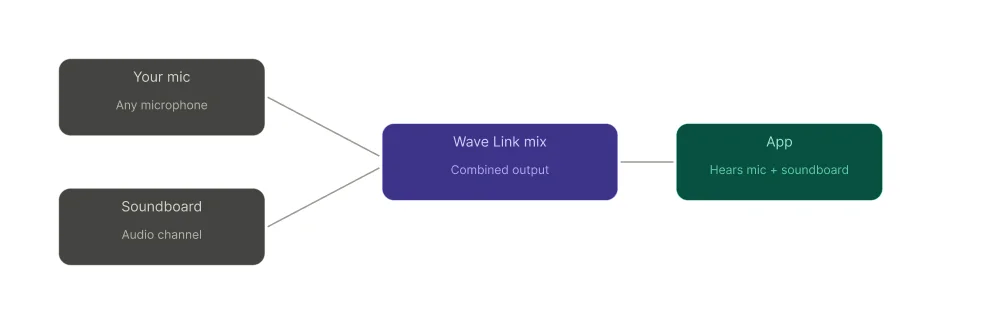
Apps accept a single audio input. If you want Discord, Zoom or in-game local and party chat to hear your mic and your soundboard you need a mix that combines those sources first. Selecting your mic device alone in the app won't include anything else.
Create the mix in Wave Link
- Open Wave Link.
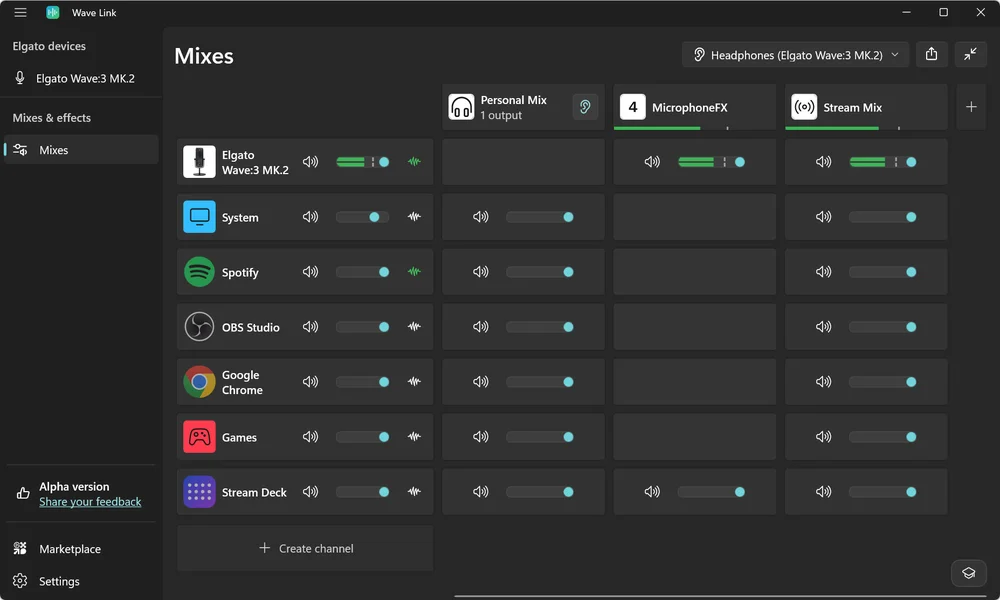
- In the mix view at the top of the interface, click the + button to create a new mix.
- Name the mix MicrophoneFX, or something that reflects where it's going, like Discord Mix. This name is what appears as a selectable input in your apps.
- On the left, add your mic as an input by clicking on create channel. If you want to include additional sources like a soundboard, add those too.
- Then at the intersection between your inputs and channel, click the + to add those channels to your mix.
- Adjust levels for each source in the mix until the balance feels right.
Your mix now appears as a named audio device on your computer. Any app can select it as its input.
Select the mix in your apps
Discord
- Open Discord and go to User Settings.
- Select Voice & Video.
- Under Input Device, select your Wave Link mix from the dropdown.
Zoom
- Open Zoom and go to Settings.
- Select Audio.
- Under Microphone, select your Wave Link mix from the dropdown.
OBS Studio
- In OBS, go to Settings and select Audio.
- Under Mic/Auxiliary Audio, select your Wave Link mix from the dropdown.
- Alternatively, add an Audio Input Capture source in your scene and select the mix there for per-scene control.
Arc Raiders (and other games with voice chat)
In Arc Raiders, open the audio or voice settings in the options menu and select your Wave Link mix as the microphone input. Most games follow the same pattern: find the microphone or input device setting in audio options and switch it to your mix.
Ready to mix
Wave Link 3.0 gives you more control over your audio. Once your mix is set up, you can add more sources, create even more separate mixes for different apps, and adjust everything from Stream Deck without opening Wave Link.
PRODUCTS IN ARTICLE