Voicemod voice changers are available in Wave Link as VST effects on Windows. Once installed, they apply to your microphone and work across every app you use, Discord, games, OBS Studio, or anything else. This guide walks you through getting everything set up.
How to install a Voicemod voice changer
1. Open Wave Link, click the Marketplace icon, and go to Audio Effects
2. Browse or search for Voicemod, then select a voice changer and click Get or purchase it
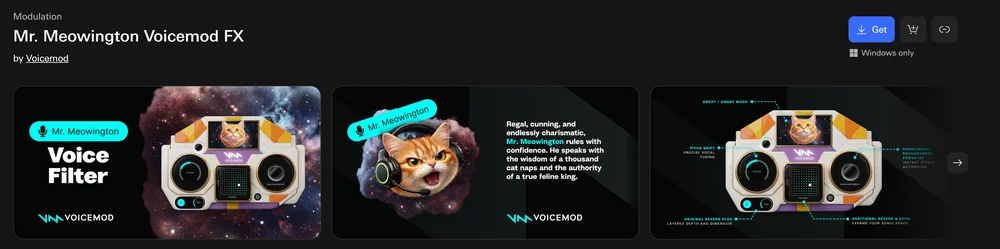
3. Click Open in Wave Link to download the installer and follow the on-screen steps
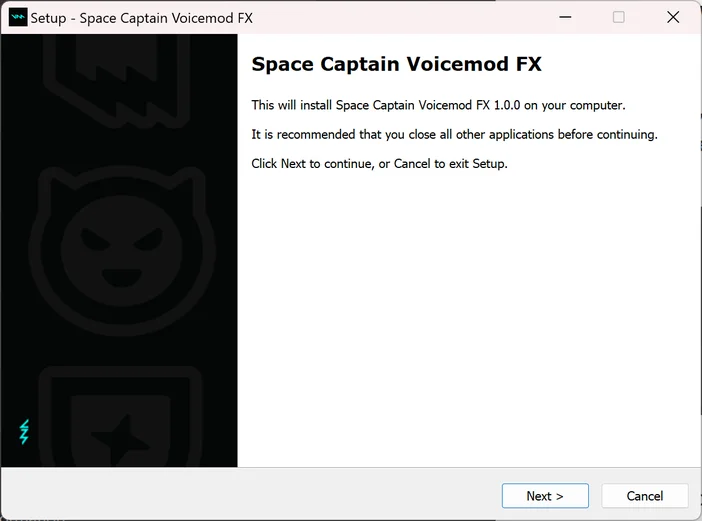
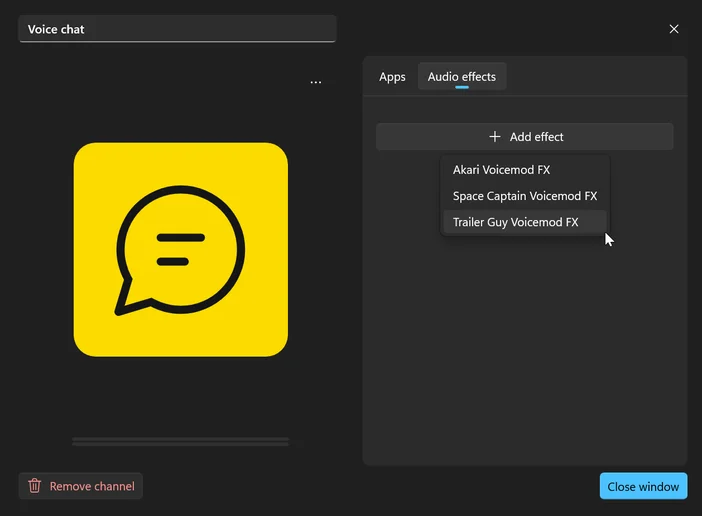
4. Once installed, open your microphone channel in Wave Link, click Effects, and add the voice changer
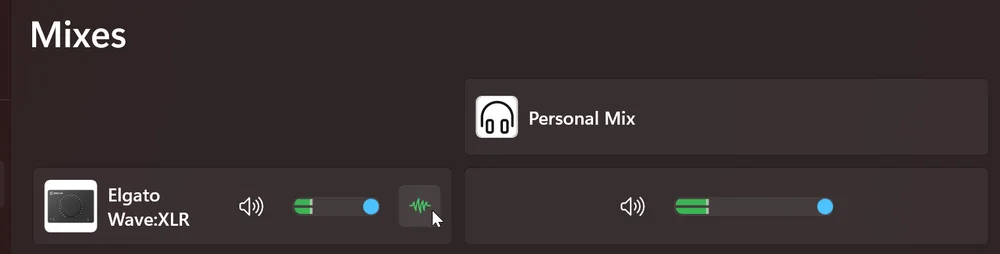
5. Once added, hover over the effect and click Edit effect settings to open the controls.
For paid voice changers, a one-time activation window will appear. You can find your license key by logging into your Elgato Marketplace account and selecting VST.

For paid voice changers, a one-time activation window will appear.
6. In your app's audio or voice settings, set your microphone input to a Wave Link virtual audio output such as Chat Mix (Elgato Virtual Audio).
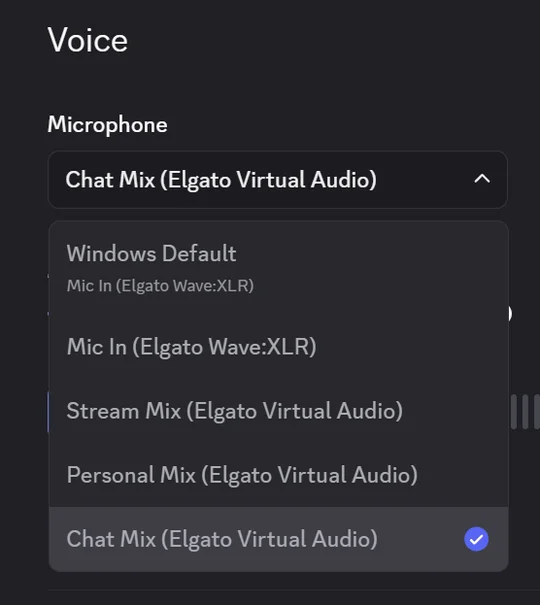
Note: If you're using Wave:3 MK.2, Wave XLR MK.2, XLR Dock MK.2, or Wave XLR Pro, you can skip this step. VST Insert delivers the voice effect directly to your microphone input.
How to apply a voice changer to an incoming audio
Voice changers are not limited to your microphone. You can apply them to any audio input in Wave Link, including incoming voice chat.
- In Wave Link, select the input channel you want to apply the effect to
- Click Effects on that channel
- Add the Voicemod voice changer the same way you would for your mic
This works well if you want to hear a teammate's voice transformed, or experiment with effects on any other audio source.
VST Insert: what it adds for Wave Next devices
If you're using Wave:3 MK.2, Wave XLR MK.2, XLR Dock MK.2, or Wave XLR Pro, VST Insert changes how your voice changer reaches your applications.
Instead of running entirely in software, VST Insert routes the processed audio back into the hardware signal path before it reaches any app. Your device delivers the transformed voice directly, with no virtual microphone needed and no per-app configuration. It works everywhere, automatically.
You can also monitor your transformed voice through wired headphones at ultra-low latency. Enable monitoring in Wave Link to hear the effect in real time as you play.
Control Voicemod with Stream Deck
If you have a Stream Deck, you can control your Voicemod voice changer directly from your desk without touching Wave Link.
Using the Channel Audio Effect action from the Wave Link plugin, you can assign a key to your Voicemod effect and configure it in one of two ways.
Set it to Toggle to turn the effect on and off with a single tap, or set it to Hold to turn on while the key is held and turn off the moment you release it. This is useful if you only want the effect active for a specific moment, like a single line in voice chat.
If you're using a Wave device, the Audio Effect action gives you the same control for any effect on that device, whether that's a hardware DSP effect like Low Cut Filter or Compressor, or a software effect like a Voicemod voice changer. Everything in one place, right on your keys.
You can get the Wave Link plugin for Stream Deck on Elgato Marketplace.
Requirements
- Wave Link 3.0
- Marketplace Account
- Windows 11 (64-bit)
Learn more about the Voicemod partnership
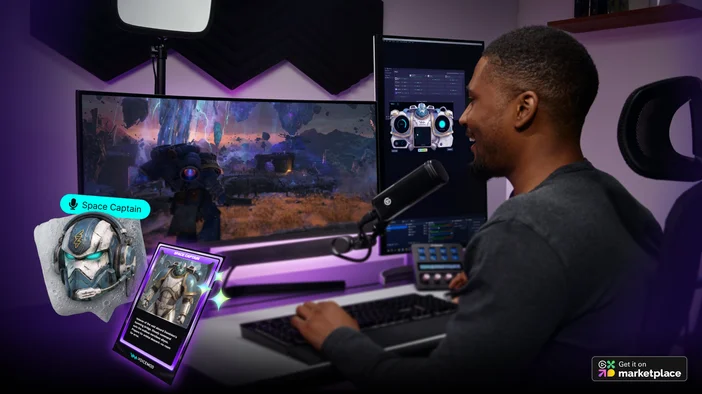
Want to learn more about the Voicemod partnership and what's available? Read the full announcement here.