Pinned Actions are basically your “always-there” actions in Stream Deck. Once you pin something, it stays in that spot while you move between pages or jump into folders. So instead of rebuilding the same mute key five different times, you set it once and it follows you around.
That’s handy for anything you reach for all the time, muting your mic, changing scenes, starting a timer, pausing music, or running the same shortcut no matter what app you’re in. The whole point is consistency: your core controls don’t disappear just because you navigated deeper into your layout.
Pinned Actions are tied to the current profile, so they’ll stay consistent as you move around inside that profile’s pages and folders.
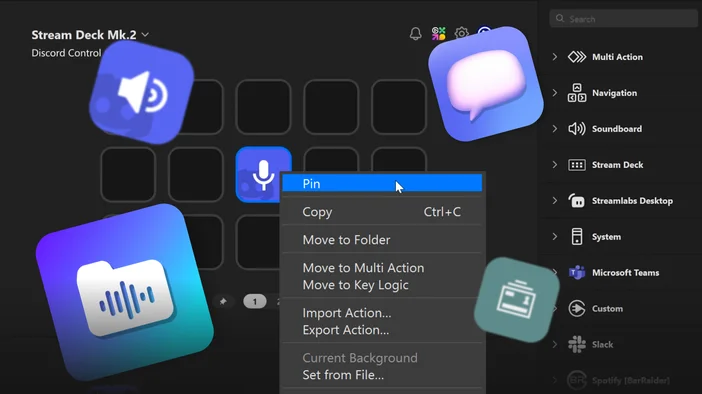
Why pinned actions help
As your layout gets bigger, the “important stuff” tends to drift. A key that started on page one ends up three folders deep, or you push it to a second page and forget where it went.
Pinned Actions prevent that. They keep your go-to controls easy to reach without turning your layout into a copy-and-paste project.
A few common examples:
- A mute or push-to-talk key that you want available everywhere
- Scene controls you still want access to while browsing folders
- Volume, play/pause, or other quick system controls
- Shortcuts you use constantly across different apps or games
And since pinned actions are shared, you don’t have to hunt them down later to update them. Change it once, and it updates wherever it shows up.
How to pin an action
You can do it from a normal key, or you can build your pinned set first and then fill out the rest of your pages.
Option 1: Pin an action that’s already on a key
- Open the Stream Deck app
- Choose the profile you want to edit
- Drag an action onto a key (if it isn’t there already)
- Right-click the key and turn on Pin Action
Stream Deck will move it into the pinned area automatically.
Option 2: Add actions directly on the pinned actions page
There’s also a dedicated page just for pinned actions (it sits to the left of the page numbers).
- Go to the pinned actions page
- Drop actions onto the exact key positions you want them pinned to
This is a great approach if you’re setting up a profile from scratch, because you can lock in your “must-have” keys first and then build everything else around them.
What to expect when you switch pages or open folders
Pinned actions stay anchored to the same key positions, but they don’t bulldoze your layout.
If a page or folder already has something assigned to that same key, the pinned action won’t show on top of it. When you move to a page where that spot is empty, the pinned action shows up again.
So you can:
- Put page-specific actions on top of pinned positions
- Rely on pinned actions to reappear automatically when space is available
- Avoid manually “managing” where your global key live
In the editor, pinned actions look slightly grayed out, which makes them easy to spot while you’re arranging keys.
Unpinning an action
Unpinning depends on where you are in your layout. When you unpin an action, Stream Deck places it on the page or folder you’re currently viewing.
- If you unpin while viewing a page, it lands on that page
- If you unpin while inside a folder, it lands in that folder
So it’s an easy way to turn a “global” action back into a normal action without dragging it around.
Keep your layout consistent without duplicating actions
Pinned Actions are an easy win for larger Stream Deck setups. If you’re using folders and multiple pages, they help keep the essentials in reach while everything else stays organized behind them.
If you find yourself thinking, “I need this action everywhere,” that’s usually the sign it should be pinned.