Streaming means wearing multiple hats at once. You are on camera, managing scenes, adjusting audio, and keeping an eye on chat simultaneously. Hunting for keyboard shortcuts or navigating OBS Studio menus mid-stream breaks your flow and takes attention away from your content. OBS Studio plugin for Stream Deck puts broadcast controls on physical keys, so scene switches, source toggles, and audio adjustments happen with a single press.
OBS Studio plugin is available for free on Elgato Marketplace and works on macOS and Windows.
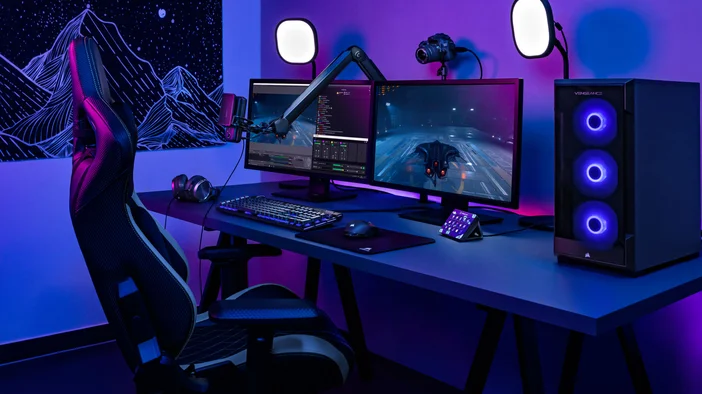
What you get with OBS Studio plugin
OBS Studio plugin connects Stream Deck to OBS Studio and gives you direct control over recording, streaming, scene management, and audio.
Record
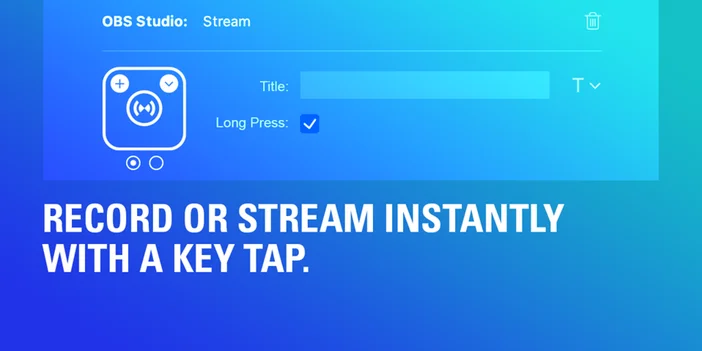
Start or stop recordings with a single press. Record Pause lets you pause an active recording without stopping it completely, so you can step away briefly and pick up right where you left off.
Stream
Start or stop your live broadcast. One press when you go live, one press when you are done.
Virtual Camera
Start or stop OBS Virtual Camera to use your OBS output as a webcam source in other applications. Useful for video calls in Zoom, Discord, or Teams when you want to use your full OBS scene instead of a basic webcam feed.
Scene
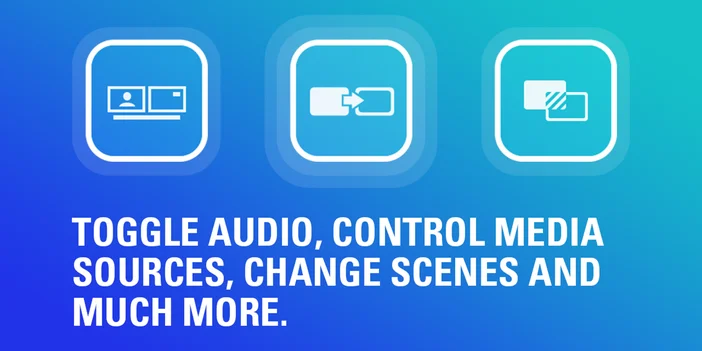
Switch between scenes instantly. Useful for transitioning from your starting soon screen to gameplay, or from your main camera to a full-screen capture.
Scene Collection
Manage entire scene collections and switch between different setups. Helpful if you have separate collections for streaming, recording tutorials, or podcasting.
Profile
Switch between OBS profiles instantly. Each profile can have different settings, encoders, or output configurations for different types of content.
Source
Show or hide individual sources in your scenes. Toggle overlays, alerts, or camera feeds without opening OBS Studio.
Filter
Control source filters and toggle them on or off as needed. Apply color correction or effects mid-stream without breaking focus.
Mute
Mute or unmute audio sources with options for toggle, push-to-mute, or push-to-talk modes. Quickly silence your microphone during breaks or when someone walks into the room.
Audio Mixer Volume
On Stream Deck + and GALLEON 100 SD, assign audio controls to a dial and adjust levels by rotating instead of clicking multiple times. Fine-tune your microphone or music volume on the fly.
Media
Control playback for media sources. Start or stop intro videos, background music, or sound effects without switching windows.
Replay Buffer
Start or stop the replay buffer to capture recent footage. Keeps the last few seconds ready to save without recording your entire session.
Save Replay
Save the last few seconds of footage from the active replay buffer. Perfect for capturing highlight moments or unexpected plays.
Studio Mode
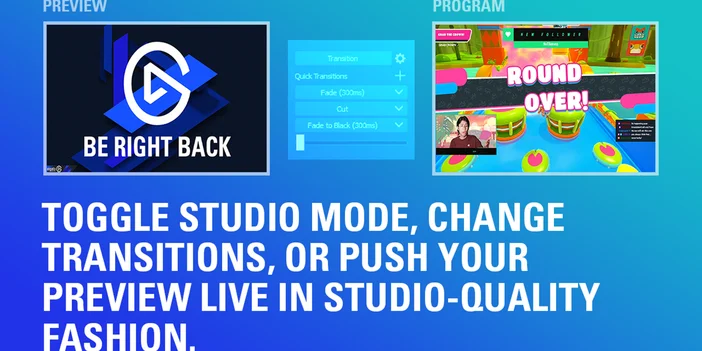
Toggle preview-before-live workflows on or off. Lets you queue up your next scene before pushing it live.
Preview Scene
Push your preview scene live when you are ready. Works with Studio Mode to give you control over when transitions happen.
Transition
Switch between different transition effects for scene changes. Move between cuts, fades, or stingers without opening settings.
Chapter Marker
Insert markers during recordings for easier editing later. Mark key moments so you can find them quickly in post-production.
Screenshot
Capture your output scene instantly. Useful for archiving stream layouts or sharing setup examples.
Real-time status feedback
OBS Studio plugin keys update in real time to show the current state of your broadcast. If you mute a source, the key reflects it immediately. If you start recording, the button shows recording is active.
This removes guesswork and helps avoid common mistakes like streaming with a muted microphone or forgetting to hit record.
Build workflows with Multi Actions
OBS Studio plugin works with Stream Deck Multi Actions, so you can trigger multiple commands with a single key press.
For example, one button could switch to your starting soon scene, start background music, and mute your microphone. Multi Actions are useful for stream transitions, recording setups, or end-of-stream routines. They reduce manual steps and keep your broadcast consistent.
Set up OBS Studio plugin
You can install OBS Studio plugin from Elgato Marketplace or directly within Stream Deck app.
From Stream Deck app:
- Open Stream Deck app.
- In the actions panel on the right, click the Plugins tab.
- Search for OBS Studio.
- Click Get next to OBS Studio by Elgato.
- Once installed, drag any OBS Studio action onto a key.
- Configure the action in the key settings panel.
From Elgato Marketplace:
- Go to OBS Studio plugin on Elgato Marketplace.
- Click Install and follow the prompts to add it to Stream Deck app.
- Open Stream Deck app, then drag any OBS Studio action onto a key.
OBS Studio plugin requires Stream Deck 6.9 or later and works on macOS and Windows.
Tips for getting more out of the plugin
Use profiles for different types of content. Create separate Stream Deck profiles for streaming, recording, or podcast workflows. Smart Profiles can switch automatically when OBS Studio is in focus.
Assign audio controls to dials. On Stream Deck + or GALLEON 100 SD, you can use dials to adjust audio levels in real time by rotating them instead of clicking multiple times.
Add custom icons. Label your keys with clear icons so you can identify actions at a glance. Icon packs are available on Elgato Marketplace, including packs designed for OBS workflows.
Get started
OBS Studio plugin is available for free on Elgato Marketplace. Install it, customize your keys, and try it out during your next stream or recording session.
PRODUCTS IN ARTICLE