ROKASGRĀMATA | ĀTRAS SĀKŠANAS CEĻVEDIS
Elgato Wave Go — Lietošanas rokasgrāmata
Angļu versija ir pieejama šeit - English
Ja jums ir kādas citas problēmas, lūdzu, sazinieties klientu atbalsts
Šajā rokasgrāmatā
- Kas ir iepakojumā
- Lejupielādējiet lietotni „Wave Go“
- Kā iestatīt Wave Go
- Piespraužamais un rokas režīms
- Vadības elementi
- LED indikators
- Lietotne „Wave Go“
- Skaņas iestatījumi
- Aizsardzība pret vēju
- Akumulators un uzlāde
- Pāru veidošana
- Wave Link
- Kopšana un uzturēšana
- Tehniskie parametri
- Juridiskā informācija
„Wave Go“ ir universāls bezvadu mikrofons, kas sastāv no mikrofona raidītāja (TX), USB-C uztvērēja (RX) un „Smart Handle“ roktura. Raidītāju var piestiprināt pie apģērba vai ievietot „Smart Handle“ rokturī, lai lietotu to kā rokas mikrofonu.
Kas ir iepakojumā
„Wave Go“ ietver:
- 1x mikrofona raidītājs (TX)
- Vieds rokturis
- USB-C uztvērējs (RX)
- Pārnēsāšanas soma
- Magnētiskā plāksne
- Magnētiska skava
- 2x pūkainie vējstikli
- Ceļojuma maisiņš
- USB-C uzlādes kabelis
Pievienojiet otro mikrofonu, izmantojot Wave Go TX (pārdodas atsevišķi). Tas savienojas ar to pašu uztvērēju un tiek glabāts Smart Handle.
Lejupielādējiet lietotni „Wave Go“
Lietotne „Wave Go“ ir pieejama bez maksas iPhone, iPad un Android ierīcēm.

Kā iestatīt Wave Go
„Wave Go“ darbojas jau no paša sākuma.
- Pievienojiet USB-C uztvērēju savam tālrunim, planšetdatoram vai datoram. Uztvērējs ieslēdzas automātiski.
- Lai ieslēgtu ierīci, turiet nospiestu raidītāja pogu 2 sekundes. Savienošanās laikā LED indikators mirgo zilā krāsā, bet, kad ierīce ir gatava ierakstīšanai, tas sāk degt nepārtraukti zilā krāsā.
- Izvēlieties „Wave Go” kā mikrofonu savā kameras, ierakstīšanas vai videozvanu lietotnē.
- Piesprādzējiet raidītāju pie apģērba vai ievietojiet to „Smart Handle” turētājā, lai lietotu to rokā.
„Wave Go“ ir paredzēts USB-C ierīcēm, piemēram, tālrunim vai datoram. Vecāki „iPhone“ modeļi ar „Lightning“ savienojumu netiek atbalstīti, un „Wave Go“ nav paredzēts tiešai lietošanai kopā ar profesionālām kamerām, piemēram, DSLR vai bezspoguļu kamerām. „Wave Go“ neieraksta audio iekārtā. Tas nosūta audio tieši uz jūsu tālruni vai datoru.
Piespraužamais un rokas režīms
Šis pats raidītājs darbojas kā pieklipsējams mikrofons vai, ievietots „Smart Handle” turētājā, kā rokas mikrofons.
Piespraužamais režīms
Raidītāja svars ir 7 g (0,25 oz), un to var piestiprināt ar magnētu, izmantojot vienu no diviem komplektā iekļautajiem stiprinājumiem:
- Magnētiska skava: krekliem un apkaklēm.
- Magnētiskā plāksnīte: paredzēta biezākiem apģērbiem, piemēram, jakām. Ievietojiet plāksnīti apģērba iekšpusē un novietojiet raidītāju ārpusē.
Pārraidītāja magnētiskā konstrukcija ļauj to piestiprināt arī pie metāla virsmām, nodrošinot radošas izvietošanas iespējas.
Lai skaņa būtu pēc iespējas skaidrāka, vēršiet mikrofona atveri uz savu muti.
Rokas režīms ar „Smart Handle”
Ar „Smart Handle“ piederumu „Wave Go“ var pārvērst par rokas mikrofonu. Tam ir sava poga, LED gredzens un akumulators. Lai pievienotu raidītāju:
- Pagrieziet un paceliet „Smart Handle” galviņu.
- Ievietojiet raidītāju tā, lai „Elgato“ logotips būtu vērsts pret „Smart Handle“ pogu.
- Uzlieciet galvu atpakaļ un pagrieziet, lai to fiksētu vietā.
Pēc pievienošanas raidītāja pogas un LED indikatoru funkcijas tiek pārnestas uz „Smart Handle”.
EQ Shift pārslēdzas uz rokas profila režīmu, tiklīdz ievietojat raidītāju. Profils ir pielāgots „Smart Handle“ galvai, tāpēc uzlieciet galvu atpakaļ un fiksējiet to, lai iegūtu vēlamo skaņu.
EQ nobīde
Mikrofons uz krūtīm uztver balsi citādi nekā mikrofons pie mutes. Funkcija „EQ Shift“ katram režīmam automātiski piemēro atšķirīgu ekvalaizera profilu, tādējādi vienmēr nodrošinot pareizo skaņas toni.
Abi profili:
- Pievienojamais elements: atjauno skaidrību un klātbūtnes sajūtu, kas pazūd, klausoties no krūšu attāluma.
- Rokas mikrofons: tuvu balsij piešķir siltumu un pilnīgumu, radot bagātīgāku skaņu.
Vadības elementi
„Wave Go“ vadības elementi ir vienkārši. Raidītājam, „Smart Handle“ un uztvērējam katram ir pa vienai pogai, un, atkarībā no tā, kā pogu nospiež vai tur nospiestu, var veikt visas darbības — sākot no ierīces ieslēgšanas līdz pārošanai. Kad raidītājs ir ievietots dokstacijā, vadību pārņem „Smart Handle“ poga.
Raidītājs un „Smart Handle” poga
| Poga | Funkcija |
|---|---|
 |
Ieslēgšana/izslēgšana — turiet nospiestu 2 sekundes Ieslēdz vai izslēdz raidītāju. LED indikators mirgo zilā krāsā, kamēr tiek meklēts uztvērējs, un sāk degt nepārtraukti zilā krāsā, kad savienojums ir izveidots. |
 |
Klusināt – Nospiediet Ieslēdz vai izslēdz skaņas klusināšanu. Klusināšanas režīmā raidītāja un uztvērēja gaismas diodes deg nepārtraukti sarkanā krāsā. |
 |
Kameras tālvadība — divreiz nospiediet Sāk ierakstīšanu pieslēgtā tālrunī. Ir jābūt atvērtai saderīgai kameras lietotnei. |
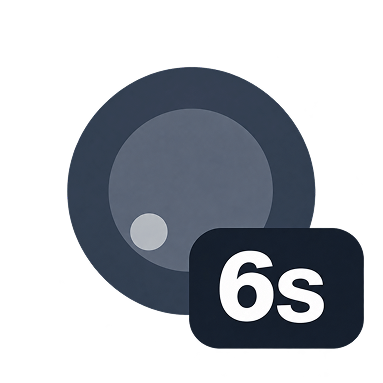 |
Pārošanas režīms — turiet nospiestu 6 sekundes Uztvērējam jābūt pievienotam strāvas padevei un jāatrodas savienošanas režīmā, savukārt raidītājam jābūt izslēgtam. |
Uztvērēja poga
| Poga | Funkcija |
|---|---|
|
Trokšņu slāpēšana — Preses izdevumi Ieslēdz vai izslēdz trokšņu slāpēšanu. Kad funkcija ir ieslēgta, raidītāja un uztvērēja gaismas diodes deg nepārtraukti zaļā krāsā. Lai iegūtu plašākas vadības iespējas, lietotnē „Wave Go“ var izvēlēties vienu no trim intensitātes līmeņiem. |
|
Pārošanas režīms — turiet nospiestu 6 sekundes Uztvērējam jābūt pievienotam strāvai, bet raidītājam jābūt izslēgtam. Kad uztvērējs ir gatavs, tā LED indikators ātri mirgo zilā krāsā. Pēc tam pārslēdziet raidītāju pārošanas režīmā. |
LED indikators
Raidītājs un uztvērējs izmanto vienādas LED krāsas. Kad raidītājs ir piestiprināts pie dokstacijas, tā stāvoklis tiek parādīts uz „Smart Handle” LED gredzena.
Raidītāja un viedās roktura gaismas
| Gaisma | Stāvoklis |
|---|---|
 |
Aktīvs — vienkrāsains zils Raidītājs un uztvērējs ir savienoti un gatavi ierakstīšanai. |
 |
Meklēšana — lēni mirgojoša zila gaisma Raidītājs mēģina atjaunot savienojumu ar savu pāri savienoto uztvērēju. |
 |
Pārošana — ātri mirgojoša zila gaisma Raidītājs atrodas pārošanas režīmā un ir gatavs savienoties ar jaunu uztvērēju. |
 |
Trokšņu slāpēšana — vienmērīga zaļa gaisma Trokšņu slāpēšana ir ieslēgta. Lai to izslēgtu, vienu reizi nospiediet austiņas pogu. |
 |
„Mute“ – Vienkrāsains sarkans Skaņa ir izslēgta. Lai ieslēgtu skaņu, vienu reizi nospiediet raidītāja pogu. |
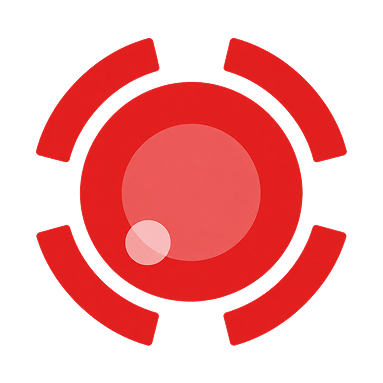 |
Zems akumulatora līmenis — lēni mirgojoša sarkana gaisma Raidītāja akumulatora uzlāde ir mazāka par 10 %. Lai to uzlādētu, ievietojiet to „Smart Handle” turētājā vai pārnēsāšanas somā. |
Uztvērēja gaismas
| Gaisma | Stāvoklis |
|---|---|
|
Aktīvs — vienkrāsains zils Uztvērējs un raidītājs ir savienoti un gatavi ierakstīšanai. |
|
Meklēšana — lēni mirgojoša zila gaisma Uztvērējs meklē pāri savienotu raidītāju. |
|
Pārošana — ātri mirgojoša zila gaisma Uztvērējs atrodas pārošanas režīmā un ir gatavs savienoties ar jaunu raidītāju. |
|
Trokšņu slāpēšana — vienmērīga zaļa gaisma Trokšņu slāpēšana ir ieslēgta. Lai to izslēgtu, vienu reizi nospiediet austiņas pogu. |
|
„Mute“ – Vienkrāsains sarkans Skaņa ir izslēgta. Lai ieslēgtu skaņu, vienu reizi nospiediet raidītāja pogu. |
|
Zems akumulatora līmenis — lēni mirgojoša sarkana gaisma Raidītāja akumulatora uzlāde ir mazāka par 10 %. Lai to uzlādētu, ievietojiet to „Smart Handle” turētājā vai pārnēsāšanas somā. |
Lietotne „Wave Go“
„Wave Go“ darbojas jau no pirmā brīža, automātiski pielāgojot skaņu. Bezmaksas „Wave Go“ lietotne (iOS un Android) ir pieejama, ja vēlaties regulēt pastiprinājumu un trokšņu slāpēšanu, pārbaudīt akumulatora uzlādes līmeni un veikt citas darbības, taču tās izmantošana ir pilnīgi brīvprātīga.
Lejupielādējiet lietotni „Wave Go“ no „Apple App Store“ vai „Google Play Store“. Tai ir nepieciešama operētājsistēma iOS 17 vai jaunāka versija, iPadOS 17 vai jaunāka versija, vai Android 8.0 „Oreo“ vai jaunāka versija.
Ar lietotni „Wave Go“ jūs varat:
- Skatīt precīzus raidītāja un „Smart Handle” akumulatoru uzlādes līmeņus
- Ieslēgt vai izslēgt automātisko pastiprinājumu
- Manuālā pastiprinājuma iestatīšana
- Izvēlieties trokšņu slāpēšanas līmeni („Izslēgts”, „Zems”, „Vidējs” vai „Augsts”)
- Ieslēgt vai atslēgt skaņu
- Apskatiet reāllaika izejas līmeņa mērītāju
- Pārbaudiet sērijas numuru un programmaparatūras versiju
- Instalējiet programmaparatūras atjauninājumus
„Wave Go“ nosūta audio signālu uz savu uztvērēju, izmantojot speciālu 2,4 GHz savienojumu. „Bluetooth“ tiek izmantots tikai, lai izveidotu savienojumu ar „Wave Go“ lietotni iestatījumu veikšanai un atjauninājumiem, tāpēc, lai lietotne darbotos, „Bluetooth“ ir jābūt ieslēgtam.
Jūs varat vadīt „Wave Go” no lietotnes pat tad, ja uztvērējs ir pieslēgts citai ierīcei. Piemēram, varat regulēt pastiprinājumu no sava tālruņa, kamēr uztvērējs ir pieslēgts pie jūsu klēpjdatora.
Kā atjaunināt Wave Go programmaparatūru
- Uzlādējiet raidītāju un „Smart Handle” vismaz līdz 30 %.
- Pievienojiet USB-C uztvērēju savam tālrunim vai planšetdatoram un ieslēdziet raidītāju.
- Ieslēdziet Bluetooth un atveriet lietotni „Wave Go“.
- Kad lietotne parāda, ka ir pieejams atjauninājums, pieskarieties tam un izpildiet ekrānā redzamos norādījumus.
- Lai atjauninātu „Smart Handle“, atstājiet raidītāju ieslēgtu un pievienotu dokstacijai, līdz lietotne apstiprinās, ka atjaunināšana ir pabeigta.
Kā atbrīvot iestrēgušo „Smart Handle”
Ja programmaparatūras atjaunināšana tiek pārtraukta, „Smart Handle” var iestrēgt. Iestrēgušā „Smart Handle” LED gredzens strauji mirgo zaļā krāsā, tas neizslēdzas un nav redzams lietotnē „Wave Go”. Raidītājs darbojas kā saikne starp lietotni un „Smart Handle”, tāpēc atjaunošana darbojas tikai tad, ja raidītājs ir pievienots dokstacijai.
- Uzlādējiet raidītāju.
- Ievietojiet raidītāju iestrēgušajā „Smart Handle” rokturī.
- Atveriet lietotni „Wave Go“ un pārliecinieties, ka tajā tiek parādīts raidītājs.
- Atveriet sadaļu „Palīdzība ”.
- Pieskarieties opcijai „Atjaunot iestrēgušo rokturi” un izpildiet ekrānā redzamos norādījumus.
Skaņas iestatījumi
Wave Go automātiski pielāgo skaņu. Lai iegūtu plašākas vadības iespējas, Wave Go lietotnē var precīzi noregulēt pastiprinājumu un trokšņu slāpēšanu.
Automātiskā pastiprinājuma regulēšana
Funkcija „Auto Gain“ pēc noklusējuma ir ieslēgta. Tā nepārtraukti regulē skaļuma līmeņus, lai skaļākās vietās nekad neradītos pārslodze, bet klusākajās vietās signāls netiktu apgriezts.
Funkcija „Auto Gain“ lielākajā daļā gadījumu nodrošina labu rezultātu mobilajā ierakstīšanā.
Manuālais pastiprinājums
Lietojot manuālo pastiprinājumu, lietotnē „Wave Go“ ir pieejami seši fiksēti pastiprinājuma līmeņi. Izslēdziet automātisko pastiprinājumu, un parādīsies manuālā pastiprinājuma slīdnis. Tad signāla līmenis visā ieraksta laikā paliks tieši tajā līmenī, kādu esat iestatījuši.
Izmantojiet manuālo pastiprinājumu šādos gadījumos:
- Jūs ierakstāt kontrolētā vidē, kurā runas skaļums ir paredzams.
- Jūs iemūžināt apzinātu dinamiku, piemēram, mūzikā vai izteiksmīgā uzstāšanās.
- Jūs vēlaties izvairīties no jebkādām dzirdamām skaļuma izmaiņām, ko rada automātiskā apstrāde.
- Jūs atrodaties trokšņainākā vidē, piemēram, kur darbojas gaisa kondicionētājs, ir satiksmes troksnis vai ir daudz cilvēku, un funkcija „Auto Gain“ var padarīt skaļāku ne tikai jūsu balsi, bet visu apkārtējo troksni. Sāciet ar zemāko iestatījumu diapazonā un turpiniet regulēt no turienes.
Trokšņu slāpēšana
Trokšņu slāpēšana samazina nevēlamus fona trokšņus skaļākās vidēs. Nospiediet austiņas pogu, lai ieslēgtu šo funkciju, kad tā ir nepieciešama, un atkal izslēgtu, kad apkārtne kļūst klusāka. Kamēr funkcija ir ieslēgta, LED indikatori iedegas zaļā krāsā.
Lai nodrošinātu labāku kontroli, lietotnē „Wave Go“ izvēlieties vienu no trim intensitātes līmeņiem.
Ieteicamie iestatījumi:
- Izslēgts: Klusām telpām vai gadījumos, kad vēlaties, lai būtu dzirdama vairāk apkārtējās vides skaņas.
- Zems: Samazina fona troksni, vienlaikus saglabājot telpai dabisku skaņu, un labi darbojas ikdienas situācijās.
- Vidējais līmenis: Nodrošina lielāku trokšņa samazinājumu skaļākās telpās.
- Augsts: Ļoti efektīvs, taču var padarīt balsi vairāk apstrādātu, tāpēc to ieteicams izmantot tikai ļoti trokšņainās vietās.
Strādājot pie rakstāmgalda, vietā izmantojiet funkciju „Voice Focus“ programmā „Wave Link“ (skatiet sadaļu „Wave Link“). Trokšņu slāpēšana neietekmē raidītāja vai „Smart Handle“ akumulatora darbības laiku, jo apstrāde notiek uztvērējā.
Vienmēr ieslēgts
Vienlaikus tiek izpildīti vēl divi apstrādes posmi:
- Zemo frekvenču filtrs: novērš zemas frekvences rūkoņu, ko rada vējš, darbības troksnis un vibrācijas.
- Dinamiskā diapazona kontrole: uztver pēkšņus skaļuma kāpumus un tos izlīdzina, pirms rodas pārslodze.
Aizsardzība pret vēju
„Wave Go“ komplektā ir iekļauti divi pūkaini vējstikli, kas samazina vēja radīto troksni:
- Raidītāja vējstikls tiek piestiprināts ar klikšķi pie raidītāja augšdaļas.
- Lielākais „Smart Handle” vējstikls tiek uzlikts uz „Smart Handle” galvas.
Izmantojiet vēja aizsargu, kad vien atrodaties ārā vai jebkurā vietā, kur mikrofonu var skart gaisa plūsma. Vēja gadījumā vēja aizsargi nodrošina daudz lielāku efektu nekā trokšņu slāpēšana, kas pati par sevi nespēj uzticami novērst vēja radīto troksni.
Akumulators un uzlāde
Gan raidītājam, gan „Smart Handle” ir iebūvēts uzlādējams akumulators.
- Raidītājs: Aptuveni 8 stundas ar vienu uzlādi. 10 minūšu ātrā uzlāde nodrošina aptuveni 1 stundu darbības laiku.
- „Smart Handle“: uzlādē raidītāju, tiklīdz tas tiek novietots uz lādētāja, nodrošinot kopējo darbības laiku līdz pat 48 stundām.
Kā pārbaudīt akumulatora uzlādes līmeni
Raidītājs: Raidītāja baterijas uzlādes līmenis automātiski tiek parādīts uz raidītāja LED indikatorā vai uz LED gredzena „Smart Handle” apakšdaļā, kad raidītājs ir piestiprināts pie lādētāja.
| Gaisma | Stāvoklis |
|---|---|
|
Raidītāja akumulatora uzlāde: no 30 % līdz 100 % Vienkrāsains zaļš |
 |
Raidītāja akumulatora uzlāde: no 10 % līdz 29 % Vienkrāsains oranžs |
|
Raidītāja baterija ir gandrīz izlādējusies Lēni mirgo sarkana gaisma: raidītāja akumulatora uzlāde ir mazāka par 10 %. Lai to uzlādētu, ievietojiet to „Smart Handle” vai pārnēsāšanas somā. |
„Smart Handle“: LED gredzens „Smart Handle“ apakšā parāda akumulatora uzlādes līmeni, ja nospiežat „Smart Handle“ pogu, kad „Wave Go“ ir izslēgts, vai arī, ja ierakstīšanas laikā ieslēdzat vai izslēdzat skaņas klusināšanu.
| Gaisma | Stāvoklis |
|---|---|
|
„Smart Handle“ akumulatora uzlāde no 30 % līdz 100 % Vienkrāsains zaļš |
|
„Smart Handle“ akumulatora uzlādes līmenis: no 10 % līdz 29 % Vienkrāsains oranžs |
|
„Smart Handle“ akumulatora uzlādes līmenis: no 0 % līdz 9 % Vienkrāsains sarkans |
Pārbaudiet raidītāja un „Smart Handle” precīzos akumulatora uzlādes līmeņus lietotnē „Wave Go”.
Kā uzlādēt raidītāju
Raidītāju var uzlādēt divos veidos.
„Smart Handle” ierīcē: raidītājs uzlādējas automātiski, tiklīdz tas tiek ievietots „Smart Handle” ierīcē. „Smart Handle” ierīce var pilnībā uzlādēt raidītāju aptuveni 5 reizes.
Pārnēsāšanas somā: ievietojiet raidītāju tam paredzētajā vietā pārnēsāšanas somā, pēc tam pievienojiet somu strāvas padevei, izmantojot komplektā iekļauto USB-C kabeli. Raidītāja LED indikators parāda uzlādes statusu:
| Gaisma | Stāvoklis |
|---|---|
|
Raidītāja akumulatora uzlāde: 85 % līdz 100 % Vienkrāsains zaļš |
 |
Raidītāja akumulatora uzlāde: no 30 % līdz 84 % Lēni mirgojoša zaļa gaisma |
 |
Raidītāja akumulatora uzlāde: no 10 % līdz 29 % Lēni mirgojoša oranža gaisma |
|
Raidītāja akumulatora uzlāde: no 0 % līdz 9 % Lēni mirgojoša sarkana gaisma |
Kā uzlādēt „Smart Handle“
Ievietojiet „Smart Handle” tā paredzētajā vietā pārnēsāšanas somā, pēc tam pievienojiet somu strāvas padevei, izmantojot komplektā iekļauto USB-C kabeli. LED gredzens „Smart Handle” apakšā norāda uzlādes statusu:
| Gaisma | Stāvoklis |
|---|---|
|
„Smart Handle“ akumulatora uzlādes līmenis no 85 % līdz 100 % Vienkrāsains zaļš |
|
„Smart Handle“ akumulatora uzlādes līmenis: no 30 % līdz 84 % Lēni mirgojoša zaļa gaisma |
|
„Smart Handle“ akumulatora uzlādes līmenis: no 10 % līdz 29 % Lēni mirgojoša oranža gaisma |
|
„Smart Handle“ akumulatora uzlādes līmenis: no 0 % līdz 9 % Lēni mirgojoša sarkana gaisma |
Pārnēsāšanas soma vienlaikus uzlādē raidītāju un „Smart Handle”.
Pārskaitījums caur
Uztvērējam ir „charge-through“ ports, tādēļ varat pievienot USB-C strāvas avotu, lai ierakstīšanas laikā nodrošinātu tālruņa barošanu. Pievienojiet strāvas avotu uztvērēja „charge-through“ portam, pēc tam kā parasti pievienojiet uztvērēju savam tālrunim.
Tas nodrošina līdz pat 5 W jaudu, kas ir pietiekami, lai uzlādētu tālruni vai palēninātu akumulatora izlādi, atkarībā no tā, cik intensīvi tas darbojas. Pats uztvērējs no pievienotās ierīces patērē mazāk nekā 40 mA. Uztvērēja caurlaides ports neatbalsta Power Delivery (PD) standartu.
Ja jūsu tālrunis joprojām zaudē uzlādi, izmantojiet bezvadu akumulatoru vai USB-C sadalītāju ar Power Delivery (PD) atbalstu (nav iekļauts komplektā).
Uzlādes norādījumi
- Komplektā iekļautais USB-C kabelis ir paredzēts tikai uzlādēšanai (5 V / 2 A, maksimāli 10 W).
- Uzlādējiet un lietojiet „Wave Go“ temperatūras diapazonā no 0° līdz 40°C (no 32° līdz 104°F).
Pāru veidošana
„Wave Go“ darbojas jau no paša sākuma. Manuāli savienot ierīces ir nepieciešams tikai tad, ja pievienojat otro raidītāju, aizstājat pazaudētu raidītāju vai ja raidītājs un uztvērējs nesavienojas automātiski.
Kā pāri savienot raidītāju
- Novietojiet raidītāju ne tālāk kā 12 collas (30 cm) no uztvērēja.
- Pārliecinieties, ka uztvērējs ir pievienots strāvas padevei un raidītājs ir izslēgts.
- Turiet uztvērēja pogu nospiestu 6 sekundes, līdz tā LED indikators sāk strauji mirgot zilā krāsā.
- Turiet nospiestu raidītāja pogu 6 sekundes, līdz arī tā LED indikators sāk strauji mirgot zilā krāsā.
- Pārošana ir pabeigta, kad abu LED indikatoru mirgošana pārvēršas par nemainīgu zilu gaismu.
Ieraksts, kurā piedalās divas personas
„Wave Go“ komplektā ietilpst viens raidītājs, kas lieliski piemērots ierakstīšanai vienatnē. Lai izveidotu divu cilvēku sistēmu, pievienojiet otro „Wave Go TX“ (pārdodas atsevišķi). To var savienot ar to pašu uztvērēju, izmantojot iepriekš minētos soļus, tādēļ nav nepieciešams pievienot nekādas papildu ierīces.
Otrais raidītājs tiek glabāts „Smart Handle” rokturī, tādējādi abi vienlaikus uzlādējas pārnēsāšanas somā. Abi raidītāji lietotnē „Wave Go” tiek parādīti kā TX1 un TX2, un abu raidītāju audio signāli tiek apvienoti vienā mono signālā.
Savienojuma problēmu novēršana
Lēni mirgojoša zila gaisma nozīmē, ka raidītājs vai uztvērējs meklē savu pāri. Pārbaudiet, vai uztvērējs ir pilnībā ievietots ierīcē un vai raidītājs ir ieslēgts un atrodas darbības rādiusā. Ja ierīces joprojām nesavienojas, atkārtojiet savienošanas soļus, turēdami raidītāju 12 in (30 cm) attālumā no uztvērēja.
Wave Link
„Wave Go“ var izmantot arī kā galda mikrofonu pie datora. Pievienojiet USB-C uztvērēju savam PC vai Mac datoram un izmantojiet to zvaniem, podkāstu ierakstīšanai un citām vajadzībām.
„Wave Link“ ir „Elgato“ bezmaksas miksēšanas programma, kas paredzēta operētājsistēmām „Windows“ un „macOS“. Tā ļauj jums miksēt savu balsi, mūziku, spēļu audio un sistēmas skaņas, piemērot audio efektus, kā arī pievienot VST un AU spraudņus.
Lai konfigurētu Wave Go lietotnē Wave Link:
- Lejupielādējiet programmu „Wave Link” no vietnes elgato.com/downloads un instalējiet to.
- Pievienojiet uztvērēju datora USB-C portam un ieslēdziet raidītāju.
- Palaižiet programmu „Wave Link“ un izpildiet ekrānā redzamos uzstādīšanas norādījumus.
Programmatūrai „Wave Link“ ir nepieciešama operētājsistēma Windows 11 vai jaunāka versija, vai arī macOS 15 vai jaunāka versija.
„Voice Focus“
„Voice Focus“ ir „Wave Link“ audioefekts, kas izmanto „ai-coustics“ izstrādāto mākslīgā intelekta audio uzlabošanas tehnoloģiju. Tas nošķir jūsu balsi no telpas atbalsīm un fona trokšņiem, tādējādi nodrošinot dabisku un skaidru balss skanējumu telpās.
Kā izmantot „Voice Focus“ kopā ar „Wave Go“:
- Zvani un sanāksmes: skaidra skaņa programmās „Zoom“, „Microsoft Teams“ un „Google Meet“ pat trokšņainā telpā.
- Podkasti un ieraksti: kā iegūt tīru vokālu, neveicot telpas akustisko apstrādi.
- AI rīki ar balss komandām: savienojiet „Wave Go“ ar diktēšanas lietotni, lai ar balsi dotu komandas „ChatGPT“, „Claude“ un citiem AI rīkiem. Bezvadu raidītājs ļauj runāt no jebkuras vietas telpā, nevis tikai pie rakstāmgalda.
„Stream Deck“ integrācija
Izmantojot bezmaksas „Wave Link“ spraudni no „Elgato Marketplace“, „Stream Deck“ var regulēt skaļumu, izslēgt kanālu skaņu un ieslēgt vai izslēgt efektus programmā „Wave Link“.
Kopšana un uzturēšana
Ievērojiet šos kopšanas un uzturēšanas norādījumus, lai Wave Go skanētu pēc iespējas labāk un lai laika gaitā varētu maksimāli izmantot tā bateriju jaudu.
Ūdens un putekļu izturība
Ierīcei „Wave Go“ nav IP klasifikācijas attiecībā uz putekļu vai ūdens izturību. Pasargājiet to no lietus, šķidrumiem un pārmērīga karstuma.
Akumulatora nomaiņa
„Wave Go“ ir 2 gadu garantija. Raidītājam un „Smart Handle“ ir iebūvētas baterijas, tāpēc, ja rodas kādas problēmas ar baterijām vai ierīces darbību, sazinieties ar „Elgato“ atbalsta dienestu, nevis mēģiniet atvērt ierīci.
Akumulatora kalpošanas ilgums
„Wave Go“ akumulatoriem ir paredzēti vairāk nekā 300 pilni uzlādes un izlādes cikli, saglabājot vairāk nekā 80 % no sākotnējās jaudas.
Kā tīrīt Wave Go
- Korpuss: Viegli noslaukiet ar mīkstu drānu un neitrālu tīrīšanas līdzekli. Izvairieties no agresīvām ķimikālijām, organiskajiem šķīdinātājiem, augstām temperatūrām un skrāpējumiem, ko var radīt cieti priekšmeti.
- Uzlādes kontakti: Ievietojiet un izņemiet raidītāju un „Smart Handle” taisni, bez šūpošanās. Regulāri noslaukiet kontaktus ar spirta tamponu. Ja tie kļūst tumšāki, viegli notīriet tos ar dzēšgumiju. Nekad neskrāpējiet kontaktus ar asiem priekšmetiem.
Tehniskie parametri
| Specifikācija | Vērtība |
|---|---|
| Kapsula | 6 mm elektretu kondensators |
| Virziena raksturojums | Visvirzienu |
| Frekvences raksturlīkne | no 60 Hz līdz 20 kHz |
| Kopējie harmoniskie kropļojumi | <1 % pie 1 Pa, 1 kHz |
| Signāla un trokšņa attiecība | 70 dB(A) rokas mērītājs, 68 dB(A) uzstādāmais mērītājs (tipiskais rādītājs, A-svērts pie 1 kHz) |
| Maksimālais skaņas spiediena līmenis (SPL) | 115 dB SPL (1 % THD pie 1 kHz) |
| Paraugu ņemšanas frekvence | 48 kHz |
| Bitu dziļums | 24 bitu |
| Bezvadu frekvence | 2,4 GHz ISM frekvenču josla (no 2402 līdz 2480 MHz) |
| Kodeks | LC3 |
| Aizkave | ≤ 24 ms |
| GFSK pārraides ātrums | 2 Mbps |
| Pārraides jauda (EIRP) | 13 dBm |
| Bezvadu darbības rādiuss | ~30 m (100 pēdas) |
| Akumulatora jauda | 80 mAh (TX), 900 mAh (viedais rokturis; ar to var pilnībā uzlādēt TX apmēram 5 reizes) |
| Akumulatora darbības laiks | ~8 stundas (TX), ~40 stundas (Smart Handle) |
| Uzlādes laiks | ~1,5 h (TX), ~2,5 h (Smart Handle) |
| Ātrā uzlāde (TX) | ~10 minūtes uz 1 stundu lietošanas |
| Pārskaitījums caur | 5 V / 1 A (5 W) |
| Kabelis | USB-C uz USB-C, tikai uzlāde, maksimums 5 V / 2 A (10 W) |
| Darbības/uzlādes temperatūra | 0° līdz 40°C | 32° līdz 104°F |
| Svars | Raidītājs: 7 g | 0,25 oz (10 g | 0,35 oz ar plāksni, 11 g | 0,4 oz ar skavu). Uztvērējs: 7 g | 0,25 oz. Viedais rokturis: 62 g | 2,25 oz. Pārnēsāšanas soma: 195 g | 6,9 oz |
| Izmēri | Raidītājs: 20 × 29 × 12 mm | 0,8 × 1,1 × 0,5 collas. Uztvērējs: 40 × 28 × 9 mm | 1,6 × 1,1 × 0,4 collas. Viedais rokturis: Ø26 × 180 mm | Ø1,0 × 7,1 collas. Pārnēsāšanas soma: 205 × 40 × 60 mm | 8,1 × 1,6 × 2,4 collas |
| Sistēmas prasības | USB-C ports. Bluetooth (lietotnei „Wave Go“). Lietotne „Wave Go“: iOS 17 vai jaunāka versija, iPadOS 17 vai jaunāka versija, Android 8.0 Oreo vai jaunāka versija. Programmatūra „Wave Link“: Windows 11 vai jaunāka versija, macOS 15 vai jaunāka versija. |
|
Baterijas
Veikt skenēšanu, lai iegūtu informāciju par roktura akumulatoru |
Rokturis ar bateriju Modelis: 13600 Tips: uzlādējams litija-jonu polimēra akumulators Spriegums: 3,7 VDC Jauda: 900 mAh, 3,33 Wh Izmēri: Ø13,3 mm × augstums 62,5 mm (maks.) Sertifikāti: CE, KC, PSE, (SB C&S 株式会社) Izcelsme: Ražots Ķīnā |
|
Veikt skenēšanu, lai iegūtu informāciju par TX akumulatoru |
TX akumulators Modelis: ST-LP601215 Tips: uzlādējams litija-jonu polimēra akumulators Spriegums: 3,7 VDC Kapacitāte: 80 mAh, 0,30 Wh Izmēri: diametrs 6,2 mm × platums 12,2 mm × augstums 17,5 mm (maks.) Sertifikāti: CE, KC Izcelsme: Ražots Ķīnā |
Juridiskā informācija
BRĪDINĀJUMS
- Ja akumulatoru nomaina ar nepareiza tipa akumulatoru, pastāv sprādzienbriesmas.
- Akumulatora nomaiņa ar nepareiza tipa akumulatoru, kas var izraisīt aizsardzības sistēmas darbības traucējumus.
- Akumulatora izmešana ugunī vai karstā krāsnī, kā arī tā mehāniska saspiešana vai sagriešana, kas var izraisīt eksploziju.
- Akumulatora atstāšana ārkārtīgi augstas temperatūras vidē var izraisīt eksploziju vai uzliesmojošas šķidruma vai gāzes noplūdi.
- Akumulators, kas pakļauts ārkārtīgi zemam gaisa spiedienam, kas var izraisīt eksploziju vai uzliesmojošas šķidruma vai gāzes noplūdi.
Federālās sakaru komisijas paziņojums par traucējumiem
Šī ierīce atbilst FCC noteikumu 15. daļai. Tās ekspluatācijai ir spēkā šādi divi nosacījumi: (1) šī ierīce nedrīkst radīt kaitīgus traucējumus, un (2) šai ierīcei jāpieņem jebkādi saņemtie traucējumi, tostarp traucējumi, kas var izraisīt nevēlamu darbību.
Šī iekārta ir pārbaudīta, un ir konstatēts, ka tā atbilst B klases digitālajām ierīcēm noteiktajiem ierobežojumiem saskaņā ar FCC noteikumu 15. daļu. Šie ierobežojumi ir paredzēti, lai nodrošinātu pietiekamu aizsardzību pret kaitīgiem traucējumiem dzīvojamās telpās. Šī iekārta ģenerē, izmanto un var izstarot radiofrekvences enerģiju, un, ja tā netiek uzstādīta un lietota saskaņā ar instrukcijām, tā var radīt kaitīgus traucējumus radiosakariem. Tomēr nav garantijas, ka konkrētā uzstādīšanas vietā traucējumi neradīsies. Ja šī iekārta tomēr rada kaitīgus traucējumus radio vai televīzijas signāla uztveršanai, ko var noteikt, ieslēdzot un izslēdzot iekārtu, lietotājam ieteicams mēģināt novērst traucējumus, veicot vienu no šiem pasākumiem: mainiet uztverošās antenas virzienu vai pārvietojiet to. Palieliniet attālumu starp iekārtu un uztvērēju. Pieslēdziet iekārtu rozetei, kas atrodas citā elektriskajā ķēdē nekā tā, pie kuras ir pieslēgts uztvērējs. Lūdziet palīdzību izplatītājam vai pieredzējušam radio/televīzijas tehniķim.
FCC brīdinājums: Jebkādas izmaiņas vai pārveidojumi, kurus nav skaidri apstiprinājusi par atbilstību atbildīgā puse, var atcelt lietotāja tiesības ekspluatēt šo iekārtu.
Ja Jums ir jautājumi par Elgato produktu atbilstību FCC noteikumiem, lūdzu, sazinieties ar: atbilstības speciālistu, CORSAIR MEMORY, Inc., 115 North McCarthy Blvd, Milpitas, CA 95035, ASV
FCC identifikācijas numurs (uztvērēja vienība): 2AAFM-22MAP9901
FCC identifikācijas numurs (raidītāja vienība): 2AAFM-23MAP9901
IC paziņojums
Šajā ierīcē ir iekļauti raidītāji/uztvērēji, kam nav nepieciešama licence un kas atbilst Kanādas Inovāciju, zinātnes un ekonomiskās attīstības ministrijas noteikumiem par bezlicences radiofrekvenču sistēmām (RSS). Ierīces ekspluatācijai ir jāievēro šādi divi nosacījumi: (1) Šī ierīce nedrīkst radīt traucējumus. (2) Šai ierīcei jāpieņem jebkādi traucējumi, tostarp traucējumi, kas var izraisīt ierīces nevēlamu darbību. Produkts atbilst Kanādas noteiktajam pārnēsājamo radiofrekvenču iedarbības limitam nekontrolētā vidē un ir drošs paredzētajai ekspluatācijai, kā aprakstīts šajā rokasgrāmatā. Šajā ierīcē ietvertā bezlicences raidītāja/uztvērēja darbība atbilst Kanādas Inovāciju, zinātnes un ekonomiskās attīstības ministrijas (Innovation, Sciences et Développement économique Canada) noteikumiem par bezlicences radioiekārtām. Ierīces ekspluatācija ir atļauta, ievērojot šādus divus nosacījumus: (1) Ierīce nedrīkst radīt traucējumus; (2) Ierīcei jāpieņem jebkādi saņemtie radiofrekvenču traucējumi, pat ja šie traucējumi var ietekmēt tās darbību. Produkts atbilst ASV un Kanādas noteiktajiem portatīvo RF ierīču iedarbības robežlielumiem nekontrolētā vidē.
Šis produkts atbilst Kanādas noteiktajam RF starojuma iedarbības limitam pārnēsājamām ierīcēm, ja to lieto, ievērojot vismaz 5 mm attālumu. Šīs prasības nosaka SAR limitu 1,6 W/kg, aprēķinātu kā vidējo vērtību uz vienu audu gramu. Augstākā SAR vērtība, kas saskaņā ar šo standartu reģistrēta produkta sertifikācijas laikā, ir mazāka par 1,6 W/kg.
Mikroshēmas identifikators (uztvērēja bloks): 10954 A-22MAP9901
Mikroshēmas identifikators (raidītāja bloks): 10954 A-23MAP9901
Saskaņā ar NCC tehniskajām specifikācijām par mazjaudas radiofrekvences iekārtām (
) mazjaudas radiofrekvences iekārtām, kurām ir izsniegts pārbaudes sertifikāts, nedrīkst bez atļaujas mainīt frekvenci, palielināt jaudu vai mainīt sākotnējās konstrukcijas īpašības un funkcijas, ja to nedara apstiprināts uzņēmums, komercsabiedrība vai lietotājs. Mazjaudas radiofrekvences iekārtu lietošana nedrīkst ietekmēt lidojumu drošību un traucēt likumīgu sakaru darbību;Ja tiek konstatēti traucējumi, ierīce nekavējoties jāizslēdz, un tās lietošanu drīkst turpināt tikai pēc tam, kad traucējumi ir novērsti. Iepriekš minētie likumīgie sakari ir radiosakari, kas darbojas saskaņā ar Telekomunikāciju pārvaldības likuma noteikumiem. Mazjaudas radiofrekvences iekārtām jāiztur traucējumi, ko rada likumīgie sakari vai rūpnieciskas, zinātniskas un medicīniskas lietošanas elektromagnētiskā starojuma iekārtas.
 |
RX vienība: R-R-CSI-22MAP9901 TX vienība: R-R-CSI-23MAP9901 |
Pieteikuma iesniedzēja nosaukums (uzņēmuma nosaukums): Corsair Memory, Inc.
Produkta nosaukums (produkta nosaukums): Wave Go
Modeļa numurs (모델명):
20MAP9901 uzlādes kārbiņa
22MAP9901 RX modulis
23MAP9901 TX modulis
24MAP9901 uzlādes rokturis
Pieteikuma iesniedzējs: CORSAIR MEMORY, Inc.
Ražošanas gads un mēnesis: skatiet sērijas numuru (S/N).
Ražotājs un izcelsmes valsts: CORSAIR MEMORY, Inc. / skatiet mazumtirdzniecības iepakojumu.
Produkta nosaukums: skatiet produkta etiķeti.
Modeļa numurs: skatiet produkta etiķeti.
Pieteikuma iesniedzēja nosaukums: CORSAIR MEMORY, Inc.
Ražošanas gads un mēnesis: skatieties sērijas numuru
Ražotājs un izcelsmes valsts: CORSAIR MEMORY, Inc. / skatieties mazumtirdzniecības iepakojumu
Produkta nosaukums: skatieties produkta etiķeti
Modeļa numurs: skatieties produkta etiķeti
A/S: (주)컴스빌, 1522-1460
CORSAIR MEMORY, Inc. 115 North McCarthy Blvd, Milpitas, CA 95035, ASV
CORSAIR GmbH, Landshuter Allee 10, 80637 Minhenē, Vācijā
CORSAIR COMPONENTS Ltd. 1020 Eskdale Road, Winnersh Triangle, Wokingham, RG41 5TS, Apvienotā Karaliste