If you want other people in voice chat to hear sound effects from your end, the audio needs to travel through the same input as your microphone. Without the right routing, sounds only play locally through your headphones.
Wave Link 3.0 handles the virtual audio routing for you, so instead of installing third-party virtual cable software and configuring it manually, you route Stream Deck soundboard audio into Wave Link as its own channel, then toggle it into whichever mix feeds your voice chat app. Your sounds and your voice travel together through a single input, and you control the volume of each one independently.
This guide walks through the full setup, step by step.
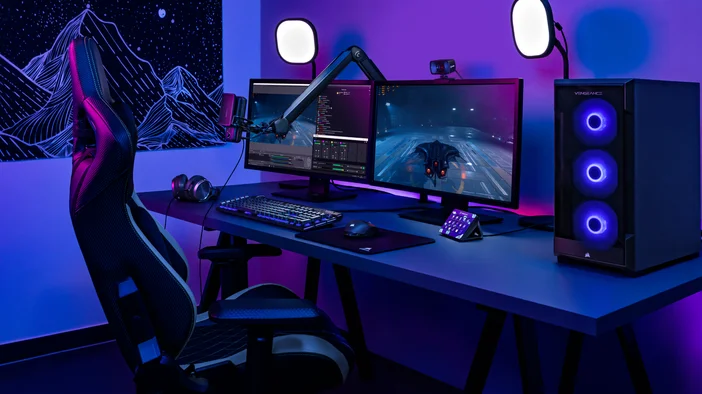
Getting started
To get started, you will need the following:
- Any Stream Deck device
- Stream Deck app
- Wave Link 3.0 (Free on Windows and macOS and works with any microphone)
Stream Deck and Wave Link is available for downloads at elgato.com/downloads.
Step 1: Add a Soundboard action to Stream Deck
Stream Deck includes a built-in Soundboard action that lets you play audio files from a key.
- Open Stream Deck app.
- In the actions panel on the right, find Soundboard.
- Drag Play Audio onto an open key.
- In the property inspector at the bottom, select the ellipsis icon to Choose a file and select an audio file (MP3 or WAV work well).
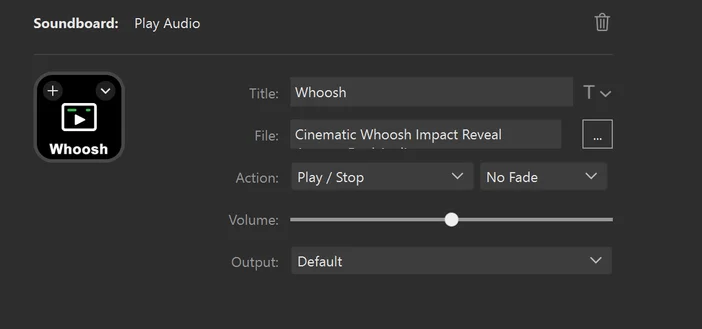
That is all you need to configure on the Stream Deck side. Wave Link handles the routing from here.
Step 2: Add Stream Deck as a channel in Wave Link
Now that your soundboard is set up in Stream Deck, the next step is bringing that audio into Wave Link so you can route it to voice chat.
- Open Wave Link.
- On the left side of the mix view, click + Create channel.
- Wave Link will show a list of all available input sources, including installed applications.
- Find and select Stream Deck from the list.
Once added, Stream Deck appears as its own channel in Wave Link with independent volume and effects controls, just like any other audio source.
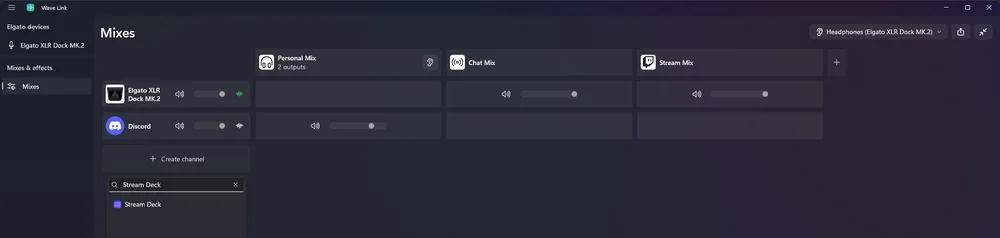
Creating a channel within Wave Link for Stream Deck
Step 3: Toggle Stream Deck into the right mixes
Now you need to tell Wave Link which mixes should include your soundboard audio.
In the mix view, you will see your output mixes across the top (for example, Chat Mix, Stream Mix, Monitor Mix). Each channel on the left has toggles for each mix.
Toggle the Stream Deck channel into whichever mixes should carry your sound effects. If you want people in Discord to hear your sounds, make sure Stream Deck is toggled into the same mix that feeds Discord. If you are streaming and want your audience to hear them too, toggle it into your Stream Mix as well.
This is one of the biggest advantages of using Wave Link for soundboard routing. You decide exactly who hears what. You could send sounds to voice chat but keep them out of your stream, or include them everywhere.
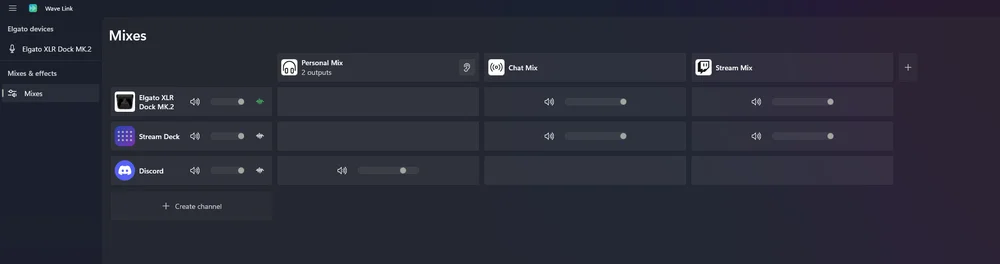
XLR Dock MK.2 and Stream Deck channels in Wave Link, with Stream Deck routed to Chat Mix and Stream Mix
To learn more about Wave Link, check out our software overview.
Step 4: Set the Wave Link mix as your mic input
The final step is telling your voice chat app or game to use the Wave Link mix that contains both your microphone and Stream Deck channel.
- Open your voice chat app (Discord, for example).
- Go to Settings > Voice & Video.
- Under Input Device, select the Wave Link mix you routed Stream Deck into, such as Chat Mix (Elgato Virtual Audio).
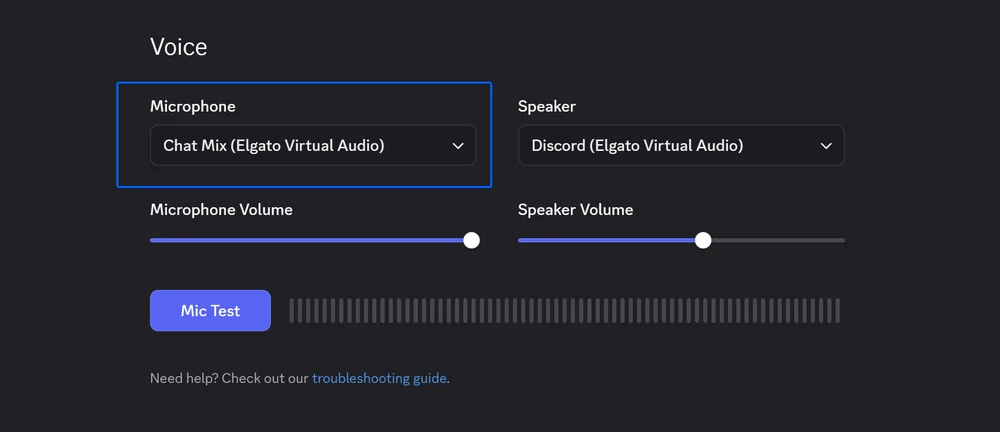
That mix now carries your voice and your sound effects together as a single input. Anyone in voice chat will hear both.
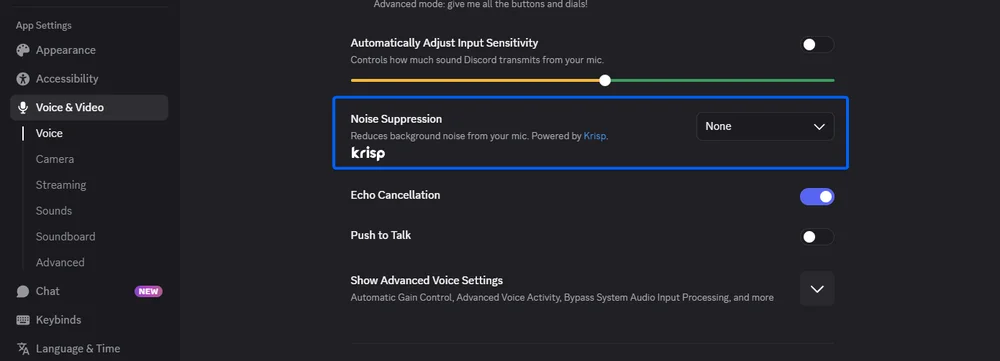
Important: If your voice chat app has built-in noise suppression (like Krisp in Discord), turn it off or set it to a lower level. Noise suppression is designed to filter out sounds that are not your voice, which means it can muffle or completely block your sound effects from coming through. In Discord, go to Settings > Voice & Video and disable Noise Suppression to make sure your soundboard audio comes through clearly.
Ready-made soundboard packs from Voicemod
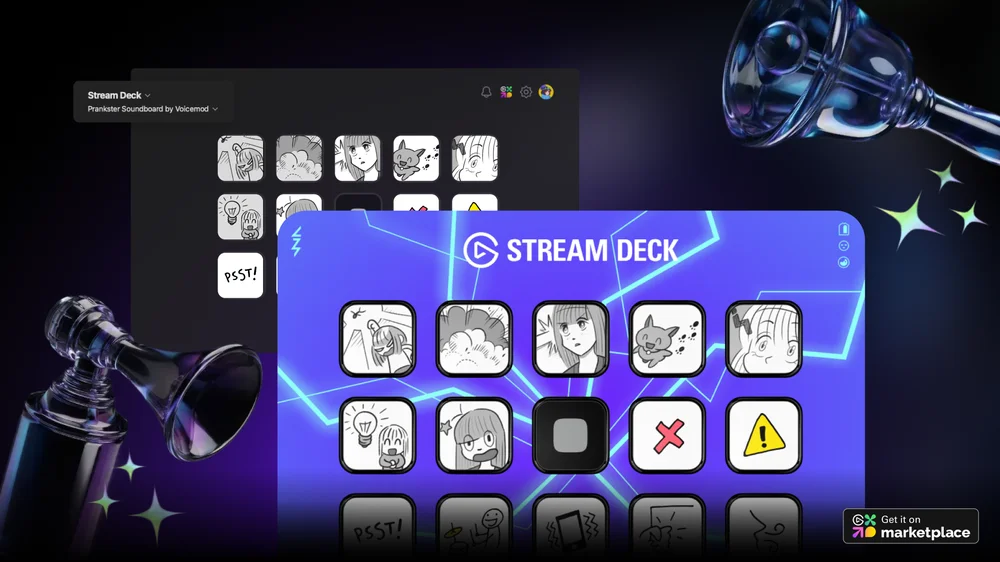
If you are looking for ready-made sounds effects, Voicemod offers full soundboard packs on Elgato Marketplace. Each pack installs directly to Stream Deck as a ready-to-use profile with sounds already mapped to keys, covering themes from fantasy to FPS gaming.
Explore more on Marketplace
Stream Deck soundboard is just one way to add audio to your setup. Elgato Marketplace has ready-made soundboard profiles from Voicemod with sounds already mapped to keys, plus voice changers available as VST effects for Wave Link. Browse what is available and find new ways to make your setup your own.
PRODUKTI RAKSTĀ