-
Front of Wave:3 MK.2
-
Back of Wave:3 MK.2
-
Get the app
-
Mount your mic
-
Positioning your mic
-
Connect your mic
-
Connect your headphones
-
Using the control dial
-
Setting your gain
-
Tap to mute
-
Manage hardware effects
-
Add VST effects
-
Voice Focus
-
Master your mix
-
Stream Deck control
-
Federal Communication Commission Interference Statement
JUHEND | KIIRJUHEND
Elgato Wave:3 MK.2 — Quick Start Guide
Premium USB Condenser Microphone for Streaming & Podcasting with Wave FX Processor, Onboard DSP, Clipguard 2.0, VST Inserts – Works on PC and Mac
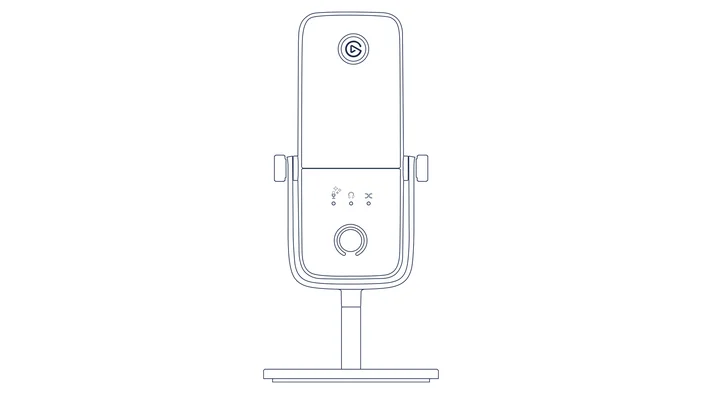
Front of Wave:3 MK.2
LEDs
- 1st LED: Input gain
- 3 star-shaped LEDs above 1st LED: Voice Tune
- 2nd LED: Headphone volume
- 3rd LED: Monitor mix
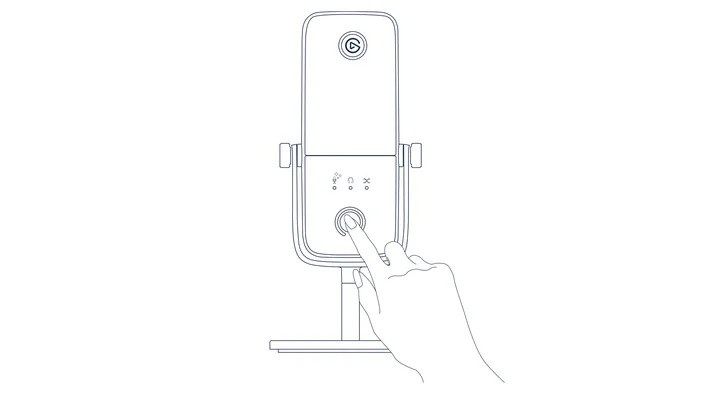
Multifunction Dial
- Turn: Adjust setting
- Push: Switch setting
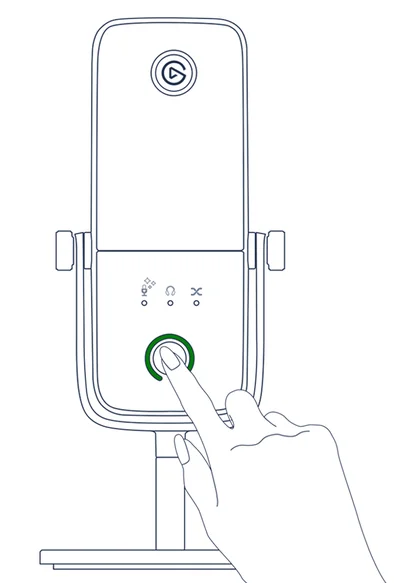
- Long push: Auto Gain
LED status ring
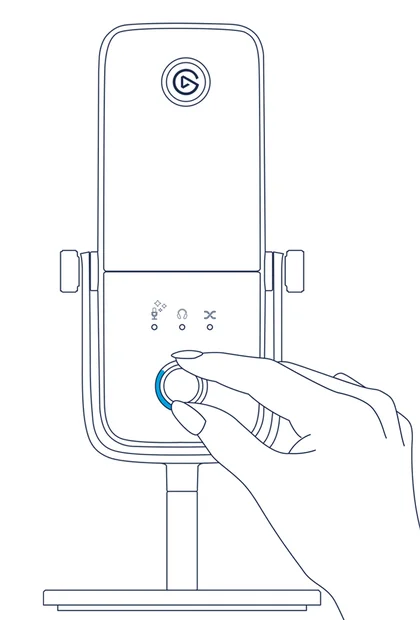
Dial Controls
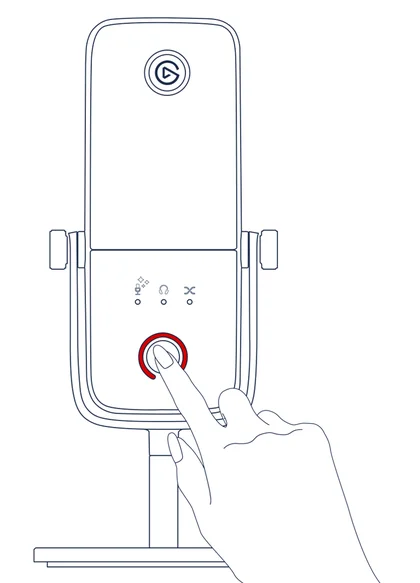
Mute
Auto Gain Wizard
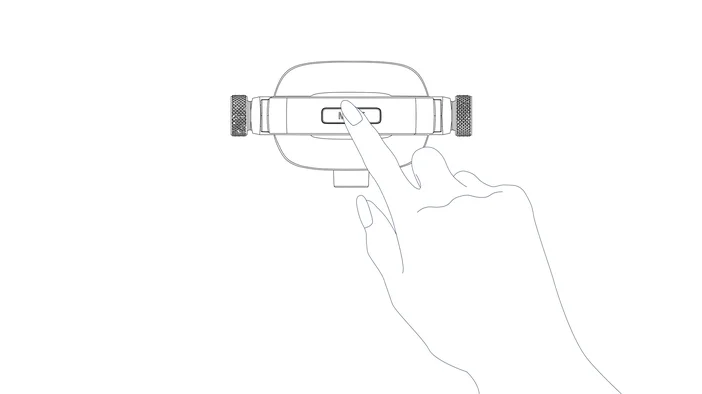
Tap to mute
Back of Wave:3 MK.2
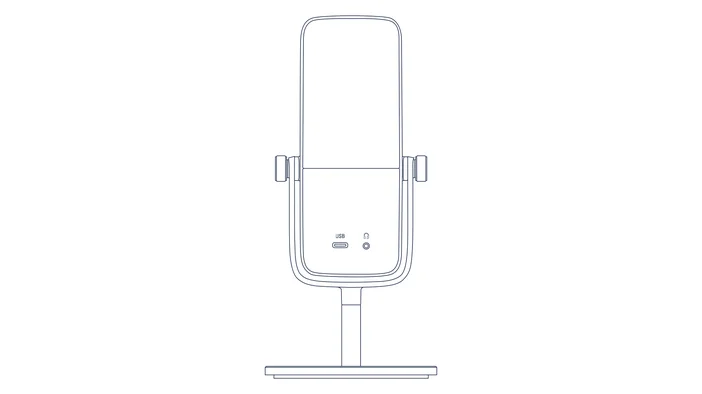
- USB-C port
- 3.5-mm headphone jack
Get the app
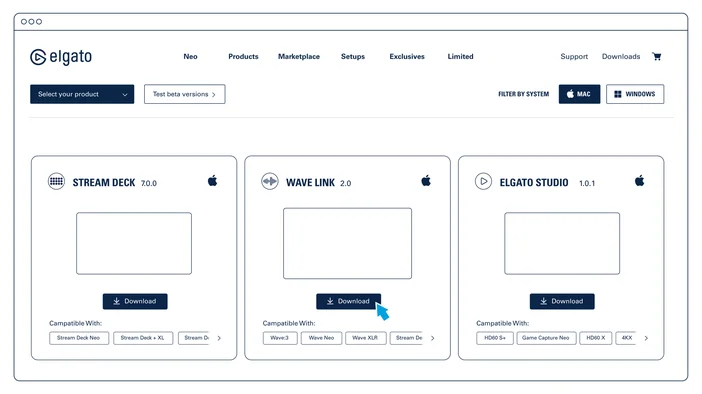
Download the Wave Link app to get started. Free for PC and Mac, Wave Link offers powerful tools to shape your voice and rule your audio.
Mount your mic
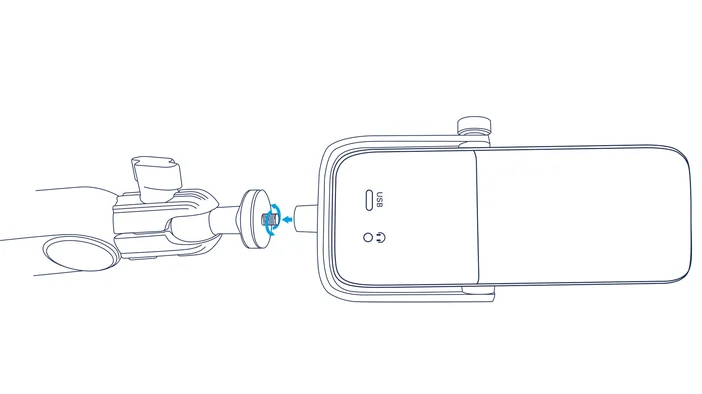
Attach Wave:3 to the included desk stand for tabletop use, or mount it on a mic arm using the 1/4-inch thread underneath your mic (3/8" and 5/8" adapters included).
Positioning your mic
For best vocal quality, position Wave:3 about 4–8 inches (10–20 cm) from your mouth. Because Wave:3 is a side-address mic, you'll want to speak into the front—not the top.
Note: To quickly find the right distance, make a "stop" gesture with your hand in front of your face. When your thumb touches your lips and your pinky reaches the microphone, you're in the ideal position.
Connect your mic
Connect Wave:3 to your computer using the included USB-C cable. Plug one end into the back of the microphone and the other directly into a USB-C port on your computer. For best performance, avoid connecting through a USB hub.
Connect your headphones
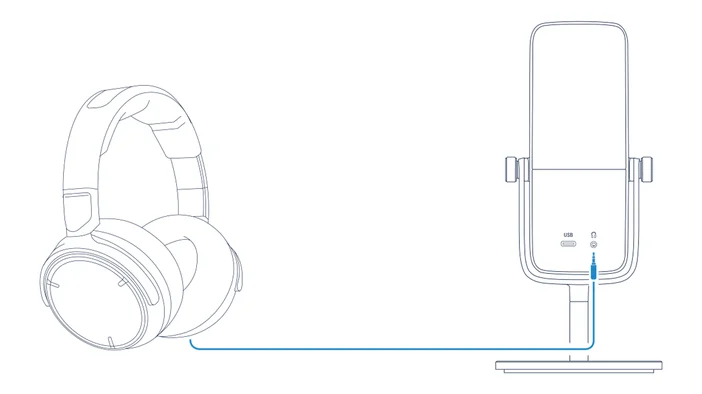
Plug your headphones into the 3.5-mm jack on the back of Wave:3 for zero-latency monitoring of both your mic and system audio.
⚠️ To protect your hearing, make sure volume is set to a moderate level before plugging in headphones
Using the control dial
Push the dial on the front of Wave:3 to switch between settings such as gain and headphone volume. Turn to adjust—the LED ring displays your current status and audio levels.
Setting your gain
Let Auto Gain find the right level for your setup. Push and hold the dial for 5 seconds, then speak into Wave:3 at your normal volume. When the LED ring fills completely and glows green, you're all set. If it glows red, try again. You can also set your gain manually—a good starting point for Wave:3 is around 20 dB, then adjust from there based on your voice and environment.
Tap to mute
Touch the top of Wave:3 to quickly mute or unmute your microphone. The LED ring changes color to show whether you're muted or live.
Manage hardware effects
In Wave Link, select your device from the left-side panel and open the Effects tab. You'll see a list of onboard effects like EQ and compression, powered by your device's Wave FX Processor. Some effects can be configured further, while others—such as Clipguard—are toggled on and off.
Add VST effects
Visit Elgato Marketplace to explore professional effects, from reverb and noise removal to voice changers. Create an account or sign in, then install effects directly to Wave Link in a few clicks. Return to the Effects tab to apply your new effects and start customizing your sound.
Voice Focus
Voice Focus significantly reduces reverb and background noise, delivering studio sound in any setup. Use a single slider to dial in the perfect amount of processing, right in Wave Link.
Master your mix
In Wave Link, select Mixes from the left-side panel to take full control of your audio routing. Assign any source to any output mix, group inputs into channels with independent volume control, and mix across multiple devices.
Stream Deck control
Take instant, hands-on control of your Wave:3 using any Stream Deck. Get the free Wave Link plugin to manage your mic, mix and route audio, and more.
Federal Communication Commission Interference Statement
This device complies with Part 15 of the FCC Rules. Operation is subject to the following two conditions: (1) This device may not cause harmful interference, and (2) this device must accept any interference received, including interference that may cause undesired operation.This equipment has been tested and found to comply with the limits for a Class B digital device, pursuant to Part 15 of the FCC Rules. These limits are designed to provide reasonable protection against harmful interference in a residential installation. This equipment generates, uses and can radiate radio frequency energy and, if not installed and used in accordance with the instructions, may cause harmful interference to radio communications. However, there is no guarantee that interference will not occur in a particular installation. If this equipment does cause harmful interference to radio or television reception, which can be determined by turning the equipment off and on, the user is encouraged to try to correct the interference by one of the following measures:
- Reorient or relocate the receiving antenna.
- Increase the separation between the equipment and receiver.
- Connect the equipment into an outlet on a circuit different from that to which the receiver is connected.
- Consult the dealer or an experienced radio/TV technician for help.
FCC Caution: Any changes or modifications not expressly approved by the party responsible for compliance could void the user's authority to operate this equipment. This equipment complies with FCC radiation exposure limits set forth for an uncontrolled environment. This equipment should be installed and operated with a minimum distance of 20 cm between the radiator and a human body. For questions about Elgato product compliance with FCC regulations, please contact: Compliance Officer, Corsair Memory Inc., 115 North McCarthy Blvd, Milpitas, CA 95035, USAThis device complies with Industry Canada license-exempt RSS standard(s).
Operation is subject to the following two conditions: (1) this device may not cause interference, and (2) this device must accept any interference, including interference that may cause undesired operation of the device. Le present appareil est conforme aux CNR d'Industrie Canada applicables aux appareils radio exempts de licence.
L'exploitation est autorisée aux deux conditions suivantes : (1) l'appareil ne doit pas produire de brouillage, et (2) l'utilisateur de l'appareil doit accepter tout brouillage radioelectrique subi, meme si le brouillage est susceptible d'en compromettre le fonctionnement.The declaration of conformity for Elgato products is available at www.elgato.com/doc
<KC Logo> + R-R-CSI-20MAO9901
Applicant Name (상호명): Corsair Memory, Inc.
Product Name (제품명칭): Wave:3 MK.2
M/N (모델명|型號): 20MAO9901
Manufactured Year & Month (제조연월): Please refer to gift box sticker
Manufacturer & Origin (제조자 및 제조국가): Corsair Memory, Inc./Please refer to gift box sticker
A/S : (주)컴스빌, 1522-1460
Corsair Memory, Inc. 115 North McCarthy Blvd, Milpitas, CA 95035, USA
Corsair Memory, BV. Wormerweg 8, 1311 XB, Almere, Netherlands
Corsair Memory, Ltd. 1020 Eskdale Road, Winnersh Triangle, Wokingham, RG41 5TS, UKCopyright 2020-2026 Corsair Memory Inc. All rights reserved. Elgato and the Elgato logo are trademarks of Corsair Memory Inc., registered in the U.S. and other countries. All other trademarks belong to their respective owner.
Part: 51MAO9901