Welcome to GALLEON 100 SD, a mechanical keyboard with Stream Deck built right in. It combines the feel and performance of a full-size keyboard with dynamic keys, dials, and a display that adapts to how you work, play, or create.
This guide walks through the basics. You will set up Stream Deck, add actions and plugins, customize profiles and icons, and then fine-tune keyboard lighting and settings using Corsair Web Hub.
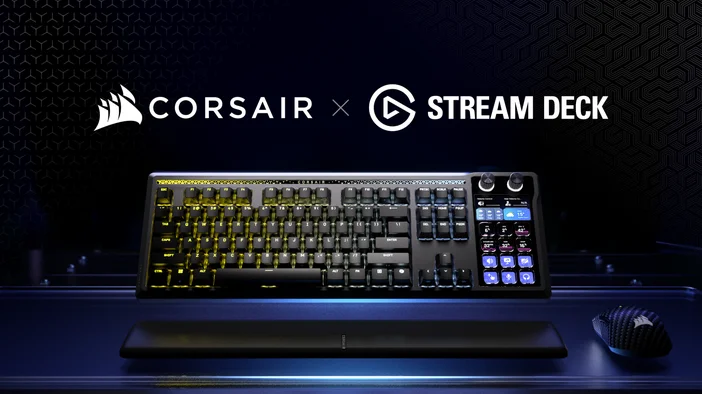
Understanding Stream Deck on GALLEON 100 SD
Stream Deck keys on GALLEON 100 SD are not fixed shortcuts. Each key is fully customizable and can change automatically depending on what app or game you are using.
Key concepts:
- Actions trigger commands like launching apps, muting audio, or controlling media
- Profiles change layouts automatically when you switch apps or games
- Pages and folders let you organize more actions without clutter
- Dials add precise control for things like volume, scrolling, or scrubbing
This is what makes GALLEON 100 SD different from a standard keyboard. You are not memorizing shortcuts. You are building controls that match what you are doing.
Getting more actions for Stream Deck
Stream Deck app includes built-in actions, but plugins expand what you can control.
Plugins add app-specific actions and deeper integration with the apps and games you already use. Many are free and available directly from Elgato Marketplace.
Common examples:
- Trigger in-game actions
- Control music playback with Spotify
- Manage voice chat with Discord
- Control streaming or recording tools like OBS Studio or Streamlabs Desktop
- Monitor system stats like CPU or GPU usage
Customize with icons, profiles, and screens
This is where GALLEON 100 SD starts to feel personal.
Use Pages and Folders
As your setup grows, pages and folders help you stay organized.
Pages give you more space for actions, while folders group related actions together. This makes it easier to expand your layout without cluttering your main view.
To learn how to create and manage folders on Stream Deck, check out our guide here.
Icon Packs
Icons make actions easier to recognize at a glance, which helps you move faster and avoid mis-presses.
You can use built-in icons, import your own images, or install icon packs from Marketplace. Updating icons is one of the quickest ways to make a layout easier to read and remember.
To learn how to customize keys with icons and icon packs, check out our full guide here.
Create Profiles
Profiles let you create different Stream Deck layouts for different apps, games, or workflows.
You might use one profile for work apps, another for games, and a different one for editing or streaming. Each profile keeps actions, icons, pages, and folders relevant to what you are doing.
Stream Deck also supports Smart Profiles, which can switch profiles automatically when you open or focus a specific app or game. This means your keys update in real time without needing to change layouts manually.
If you want to get started quickly, you can also download pre-made profiles from Elgato Marketplace. These profiles are designed for GALLEON 100 SD and give you ready-to-use layouts for games and apps, with actions already mapped.
To learn more about how Smart Profiles work, check out our guide here.
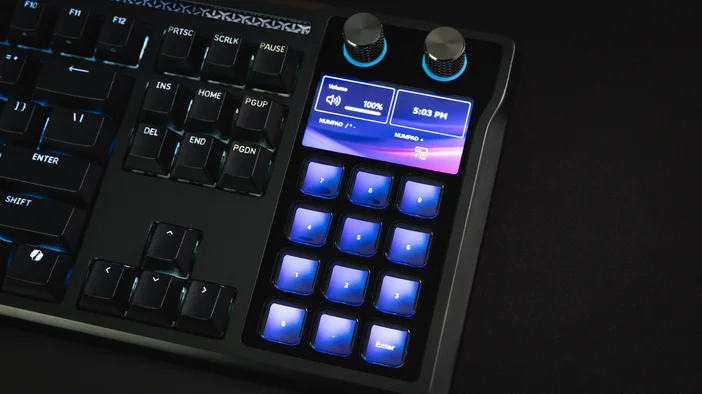
Looking to add a numpad?
If you rely on a numpad for games, apps, or everyday shortcuts, losing those keys can slow things down more than expected.
With Stream Deck, you can build a custom numpad layout. Assign numbers, shortcuts, or secondary functions exactly how you want, and even create multiple numpad layouts for different apps or games.
Because Stream Deck profiles can switch automatically, your numpad can change based on what you are doing without any extra steps.
To learn how to create a custom numpad, check out our full guide here.
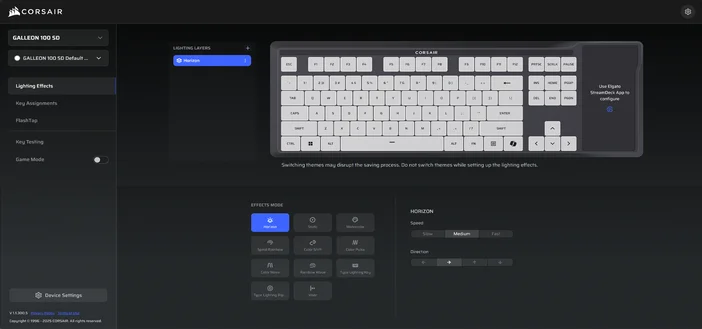
Adjust keyboard lighting and hardware with Corsair Web Hub
CORSAIR WEB HUB is a browser-based tool for managing keyboard hardware settings. It’s where you control lighting, key behavior, and performance features.
Use CORSAIR WEB HUB to:
- Customize static or animated lighting and per-key effects
- Remap keys and manage function layers
- Enable Game Mode options like Win Lock and reduced brightness
- Configure FlashTap SOCD behavior for supported games
- Update firmware, adjust polling rate, and manage device settings
Stream Deck app handles Stream Deck actions and profiles. CORSAIR WEB HUB focuses on keyboard lighting, performance, and hardware behavior.
Make it yours over time
You do not need to set everything up at once.
Start with a few actions you use every day. Add more as your workflow grows. Update icons, create new profiles, and refine layouts as your needs change.
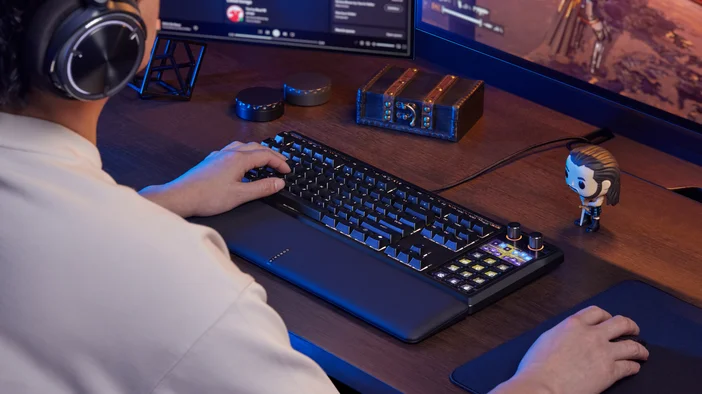
That flexibility is the point. GALLEON 100 SD is built to adapt with you.
ΠΡΟΪΟΝΤΑ ΣΕ ΑΡΘΡΟ