РЪКОВОДСТВО | РЪКОВОДСТВО ЗА БЪРЗ СТАРТ
Elgato Stream Deck Studio — Quick Start Guide
Hyper-Customizable Control Surface for Pro Broadcasting, Monitoring, KVM Switching, Supports Hybrid IP/SDI Systems, Fits 19" Racks, Works with Bitfocus Buttons/Companion Software
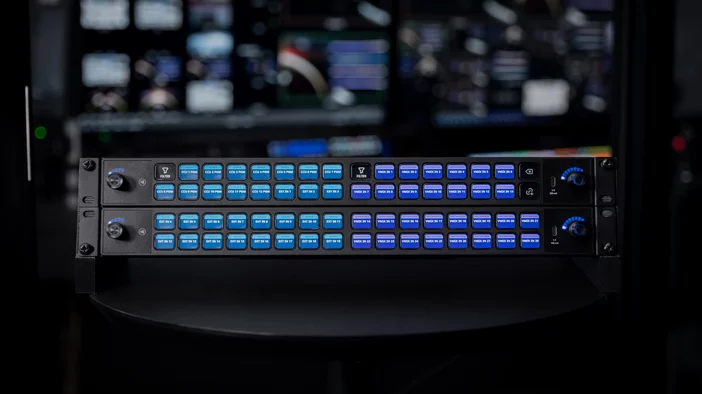
Mounting
19" Rack Mounting
Use four screws per bracket. Six holes provide two mounting depths.
Custom Mounting
Screw four M4 screws (not included) directly into the enclosure.
Power Supply
There are two ways to power Stream Deck Studio:
1) RJ45 Ethernet PoE+
Connect Stream Deck Studio via Ethernet to a PoE+ (802.3at Class 4) compatible network. The device will power on automatically.
An on-key menu will display all network settings. Press keys to select values, and use the left or right encoder to adjust settings.
2) USB-C PD 3.0
Connect a PD 3.0 compatible power supply (min. 9 V, 2.4 A, not included) to the USB-C POWER DELIVERY port. The device will power on automatically.
Note: If Ethernet and USB-C are connected at the same time, Ethernet will be given priority and USB will be disabled.
Connection
USB-C (Back) Connect your computer to the USB-C DATA CONNECTION port.
USB Expansion Port (Front)
Connect a bus-powered Stream Deck device for additional control.
NFC Reader
Place your NFC token close to the icon to exchange data with Stream Deck Studio.
Software
bitfocus.io/sds
Select your Bitfocus Buttons subscription plan.
Reset
To reboot the device, press and hold both encoders for 10 sec.
To restore factory settings, press and hold the reset button while powering on the device.
Federal Communication Commission Interference Statement
This device complies with Part 15 of the FCC Rules. Operation is subject to the following two conditions: (1) This device may not cause harmful interference, and (2) this device must accept any interference received, including interference that may cause undesired operation.
NOTE: This equipment has been tested and found to comply with the limits for a Class A digital device, pursuant to part 15 of the FCC Rules. These limits are designed to pro-vide reasonable protection against harmful interference when the equipment is operated in a commercial environment. This equipment generates, uses, and can radiate radiofrequency energy and, if not installed and used in accordance with the instruction manual, may cause harmful interference to radio communications. Operation of this equipment in a residential area is likely to cause harmful interference in which case the user will be required to correct the interference at his own expense.
FCC Caution: This transmitter must not be co-located or operating in conjunction with any other antenna or transmitter.
FCC Caution: Any changes or modifications not expressly approved by the party responsible for compliance could void the user's authority to operate this equipment. This equipment complies with FCC radiation exposure limits set forth for an uncontrolled environment. This equipment should be installed and operated with a minimum distance of 20 cm between the radiator and a human body.
For questions about Elgato product compliance with FCC regulations, please contact: Compliance Officer, Corsair Memory Inc., 115 North McCarthy Blvd, Milpitas, CA 95035, USA
The declaration of conformity for Elgato products is available at www.elgato.com/doc
Corsair Memory Inc., 115 North McCarthy Blvd, Milpitas, CA 95035, USA
Corsair Memory BV, Wormerweg 8, 1311 XB, Almere, Netherlands
Corsair Components Limited, 1020 Eskdale Road, Winnersh Triangle, Wokingham, RG41 5TS, UK
Copyright 2024 Corsair Memory Inc. All rights reserved. Elgato and the Elgato logo are trademarks of Corsair Memory Inc., registered in the U.S. and other countries. The X name and logo are trademarks of X Corp. in the United States and other countries. All other trademarks belong to their respective owner.
Customer Support: help.corsair.com • Part: 51GBO9904
Buttons by Bitfocus
Co-Designed by Elgato and Bitfocus