РЪКОВОДСТВО | РЪКОВОДСТВО ЗА БЪРЗ СТАРТ
Elgato Key Light — Quick Start Guide
Set up your Key Light
Step 1
Screw Key Light directly onto the pole via the integrated socket and screw. Extend the pole to your preferred height.
- Rotate the mounting screw to secure the light panel to the top of the pole.
- The light head can be tilted to adjust the lighting angle.
Step 2
A non-slip rubber washer is included for mounting a camera, camcorder, etc. It is recommended that you remove it when mounting Key Light.
Do not overtighten.
- Use the tightening knob on the pole to secure the light in place.
- Turn clockwise to tighten and counterclockwise to loosen.
Step 3
Push the button to position the ratchet after tightening.
- The ratchet mechanism allows you to reposition the handle without loosening the clamp.
Step 4
Padded and expandable up to 6 cm / 2.35 in
- Open the desk clamp and attach it to the edge of your desk.
- Ensure the padded clamp grips securely without damaging the surface.
Step 5
Adjust the pole height using the extension sections and locking points.
- Minimum 55 cm / 22 in
- Maximum 125 cm / 49 in (90 cm / 35 in recommended)
It is normal for the pole to shake when fully extended.
- Maximum load 2 kg / 4.5 lbs
Step 6
Connect the power supply and plug it into a power outlet.
- Insert the power cable into the back of the Key Light panel.
- Connect the adapter to a wall outlet.
Power Controls
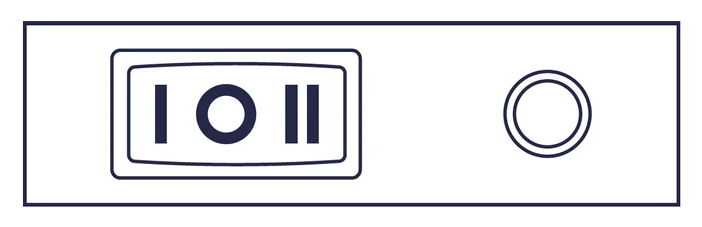
I = ON / 0 = OFF / II = RESET
Installation (Software)
1. Download and install the Control Center app.
https://elgato.com/download
2. Switch on your Key Light. It will take approximately 15 seconds to boot up.
3. Launch Control Center and pair Key Light by clicking the + icon.
4. Use Control Center to switch Key Light on/off, adjust brightness, and fine-tune color temperature.
If your PC is not equipped with Wi-Fi, use the Elgato Control Center app from the App Store or Google Play to add and control Key Light from an iOS or Android device. Wi-Fi connection is only needed for initial pairing. Once Key Light is added to your network, you can control it via any Mac or Windows PC within your network.
Reset
RESET will restore your Key Light factory settings and forget all Wi-Fi credentials.
Power off Key Light. Push and hold the RESET Button (II) for at least 10 seconds until the light flashes 3x. Wait a moment before switching on Key Light again.
Warning
- Key Light may become hot during prolonged use. Always handle with care.
- Do not cover this product, especially the ventilation holes.
- Do not place on or near a carpet, curtains, or any other flammable materials.
- Be especially cautious when setting up near children.
- Do not attach items to Key Light or its pole.
- Do not leave the product exposed to direct sunlight.
- Do not set up in areas susceptible to strong air currents. Drafts and breezes can cause movement that may result in damage to the product.
- Keep the light free from dirt and dust. If Key Light becomes dirty, wipe it lightly with a soft cloth moistened with a little water and mild, neutral detergent. Benzene, thinner, and other volatile agents can cause permanent damage and should never be used for cleaning.
- Always mount the pole to a level, stable surface. Uneven or unstable surfaces may cause tipping and result in damage or personal injury.
- Do not use the pole for applications other than those specified in this guide or the packaging.
Technical Specifications
Frequency range: 2412 - 2472 MHz (2462 MHz for FCC, ISED), Max RF e.i.r.p power < 20 dBm, Temperature range: 0 °C - 45 °C
Compliance
Hereby, Corsair Memory Inc. declares that this device is in compliance with the essential requirements and other relevant provisions of Directive 2014/53/EC.
The declaration of conformity for Elgato products is available at https://www.elgato.com/doc
Company Information
Elgato, a division of:
CORSAIR MEMORY, Inc.
115 North McCarthy Blvd, Milpitas, CA 95035, USA
CORSAIR MEMORY, BV, Wormerweg 8, 1311 XB, Almere, Netherlands
CORSAIR COMPONENTS, Ltd. 1020 Eskdale Road, Winnersh Triangle, Wokingham, RG41 5TS, UK
Copyright 2018 - 2022 Corsair Memory Inc. All rights reserved. Elgato and the Elgato logo are trademarks of Corsair Memory Inc., registered in the U.S. and other countries.