КРАТКОЕ РУКОВОДСТВО ПОЛЬЗОВАТЕЛЯ
Elgato Stream Deck — Quick Start Guide
Getting started
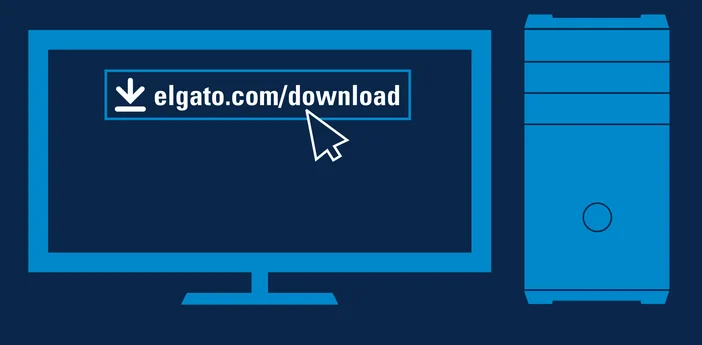
Get the app
Download and install the Stream Deck app
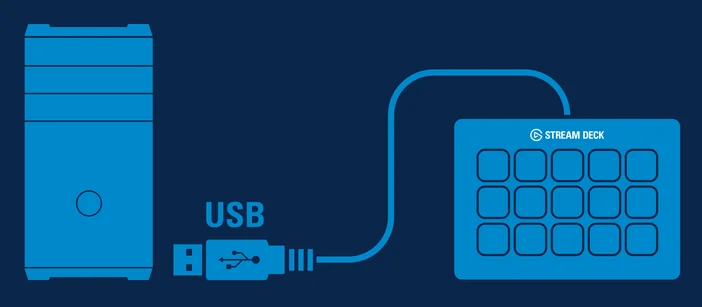
Connecting Stream Deck
Connect Stream Deck directly to a USB port on your PC or Mac
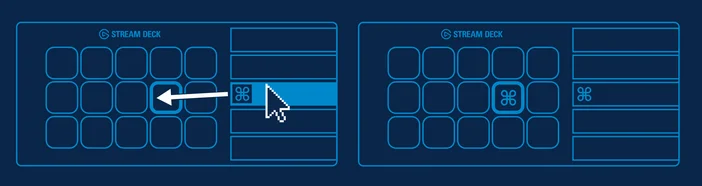
Setting Up Actions
Launch the app to customize Stream Deck. Drag actions from the right panel and drop them onto your desired keys on the left.
Customize Appearance
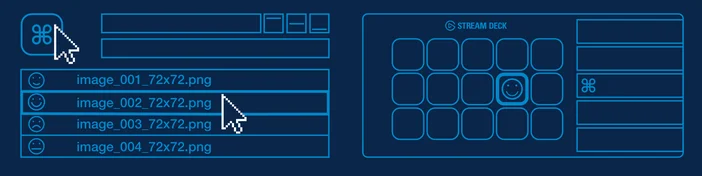
Configure your actions and personalize keys with custom icons — for best results use 72 × 72 pixel images (jpg or png). You can also browse icon packs on Elgato Marketplace for ready-made designs.
Create Folders
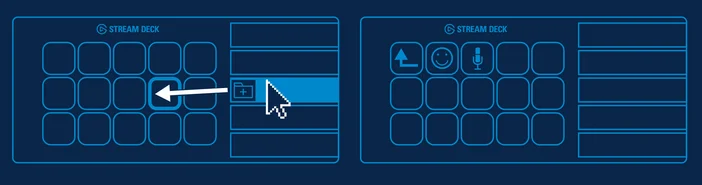
Drag and drop “Create Folder” onto a key, then drag and drop actions into that folder.
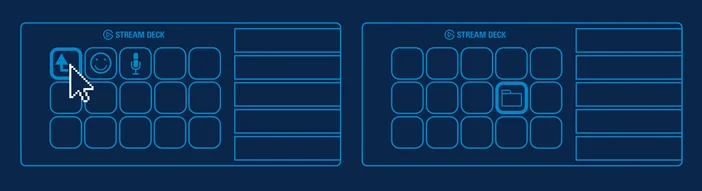
Tap the back key to exit a folder and return to your main configuration.
Manage Keys
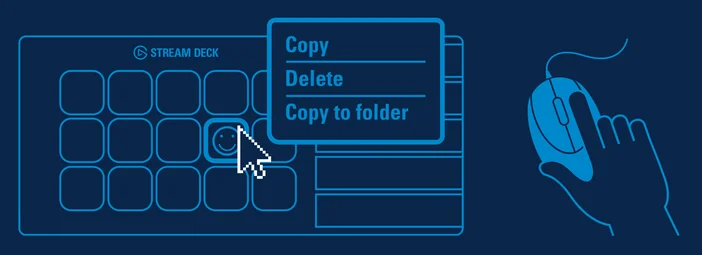
Right-click keys to copy, delete, or move them.
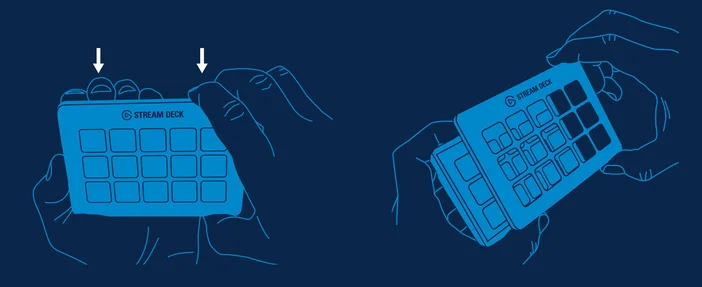
Removing the Faceplate
Faceplates can easily be switched out for custom designs.
Elgato Marketplace
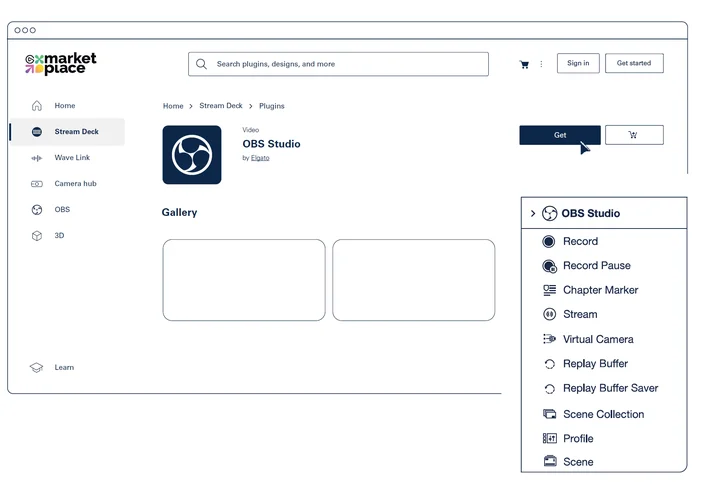
Discover new ways to control your apps and hardware on Marketplace. Create an account to get started, then sign in via the Stream Deck app.
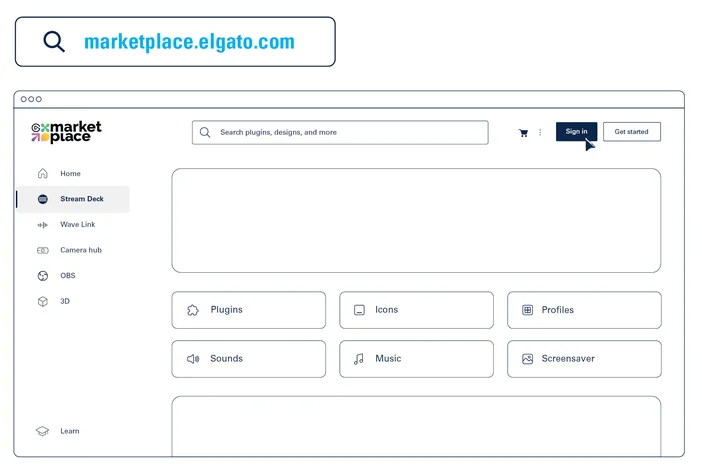
Expand Your Abilities (Plugins, Profiles, Icons and more)
Back on Marketplace, browse community plugins, profiles, icons, and more. Then install directly to your Stream Deck app with just a few clicks.