This guide covers noise reduction and anti-flicker settings in Camera Hub, available on supported Facecam models. These options help reduce visual noise and flicker in your video, especially in low-light environments.
Noise Reduction
This will reduce visible video noise; however, this comes at a slight cost in image quality as small details may be removed. This setting can have a big effect on overall image quality.
Available options:
- Off: No processing is applied. Best for well-lit setups.
- Low: Applies minimal noise reduction while preserving most detail.
- Medium: A balance between noise reduction and image sharpness.
- High: Maximizes smoothing to reduce visible noise, but may soften finer details.
- Custom (Facecam 4K only): Allows precise control of 2D and 3D noise reduction via individual sliders.
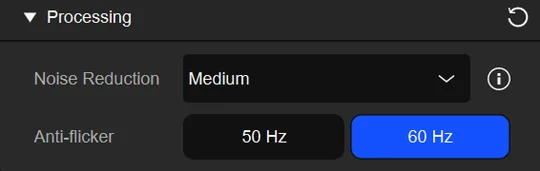
Custom Noise Reduction (Facecam 4K only)
2D Noise Reduction
- What It Does: Applies spatial filtering within a single frame to smooth out noise, reducing static grain by averaging nearby pixels.
- Best For: Still or low-motion scenes where quick, frame-based noise cleanup is needed without affecting temporal details.
3D Noise Reduction
- What It Does: Uses spatio-temporal filtering across multiple frames to detect and reduce noise more intelligently, preserving edges and motion details better than 2D alone.
- Best For: Dynamic video content like streaming or recording, where maintaining sharpness during movement is important.
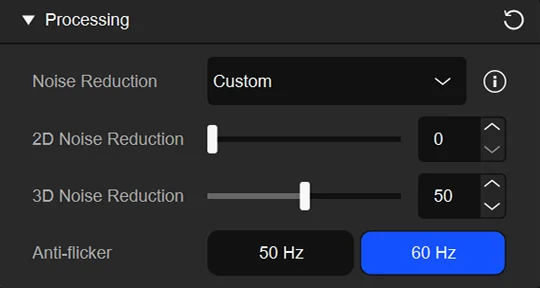
Anti-Flicker Settings
Anti-Flicker prevents banding or pulsing from artificial background lights caused by mismatched power frequencies.
Off
- What It Does: No adjustment applied.
- Best For: Natural lighting or setups without flicker issues.
50 Hz
- What It Does: Syncs the camera to 50 Hz lighting cycles.
- Best For: Regions with 50 Hz AC power (e.g., Europe, Australia) to eliminate flicker from fluorescent or LED lights.
60 Hz
- What It Does: Syncs the camera to 60 Hz lighting cycles.
Best For: Regions with 60 Hz AC power (e.g., North America, Japan) for stable footage under common indoor lighting.