Stream Deck 7.4 opens up Stream Deck to AI assistants for the first time. With MCP support, AI tools can now connect to Stream Deck and trigger your actions, whether by voice, text, or even live events.
NVIDIA G-Assist is the first to connect, bringing voice control to Stream Deck. Say "get my stream ready" and it combines your actions to launch OBS, turn on your lights, start your music, and set your scene, all hands-free. Aitum, a popular automation platform for streamers, is also integrating, letting live events like raids and subscriptions trigger Stream Deck actions automatically. And because MCP is an open standard, more tools are on the way.
You still set up actions in Stream Deck app the same way you always have. MCP adds new ways to activate them. This guide walks through what MCP is, how to set it up, and how to start using it.
What is MCP
MCP stands for Model Context Protocol. It is an open standard that gives AI tools a shared way to connect to apps and services.
Think of it like USB. Before USB, every device needed its own type of cable and connector. USB created one standard that works with everything. MCP does the same thing for AI tools. Instead of each AI assistant needing a custom connection to each app, MCP gives them a common way to communicate.
With Stream Deck 7.4, Stream Deck joins that list. AI provides the input. Stream Deck provides the actions.
What you can do with it
MCP is at its best when you want to combine actions or stay hands-free.
With NVIDIA G-Assist, your voice becomes the input. Say "get my stream ready" and G-Assist can combine your actions to open OBS, set your scene, turn on your lights, and start your music. Say "wrap up the stream" and it runs your shutdown sequence. Your hands never leave the keyboard and mouse, and you never need to look away from what you are doing.
With Aitum, live events on your stream do the triggering instead of you. A raid comes in and your actions combine to switch scenes, dim the lights, and play a welcome sound. A channel point redemption activates a voice effect. A subscription kicks off a shoutout in Discord. These workflows run in real time without you doing anything.
Because MCP is an open standard, text-based AI tools like Claude Desktop and ChatGPT can also connect and trigger your actions. More on how to set those up later in this guide.
The more actions you add to Stream Deck, the more any connected AI tool can combine and work with.
How it works
The setup has three parts:
- Enable MCP in Stream Deck app and choose which actions you want your AI to access. These go on a dedicated profile called MCP Actions.
- You install a small bridge called Elgato MCP Server on your computer. This is what connects your AI tool to Stream Deck app.
- Tell your AI tool where to find Elgato MCP Server.
Once everything is connected, you can type or speak requests and your AI tool will trigger the matching Stream Deck action. Let's walk through each one.
Set up MCP Actions in Stream Deck
- Open Stream Deck app.
- Go to Preferences and select the General tab.
- Under Elgato MCP Integration, check Enable MCP Actions.
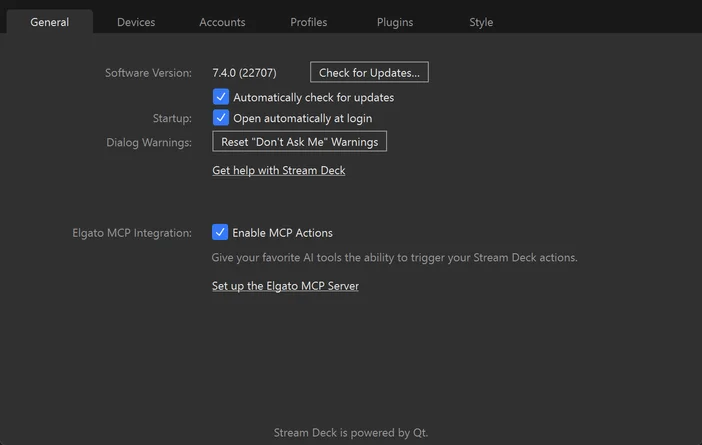
This creates a dedicated profile called MCP Actions, which you can find in the profile dropdown at the top of Stream Deck app.
Drag actions onto its keys from the action panel on the right, just like you would with any other profile. Any action you place here becomes available to connected AI tools. Actions on your other profiles stay private, so you control exactly what the AI can access.
Think about the actions you use across your workflow: launching apps, switching scenes, controlling lights, adjusting audio, playing music. The more of those you place on the MCP Actions profile, the more your AI tool can combine them into hands-free workflows.
Note: Don't see Elgato MCP Integration in Preferences? Make sure you're running Stream Deck 7.4 or later. Download the latest version here.
Add descriptions to your actions
Each action on the MCP Actions profile has a description field that tells the AI what the action does and when to use it. This is one of the most important parts of the setup, because it is how the AI decides which action to trigger when you make a request.
To add a description, select an action and click the AI icon in the action settings at the bottom of the screen. Then write a clear, plain description.
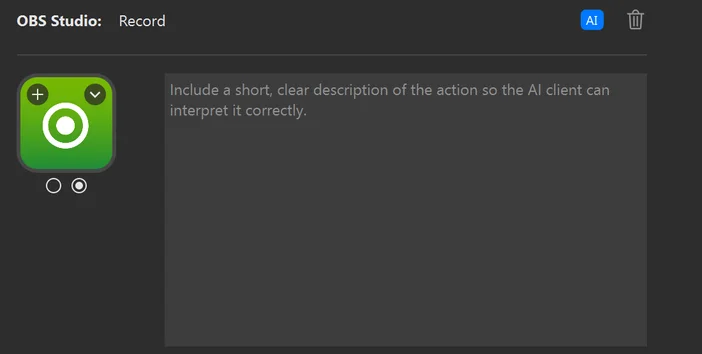
Each action on the MCP Actions profile has a description field that tells the AI what the action does and when to use it. This is one of the most important parts of the setup, because it is how the AI decides which actions to combine when you make a request.
To add a description, select an action and click the AI icon in the action settings at the bottom of the screen. Then write a clear, plain description.
A good description tells the AI what the action does and when it is relevant. For example, if you add individual actions for OBS, Key Light, and Spotify, you might describe them like this:
- "This opens OBS Studio. Use this when setting up for a stream or recording."
- "This turns on my Elgato Key Light. Use this when getting ready to stream, record, or go on camera."
- "This opens Spotify. Use this when going live or starting a stream."
With descriptions like these, saying "get my stream ready" is enough. The AI reads all your descriptions, sees that OBS, Key Light, and Spotify all apply, and triggers them together. You did not have to pre-build that combination. The AI figured it out from the descriptions.
This is what makes MCP different from tapping a single key. You set up individual actions once and describe what each one is for. The AI handles the combinations depending on what you ask, so the same set of actions can be combined in different ways without you reconfiguring anything.
Install Node.js
Before connecting any AI tool, you need Node.js installed on your computer. Node.js is a free, widely used tool that powers many apps and services behind the scenes. Elgato MCP Server runs on it, and both the G-Assist and Claude Desktop setup paths require it.
If you do not already have it, download and install it from nodejs.org. Choose the LTS (Long Term Support) version. The installer works like any other app. Run it, follow the prompts, and you are done. You do not need to configure anything or learn how to use it.
Install Elgato MCP Server
Elgato MCP Server is what connects your AI tool to Stream Deck app. To install it, open a terminal (Terminal on macOS, PowerShell on Windows) and run:
npm install -g @elgato/mcp-server
This installs it permanently on your computer so it's ready whenever you need it.
If you just want to try things out first, you can skip this step. The setup instructions below use npx, which downloads and runs Elgato MCP Server temporarily without installing anything. It works the same way, but re-downloads each time you start it.
For additional options and details, visit the Elgato MCP Server page on npm.
Connect NVIDIA G-Assist to Stream Deck
G-Assist brings voice control to Stream Deck. Once connected, you can trigger and combine actions on your MCP Actions profile just by speaking.
Start Elgato MCP Server
1) Open a terminal on your computer (PowerShell on Windows).
2) Run the following command:
npx -y @elgato/mcp-server@latest --http
3) Leave this window open. You should see a message that the HTTP server is listening on port 9090 and that Stream Deck app is connected.
The server needs to stay running in the background while you use G-Assist. If you close the terminal window, the connection will stop.
Install the plugin for G-Assist
G-Assist uses a plugin to communicate with Elgato MCP Server. Place the Stream Deck plugin folder in the G-Assist plugins directory:
%PROGRAMDATA%\NVIDIA Corporation\nvtopps\rise\plugins
Then restart G-Assist or reload plugins. On first load, the plugin discovers your available Stream Deck actions automatically.
Confirm the connection
You can verify that Elgato MCP Server is running by opening a browser and going to:
If the server is running and connected to Stream Deck app, you will see a status response.
Connect Claude Desktop to Stream Deck
If you use Claude Desktop or another text-based AI tool, you can also connect it to Stream Deck through MCP. The steps below walk through Claude Desktop specifically.
Edit the configuration file
Claude Desktop stores its MCP connections in a configuration file. You need to add Elgato MCP Server to this file so Claude knows where to find it.
- Open Claude Desktop.
- Go to Settings, then Developer, then click Edit Config. This opens the folder where the configuration file is stored.
- Find claude_desktop_config.json in that folder. Right-click it and open it with a text editor (Notepad on Windows, TextEdit on macOS).
- The file will already have some content. You need to add an mcpServers entry inside the existing structure, not as a separate block underneath.
Find the last } that closes an existing section. Add a comma after it, then add the mcpServers section before the final closing }.
Here is what a typical file looks like after the edit:
Everything must stay inside one set of outer curly braces `{ }`, with a comma between each section. If the `mcpServers` block gets pasted as a separate object below the existing content, Claude Desktop will show an error on startup.
If the file is empty or only contains `{}`, you can replace everything with:
5. Save the file and fully quit Claude Desktop (not just close the window). On macOS, right-click the dock icon and select Quit.
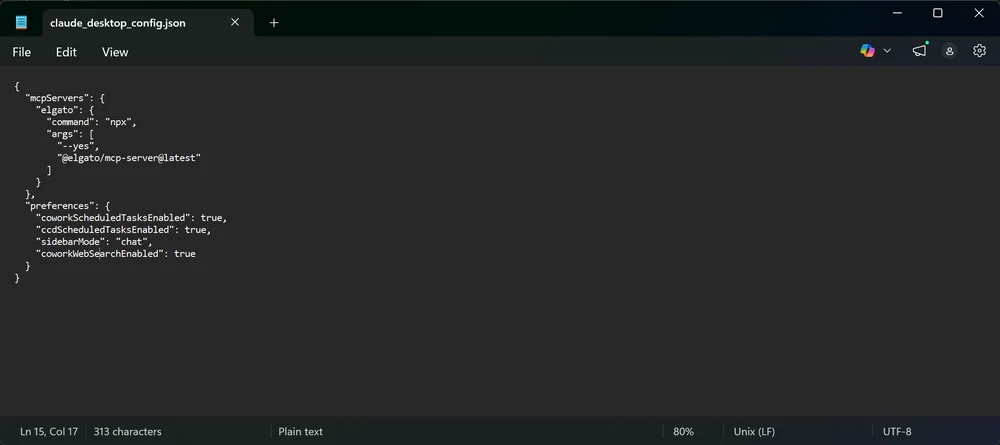
Example of Claude config file.
Confirm the connection
To verify everything is working, go to Settings, then Developer. Under Local MCP servers, you should see elgato listed with a green running label.
If it does not appear or does not show as running, double-check that Stream Deck app is open with MCP Actions enabled, and that the configuration file was saved correctly. Then fully quit and reopen Claude Desktop.
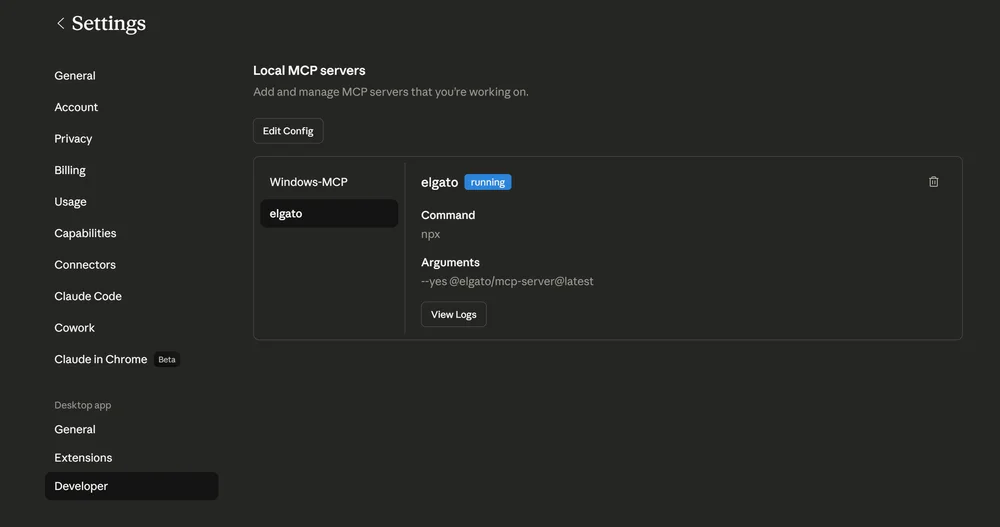
If it does not appear or does not show as running, double-check that Stream Deck app is open with MCP Actions enabled, and that the configuration file was saved correctly. Then fully quit and reopen Claude Desktop.
Connect other AI tools
NVIDIA G-Assist and Claude Desktop are two of the first to connect, but because MCP is an open standard, any compatible tool can plug in the same way. Each one inherits Stream Deck's full ecosystem of integrations, plugins, and workflows.
For full setup details, additional connection methods, and advanced configuration, visit the Elgato MCP Server page on npm.
Try it out
Voice control with G-Assist
With G-Assist connected, your voice becomes the input. The real value comes from combining actions hands-free while your focus stays somewhere else.
Say "get my stream ready" while you are mid-game and G-Assist combines your actions: OBS launches, your scene is set, your lights come on, and your music app starts up. That is your entire setup routine handled by voice while your hands stay on the keyboard and mouse.
Event-driven workflows with Aitum
Aitum takes this further by removing you from the loop entirely. Instead of you giving a command, events on your stream combine your actions automatically.
A raid comes in and actions fire together: scenes switch, lights dim, and a welcome sound plays. A subscriber triggers a special alert sequence. A channel point redemption activates a voice effect. These workflows happen in real time, without you tapping a key or saying a word.
Text-based AI tools
If you are using Claude Desktop, ChatGPT, or another text-based tool, you can type requests the same way. Start a conversation with "What Stream Deck actions do I have available?" to confirm the connection, then type what you need from there.
Troubleshooting
If an action does not trigger, check the following:
- Stream Deck app is running and Enable MCP Actions is checked in Preferences.
- The action is on the MCP Actions profile, not a different profile.
- Your AI tool is connected to Elgato MCP Server. For G-Assist, check that the terminal window running the server is still open and shows a connection to Stream Deck. In Claude Desktop, go to Settings, then Developer, and confirm elgato appears under Local MCP servers with a green running label.
Wrap-up
MCP support in Stream Deck 7.4 is a first step toward deeper AI connectivity. G-Assist and Aitum are the first to connect, but because MCP is an open standard, they will not be the last. AI provides the input. Stream Deck provides the actions. And as more tools connect, the possibilities keep growing.
The more actions you have set up in Stream Deck, the more any connected AI tool can do with them. Explore plugins on Elgato Marketplace to expand what is possible.
PRODUCTS IN ARTICLE