Music sets the tone, but control matters.
Stream Deck lets you manage Spotify directly from your device. Playback, volume, and track controls live on keys or dials, so music stays in the background and focus stays where it belongs.
No app switching. No interruptions. Just quick control when you need it.
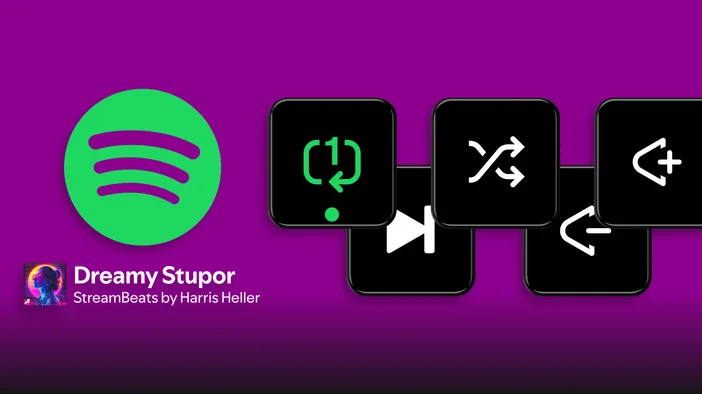
Spotify actions on Stream Deck
Spotify actions on Stream Deck give you simple, reliable music control that fits naturally into your setup.
Once Spotify is added to your Stream Deck layout, playback and volume controls can live on keys or dials, giving you direct access without opening the Spotify app or leaving full-screen views.
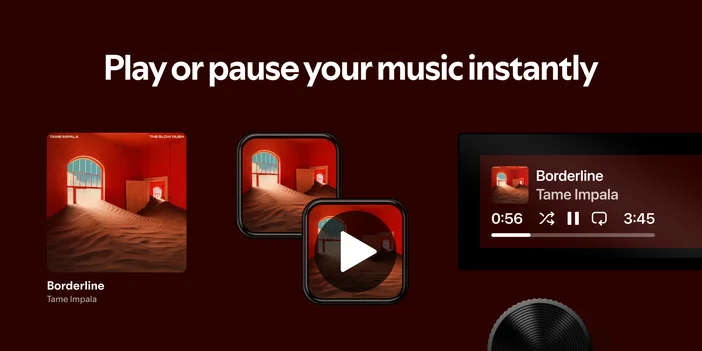
Playback Control
Play, pause, or toggle playback on your current Spotify device.
This is useful when you need to mute music quickly, skip a track, or pause playback while talking on mic. One press handles it without pulling attention away from what you’re doing.
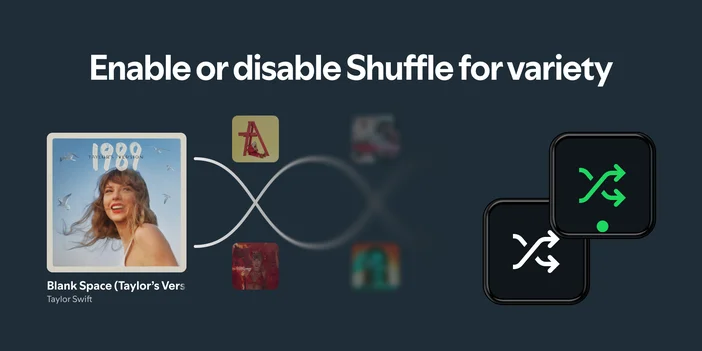
Shuffle
Turn shuffle mode on or off with a single action.
Shuffle works well during long sessions when you want variety, and it’s just as easy to disable when you want tracks to play in order.
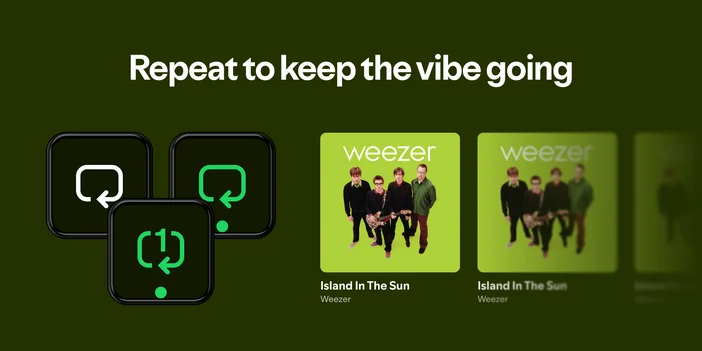
Repeat
Change repeat mode between off, playlist, or single track.
This is useful when you want music to keep playing in the background or loop a specific track without opening Spotify.
Volume
Adjust Spotify volume using a custom step size.
You can fine-tune volume changes for headphones or use larger steps for speakers, keeping volume control consistent with how you listen.
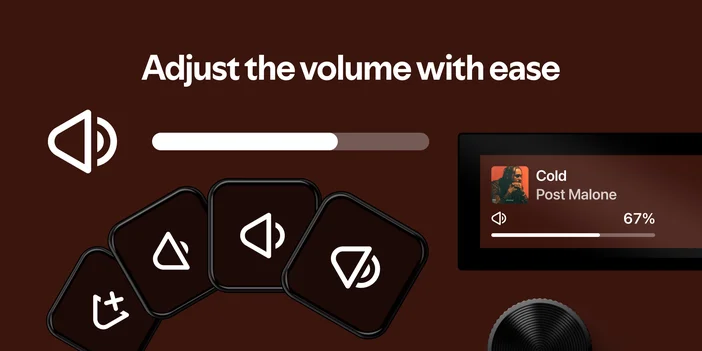
Dial controls for Spotify
On Stream Deck + and GALLEON 100 SD, Spotify can be controlled using the Multimedia action on a dial.
Multimedia Action
- Press to play or pause.
- Rotate to skip tracks or adjust volume.
Dials feel especially intuitive for music control, letting you make quick changes without tapping multiple keys or breaking focus.
Real-time feedback on keys
Stream Deck keys update in real time to show playback status, shuffle and repeat modes, and what’s currently playing.
This is useful when Spotify is running on another monitor or in the background and you still want visual confirmation at a glance.
Works with your current playback device
Spotify controls follow whichever device is currently playing music on your account. This includes playback from your computer or phone, even when audio is being sent to another speaker using Spotify Connect.
There’s no need to switch devices manually. Stream Deck stays in sync with your active playback automatically.
Requirements
To control Spotify with Stream Deck, the Spotify app needs to be installed and running.
Stream Deck follows your active Spotify session, so music must be playing from the Spotify app on your computer or phone. Once playback is active, Stream Deck stays in sync and lets you manage music from your keys or dials.
If you’re using Spotify Connect to play music on another speaker, Stream Deck will continue to control playback as long as Spotify is running on your computer.
Get started
The Spotify plugin is available for free on Elgato Marketplace and works on macOS and Windows.
Once added, you can customize keys, dials, and icons to match your setup and keep music control exactly where you want it.
PRODUCTS IN ARTICLE