If you've ever watched a streamer on Twitch or a let's play on YouTube and wondered how they get their console gameplay onto a computer screen with overlays, alerts, and all the production value that goes with it, the answer is a capture card. A capture card is a device that sits between your console and your PC. It takes the video and audio signal from your PlayStation, Xbox, or Nintendo Switch and sends it to your computer, where you can record it, stream it live, or do both at the same time.
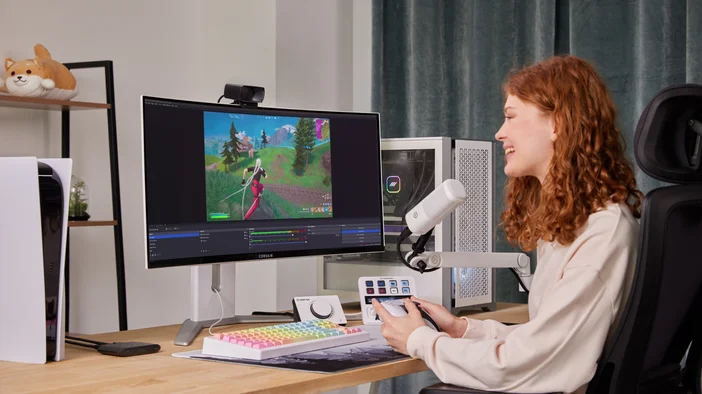
Why Would You Want One?
The short answer: you want to share your gameplay, and you want control over how it looks.
Maybe you've been watching streamers for years and want to try it yourself. Maybe you want to start a YouTube channel with full-length game recordings. Maybe you just want to save your best sessions without worrying about running out of storage on your console.
Remember when people used to prop a phone up in front of their TV to record gameplay? A capture card makes that a distant memory. Instead of filming a screen, you're capturing the signal directly, so your recordings look exactly like what you see when you sit down to play. Clean, sharp, and exactly as the game was meant to be seen.
What You Can Actually Do With One
Record as long as you want.
Console storage fills up fast, and built-in recording tools are often limited. With a capture card and a PC, you can record entire sessions, full playthroughs, or marathon streams without interruption.
Record and Stream with full customization.
Software like OBS Studio lets you add overlays, alerts, a webcam, a chat box, scene transitions, and more. If you're new to capture cards, Elgato Studio is a good starting point. It's built specifically for Elgato hardware, with real-time HDMI diagnostics, detailed input readouts, and a clean interface that makes setup straightforward. Elgato Marketplace has a wide range of overlay packs to help you get there faster.
Play on a high-end display while still capturing clean footage.
Some capture cards support high-resolution passthrough, so your TV gets the full high-refresh-rate signal from your console while the card captures a clean 4K version for recording or streaming.
Connect a second PC for smoother performance.
Running your game and your streaming software on the same machine puts a lot of pressure on your hardware. A capture card takes the streaming workload off your gaming PC entirely by sending the raw video signal to a second machine that handles all the encoding. Your game runs on one PC, your stream runs on the other, and neither has to share resources.
Why Built-In Console Features Fall Short
Most modern consoles let you record clips or stream directly, which sounds convenient until you run into the walls.
PlayStation 5 can broadcast to Twitch or YouTube, but you're working within Sony's interface the whole time. There's no room for custom overlays, branded graphics, or the kind of alerts and widgets that make a stream feel like yours.
Nintendo Switch 2 can capture gameplay footage, but you're limited to 30 seconds at a time. Fine for clipping a highlight, but not much use if you want to run a full session or build a let's play series.
These features cover the basics. Once you want to go beyond them, they start to feel like they're holding you back rather than helping you out.
How a Capture Card Works
Here is what a typical capture card setup looks like. An HDMI cable carries your console's signal into the capture card. A second HDMI cable sends that signal back out to your TV, so you're still playing on your screen with no added delay. A USB cable connects the capture card to your PC, where your recording or streaming software picks it up as a video source.
From your console's perspective, nothing is different. You're playing your game the same way you always have. The capture card is just sitting in the middle, quietly passing a copy of that signal to your PC in the background.
The result speaks for itself. Here's Mario Kart World captured in 4K with Game Capture 4K Pro.
Do You Need a Capture Card If You're on a Single PC?
If you're playing and recording on the same PC, a capture card won't do anything for you. Software like OBS Studio captures your screen directly and handles encoding, which is the process of converting your gameplay into a video file or live stream, without any additional hardware. Your PC's CPU or GPU handles that work, and modern computers do it well. Adding a capture card to that setup doesn't improve quality or offload anything meaningful.
Where things get more interesting is a dual PC setup. Encoding video while playing a demanding game asks a lot from your hardware at once, and you'll often feel it. Frame drops, stream stuttering, or general sluggishness during heavy scenes are all signs your machine is being stretched in two directions at the same time. A capture card lets you send the raw video signal from your gaming PC to a dedicated streaming PC, which handles all the encoding on its own. Your gaming PC stays focused on the game. Your streaming PC stays focused on the stream. Both run better as a result.
Outside of that, if you're a PC gamer playing and streaming from the same machine, a capture card isn't the answer. It's a tool built for console workflows and dual PC setups.
Which Elgato Capture Card Is Right for You
Elgato makes capture cards for different kinds of setups, from first-time streamers to high-end production rigs. Here's a quick breakdown to help you find the right one.
A good starting point if you're new to capture cards and want to get your console footage onto a PC.
- Captures up to 1080p60
- Supports 1080p120 passthrough for high-refresh gameplay
- Works with PS5, Xbox Series X/S, Nintendo Switch 2, and PC
- Simple setup, works with OBS Studio and Elgato Studio
- Works on macOS, Windows, and iPadOS
Best for: First-time streamers and anyone recording casual sessions.
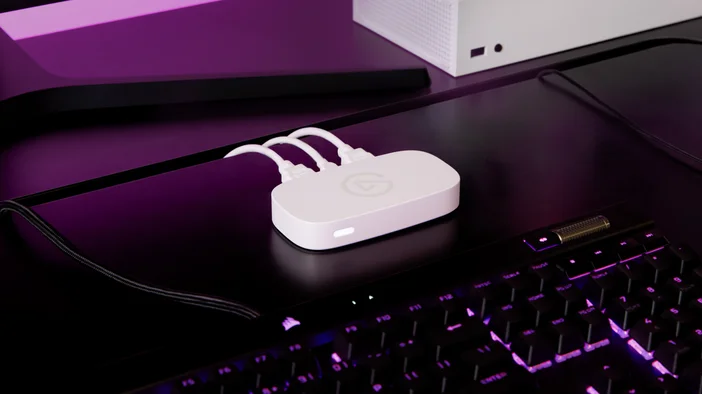
A step up for people who want 4K capture and a bit more flexibility without going to the top of the lineup.
- Captures up to 4K60
- 1440p120 capture for high-refresh gameplay
- Passthrough up to 4K60
- 1080p60 HDR capture
- Works on macOS, Windows, and iPadOS
Best for: Console players who want sharp recordings and plan to stream at high quality.
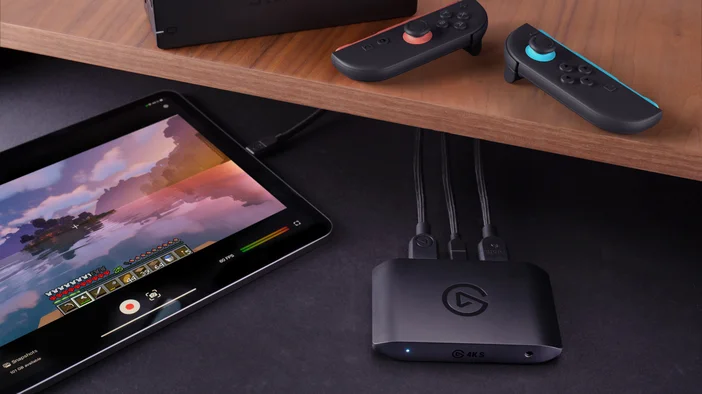
For setups where you want both high-performance passthrough and high-quality capture running at the same time.
- Captures up to 4K144
- Passthrough up to 4K144 and 1440p240
- HDMI 2.1 for next-gen console support
- 4K30 HDR capture
- Works on macOS, Windows, and iPadOS
Best for: Streamers on high-refresh-rate displays who don't want to compromise on passthrough quality while recording.
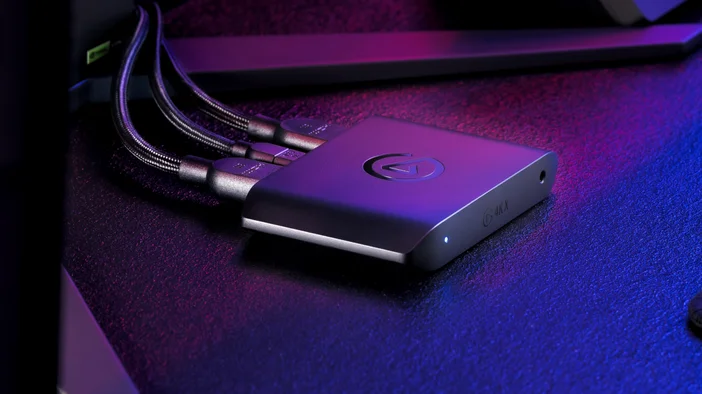
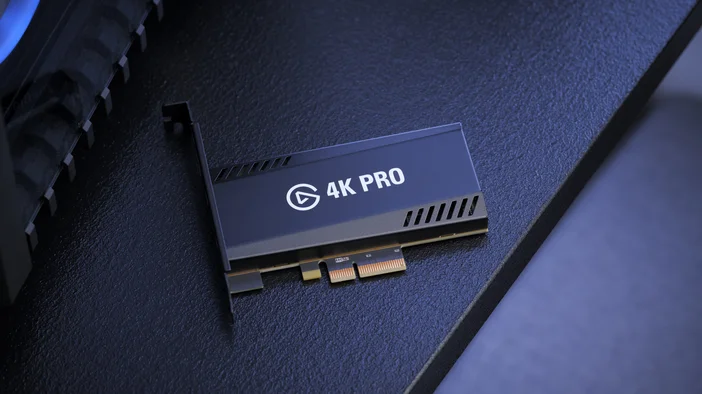
For desktop setups where you want the highest-quality passthrough available alongside clean 4K capture.
- Passthrough up to 8K60 HDR with VRR
- Captures up to 4K60 (HDR capture on Windows only)
- Also captures 1080p240 for high-framerate PC gameplay
- Internal PCIe card (requires available PCIe x4 slot)
- Windows only
Best for: PC gamers with high-end display setups who want the most capable passthrough in the lineup and don't need portability
Ready to Get Started?
A capture card is the bridge between your console and your PC, giving you the freedom to record as long as you want, stream with full customization, and produce content that looks exactly how you intend it to. Built-in console tools get you so far, but once you want more control over your recordings and streams, a capture card is how you get there.
Not sure which one fits your setup? Use our capture card selector to get a recommendation based on your setup and goals, or watch the video below for a full breakdown of every option in the lineup.
PRODUCTS IN ARTICLE